



Using the Web Interface
Post.Office accounts are managed through a WWW-based interface. Mailing list-related activities can be executed through this interface as well. Post.Office also includes an e-mail interface to all end user mailing list operations. The descriptions in most of this manual include information for those users who prefer to use the web interface, since it’s the easier and more popular of the two. Instructions for using the list manager e-mail interface is provided in Section 4.8 of this manual.
The first step in getting to the Post.Office web interface is getting the URL (that is, the web address) of the system where Post.Office is running. If you received an e-mail message that confirmed that an account was created for you in Post.Office, it included the appropriate URL. Enter this address in your web browser.
If you didn’t get a confirmation message (which some Postmasters prefer not to send), or if you deleted it without noting the web address for your Post.Office server, you’ll need to contact your Postmaster or another user who knows this information.
When you get your web browser pointed to the right address, you’ll see the Post.Office Authentication Information Form. This login screen requires you to enter your e-mail address and password before letting you poke around the system.
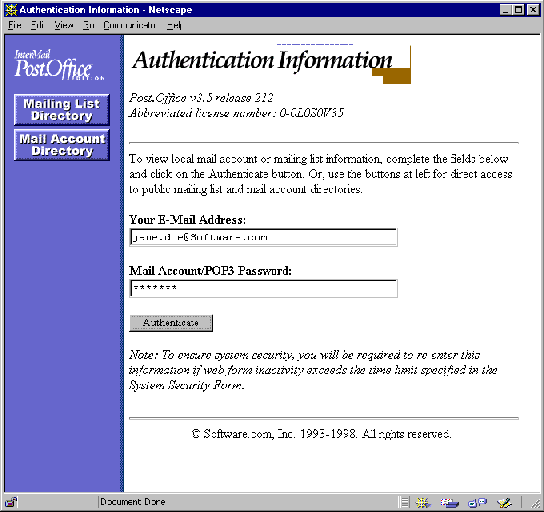
Figure 2-1:
Authentication Information Form
Once you’ve filled in you e-mail address
and password, click the Authenticate button to log in to Post.Office.
Before we get any further, you should know a couple of things about the Post.Office user interface. First, you should understand the difference between the two types of web pages in the interface: menus and forms.
Menus display lists of actions which can be performed (such as changing your password), or objects which can be viewed, edited, or acted on in some way (such as mailing lists). You generally can’t "do" anything in a menu, but you can use a menu to get to a form for carrying out whatever task you have in mind. The navigation buttons Account Info, Mailing Lists, and Help at the left of all menus allow you to easily move between the available top-level menus.
The Account Management menu,
which is the first thing you see after logging in from the Authentication Information
Form, is an example of a menu. Like other menus, it shows you a set of links
to forms that you can use to carry out specific operations. See
Chapter 2 for a description of the options available from this menu.
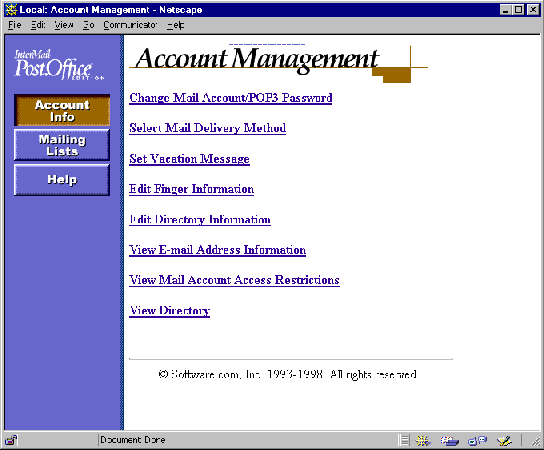
Figure 2-2:
Account Management menu
Like the Account Management menu above, most menus display some predefined set of options. However, other menus – such as the list of available mailing lists – display lists of objects that may number in the tens of thousands. To avoid making you wait forever to see the entire list of objects, these menus instead break it up into easily digestible chunks of up to 50 objects. The following illustration of the Mailing List Directory menu demonstrates this type of menu:
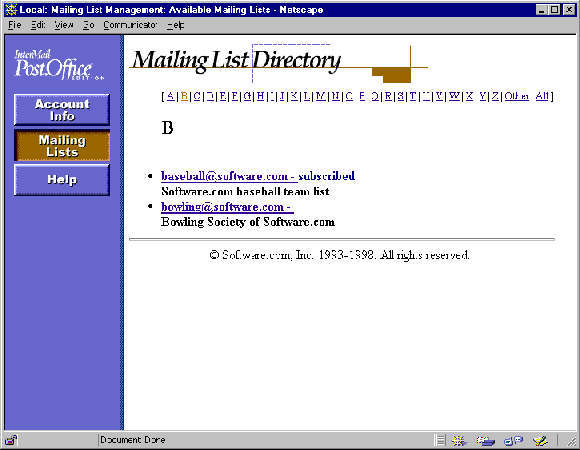
Figure 2-3:
Mailing Lists Directory menu
Notice that individual A-Z links at the top of the menu display area allow you to skip to other entries in the alphabetical list (i.e., click on the B link to view a list of mailing lists whose addresses begin with the letter B). When more than 50 entries exist for the current listing, Previous and Next links (not shown in this illustration) are available to move forward or backward in the alphabetical list in groups of 50. The All link at the top of the menu, which displays the entire list of objects, is the only option that causes more than 50 entries to be shown at a time.
Forms contain the actual data related to an object, such as your account. Most of the data displayed in a form can be modified and saved, and practically all of the actions that you perform in the interface take place in forms. Forms are distinguished by the lack of menu navigation buttons, as well as by the appearance of execution buttons that allow you to save or discard your changes.
Forms are typically invoked from menus. The Mail Account Password Form, for example, is invoked when you click the link Change Mail Account/POP3 Password on the Account Management menu shown in Figure 2-2. Like other forms, it allows you to modify some specific information and save the changes by submitting the form.
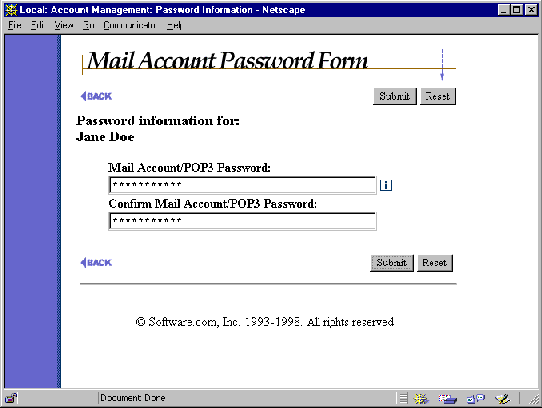
Figure 2-4:
Mail Account Password Form
Both the Account Management menu and Mail Account Password Form are described in greater detail in Chapter 3.
Along with the Account Management menu mentioned in the previous section, there are two other top-level menus available to you: the Mailing List Management menu, and the Online Documentation (Help) menu. These menus can be displayed at any time by clicking on the appropriate menu button at the left side of the screen. You can switch from menu to menu at any time by clicking one of these menu buttons.
The Post.Office web interface is like a web site,
which means that you’ll be maneuvering through a series of pages that don’t
let you see everything at once. Unfortunately, this may get you lost if you
don’t remember how you happened to get to a certain form. For just this
reason, we’ve given you a  link on every form that lets you move up a step or two in
the form/menu hierarchy. The
link on every form that lets you move up a step or two in
the form/menu hierarchy. The  link is visible in Figure 2-4 in the top left of
the form. Unlike the browser’s built-in "back" button, which
may get you to a form with out-of-date information, this option returns you
to the appropriate form or menu with all data updated for whatever modifications
you’ve been making.
link is visible in Figure 2-4 in the top left of
the form. Unlike the browser’s built-in "back" button, which
may get you to a form with out-of-date information, this option returns you
to the appropriate form or menu with all data updated for whatever modifications
you’ve been making.
Along with the  link, most forms also include the execution buttons Submit and Reset.
Clicking on the Submit button commits whatever changes you have made to data
on the form, and typically closes the form and returns you to the top-level
menu (Account Management or Mailing List Management). The Reset button allows
you to cancel your changes by resetting all form fields to their previous values.
link, most forms also include the execution buttons Submit and Reset.
Clicking on the Submit button commits whatever changes you have made to data
on the form, and typically closes the form and returns you to the top-level
menu (Account Management or Mailing List Management). The Reset button allows
you to cancel your changes by resetting all form fields to their previous values.
There are several ways to get information if you need help with something you’re doing in Post.Office. First, there is an online version of this manual, as well as the manual intended for mailing list managers, available to you in the web interface. Second, there is field-specific online help available in most forms. Finally, if you need site-specific information – such as the web address for logging in to Post.Office, or your mail password – you can contact the Postmaster who administers the system.
To view the available online
documentation, click on the Help
menu button on the left side of any menu (if you’re at a form that doesn’t
show the menu buttons, use the  link to move up the interface hierarchy until you see them). The documents available
from this menu are the List Owner’s Guide and the End
User’s Guide (an electronic version of this very manual).
link to move up the interface hierarchy until you see them). The documents available
from this menu are the List Owner’s Guide and the End
User’s Guide (an electronic version of this very manual).
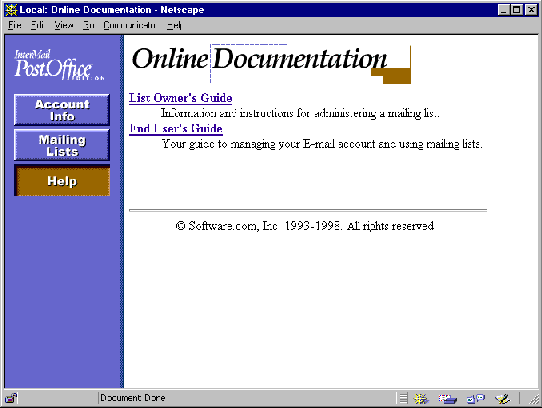
Figure 2-5:
Online Documentation menu
Both of the documents available from this menu contain a table of contents, which you can search if your browser supports word searching. Click on a link in the table of contents to view the corresponding information.
Most forms include links to online help, which can be handy if you don’t understand what a certain field is for. For example, if you are setting your mail delivery options and have no idea what the Program Delivery option is all about, you can click on the help link for additional information. The help link is the graphic to the right of form fields that looks like this:
When all else fails, you can always ask for help from the Postmaster, the administrator of your Post.Office system. The Postmaster can be reached by addressing mail to:
postmaster@host.domain
For example, if your e-mail address is
john.doe@sparky.software.com
then you would send your questions for the Postmaster to
postmaster@sparky.software.com
This section describes some common login problems, along with some ideas for dealing with them.
Make sure you typed exactly they way you did when you set your password, it is case sensitive.
As a security measure, Post.Office will time you out of the web interface if there is no activity for a certain period of time. The Postmaster can set the specific number of minutes for this time-out period. This prevents others users from making modifications to your account if you log into the interface and then leave for the day, with your web browser still running. If you are bounced back to the Authentication Information Form, simply log in again and continue your activities.
When attempting to access the Post.Office web interface, you may find that entering the URL to the correct server is getting you to web pages other than the Authentication Information Form shown in Figure 2-1. This occurs when the same computer that is being used as a mail server is also being used as a WWW server; instead of connecting to Post.Office, you’re connecting to the web site hosted by this system. By default Post.Office runs the www server on port 9090.
If you received a greeting message when your account was created, it should contain the appropriate URL for logging in to the Post.Office web interface. If you didn’t get a greeting message, or you unwisely deleted it and no longer have a copy, you should contact your Postmaster to get the correct URL.
If solving the problem just isn’t enough for you, and you need to know why you’re solving the problem, what follows is a description of the situation.
This gets into the pretty technical areas of client/server computing, but here’s what’s going on: Server machines use "ports" to match server processes (such as a web server) to the client programs (like your browser) that will be interacting with them. Ports are simply numbers used to identify a process and distinguish it from the other thousands of processes that may also be running on the same computer. Whether you realize it or not, every time you ask a program on your client system to interact with a server machine, you are asking to use a specific port; otherwise, the server would have no idea which of its many available services you were trying to use.
Web servers generally use port 80 of the server system, so this is where your web browser is looking unless you say otherwise. So if you ask your web browser to go to the address
http://sparky.software.com
what you’re really asking is to connect to port 80 of this computer and interact with whatever server process it finds there. Port numbers can be specified in URLs by using the ":#" notation at the end of the address, so the above address is equivalent to:
http://sparky.software.com:80
So far so good. Meanwhile, Post.Office includes its own web server for its web-based interface, and like other web servers, it will run on port 80 by default. However, if the server system on which the mail server is installed is already running a web server, the Post.Office web server process must run on a different port number (otherwise, it would prevent all access to the web site). The default in these cases is port 81, but the administrator who installs Post.Office may choose any unused port on the system.
Therefore, if the server sparky.software.com is running both a standard web server (port 80) and the Post.Office web server (on port 9090), you would point your browser to
http://sparky.software.com
or
http://sparky.software.com:80
to access the web site, and
http://sparky.software.com:9090
to access the Post.Office web interface.
You still need to contact the Postmaster for the complete web address (including port number) for logging in to the Post.Office web interface. But now you know why.
Post.Office ©Software.com, Inc. 1994-1998

