



Managing Your Account
Although you didn’t create your e-mail account, there are many attributes of your account that you can set yourself, quickly and painlessly, in Post.Office. Among these are your mail password, a vacation message, finger information, and rules for how you want your mail delivered. All of these things are simple to set, simple to change, and while you won’t be setting these things every day, we’ve tried to streamline the process to let you do it as quickly as possible.
As we saw in Chapter 2, logging in to Post.Office automatically takes you to the Account Management menu. From this menu, you can access forms for all of the operations related to managing your account. To refresh your memory, here’s what the Account Management menu looks like:
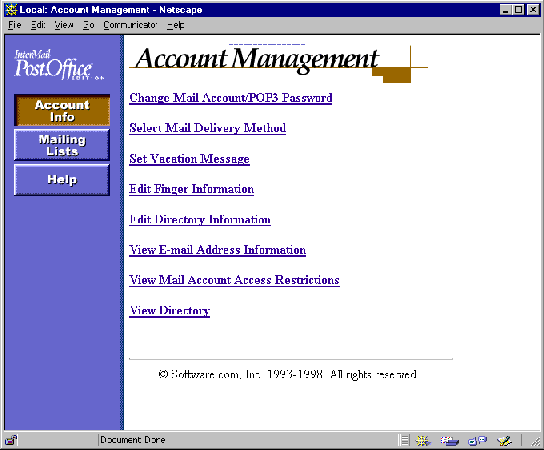
Figure 3-1:
Account Management menu
This menu is also displayed when you select the Account Info menu button in the left column of the screen.
When using Post.Office, you may not actually have all of the account management options shown in this menu illustration. The Postmaster has the option of disabling any or all of these menu selections to "hide" the corresponding functionality from end users. This chapter describes all of the available account management options, so some sections may not apply to you. Sorry about that, but as the mail administrator, the Postmaster can (and should) have final say over the way the system works.
If you are logging into Post.Office for the first time, you may want to check the e-mail addresses that have been set up for your account by the Postmaster. Although only one address is required for your account, you can have any number of additional addresses for which you can receive mail. These additional addresses are useful in the cases of common address misspellings, the need for multiple addressing formats, or the need to receive e-mail in multiple domains.
For example, if you have the primary e-mail address of john.doe@software.com, you might also have the following additional addresses:
jon.doe@software.com

john.doe@sparky.software.com

john_doe@software.com
A message sent to any of the above addresses will be delivered to you exactly as if it had been sent to your primary account address.
Although you can’t add to or modify your list of e-mail addresses, you can still look at this information in read-only format. To view your current e-mail addresses, click on the View E-Mail Address Information link on the Account Management menu. An E-Mail Address Information Form like the following is displayed.

Figure 3-2:
E-mail Address Information Form
Although all of these e-mail addresses are valid for your account, one address is given the title of your Primary E-mail Address. This is the address that should be specified as the return address in your mail client.
When you have finished reviewing your address
information, click the  link to return to the Account Management menu.
Users can change their mail account passwords in Post.Office without the assistance of the Postmaster. To change your password, click on the Change Mail Account/POP3/IMAP Password link on the Account Management menu. This displays the Mail Account Password form.
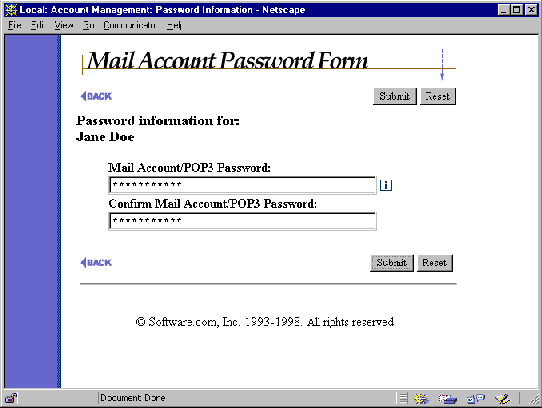
Figure 3-3:
Mail Account Password Form
Enter your new password in the Mail Account/POP3/IMAP Password field, and re-enter it in the field below for confirmation. Click the Submit button to commit the change to your account, or click Reset to revert to the previous password value.
Remember that the Post.Office account login password
is the same thing as the POP3 and IMAP login password. This
means that modifying your password in Post.Office requires you to use the new
password when logging in to your mail client. If your mail client uses a stored
password, don’t forget to also change this stored password to match the
new value.
There’s more than one way to receive e-mail; in fact, Post.Office gives you up to four different ways, which can be mixed and matched at your request. The options include ordinary POP3 delivery (i.e., logging in with your mail client and retrieving your mail), forwarding mail, and delivery of mail to a program.
To view and/or change your mail delivery method, click on the Select Mail Delivery Method link on the Account Management menu. This displays the Mail Delivery Method Form.

Figure 3-4: Mail Delivery Method Form
Each of these delivery methods is reasonably
different, and each has its uses. The following sections get into greater detail
about each one. Once you have decided how you want your mail delivered, enable
the appropriate options, fill in the appropriate fields, and click the Submit
button. If you make a mistake and want to start over, click Reset.
The most common method of mail delivery is POP3 (Post Office Protocol 3) delivery and IMAP (Internet Message Access Protocol). With POP3 delivery, your mail is stored on the server system until you log in with your mail client and ask for it; the mail then appears in your mail client, where you peruse it at your convenience. Once you "pick up" the mail from your mailbox, the messages may or may not be removed from the server (most mail clients give you an option to leave your mail on the server, in case you want to keep extra copies). IMAP keeps the mail on the server which makes it useful if you access your mail from multiple locations.
To get POP3 delivery, you must have a POP3-compatible
mail client (practically all mail clients are POP3-compatible), and you must
supply a username and password when attempting to get mail from the server.
The same goes for IMAP. Your POP3/IMAP login name is visible
on the Mail Delivery Method Form, but you do not have access to change it.
Your POP3 password is identical to your Post.Office password, and can be set in the Mail Account Password Form shown in Section 3.3. Your mail client may give you the option of storing this name and password, or may require you to enter it each time you launch the mail client.
To select POP3/IMAP delivery, enable the check box for this option in the Mail Delivery Method Form.
Be aware that selecting POP3/IMAP delivery subjects you to certain limits as imposed by the Postmaster. Because POP3/IMAP delivery requires the server to store your mail for you, your mailbox will grow in size as you receive messages. The Postmaster has the option of setting a limit on how large that mailbox can grow, and if you reach that limit, Post.Office will stop accepting mail for you. For this reason, you really should choose to remove messages from the server as you receive them.
If your account is approaching its storage limit, you will be notified of this fact with a friendly warning message. If you do go over your storage limit, any new e-mail sent to your account will be returned to sender with a note that explains why it was rejected. This may sound harsh, but if your hard drive were cluttered with gigabytes of someone else’s mail, you’d probably appreciate this feature.
If POP3/IMAP delivery is enabled for your account, the mailbox size limit is shown in the Mail Delivery Method Form, along with the current size of your POP3/IMAP mailbox. If you choose to keep messages on the server, keep an eye on your mailbox size so that you don’t hit your limit and become unreachable (obviously an embarrassing faux pas in the information age).
We’ve all filled out change of address cards shortly before moving to a new residence so that the postal service can faithfully forward our mail to our new location. Forwarding e-mail with Post.Office works exactly the same way, although perhaps with greater reliability.
To request mail forwarding, enter the e-mail address(es) to which you want your mail forwarded in the Forwarding field. There is no limit to the number of forwarding addresses for your account. Whenever a message is received for you by Post.Office, it will be forwarded to every address that you put here. This option is not exclusive, so you can get POP3 delivery and also forward messages to another account, which can be useful if you pick up mail from two different mail providers (from work and home, for instance).
To disable mail forwarding, delete the unwanted address(es) from this field. As with other forms, these changes are saved only when the form is submitted.
For the vast majority of users, having e-mail delivered to a mailbox or forwarded to another Internet e-mail address is sufficient. However, there are situations for which advanced users need e-mail processed in some special way, such as with the creation of a message archive, a sorting system, or a faxing mechanism. Post.Office offers the ability to deliver mail to external programs that can carry out these additional tasks.
By setting up Program Delivery for an account, a custom program will be run whenever mail arrives for the account. The program is started by Post.Office and the mail is handed over to the program, which reads the contents of the message from standard input. The program then does whatever it was designed to do to make life easier or more rewarding.
Although you have access to enable program delivery on the Mail Delivery Form and set the required values for this method, the program must first be copied to a trusted directory on the server system and set specific access rights. Other server access concerns and issues apply, so you must discuss with your Postmaster and system administrator before you can successfully use program delivery. Contact your Postmaster for more information.
Unless you’re connected to your e-mail system seven days a week, 52 weeks a year, every year of your life, there will be times when others send you e-mail that you will be unable to read or reply to because you simply aren’t there. During these times, you will find it useful to set a vacation message for your e-mail account, which lets those who send you e-mail know that you won’t be getting back to them anytime today.
In Post.Office, all users with mail accounts can enable and set their own vacation message. To set and/or change your vacation message, click on the Set Vacation Message link on the Account Management menu. This displays the Vacation Message Form.
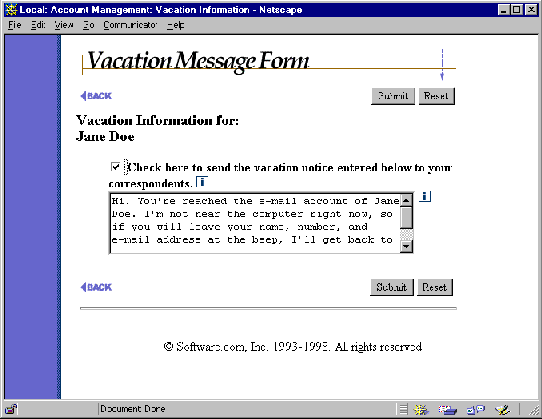
Figure 3-5:
Vacation Message Form
To turn on the vacation message feature, enable the check box at the top of the form. You can create or modify your vacation message by editing the contents of the text box.
When your vacation message is enabled, anyone who sends email to you immediately receives a reply that contains the text specified in the Vacation Message Form. However, this automatic reply is limited to one per person; if someone sends 50 messages to you while you’re still on vacation, they will only receive your vacation message in reply to their first message. This prevents your friends and coworkers from having to read about your fabulous trip to Bora Bora every time they send you e-mail.
What you put in your vacation message is entirely up to you; the field has no limit and can contain any printable characters. It is considered standard practice (not to mention polite) to include the approximate date of your return, and someone to contact in your absence if necessary, but you can keep them guessing if you want.
The finger directory service lets you find information about other people with e-mail accounts. This information can be anything you want people to know, such as your postal mailing address and favorite quote. When someone "fingers" your e-mail address, your finger information will be returned to them (provided the request is allowed by the Finger Access restrictions, described below).
To set and/or change your finger information, click on the Edit Finger Information link on the Account Management menu. This displays the Finger Information Form.

Figure 3-6:
Finger Information Form
You may enter as many lines as you need in this field, but keep in mind that when a user requests this information their display may only show the last 24 lines or so (the rest will scroll off the top of the screen).
At the bottom of this form, the finger access restrictions are displayed. Entries in this field define which users can get your finger information. Some organizations use this field to limit finger access to within the organization to employ the finger utility as an in-house information distribution tool.
See the following section on account access restrictions for information on the format of the finger access restrictions field.
As a security measure, the Postmaster can set access rules for your account. Although you cannot modify these restrictions, you can view them in the Mail Account Access Form. To display this form, click on the View Mail Account Access Restrictions link on the Account Management menu.
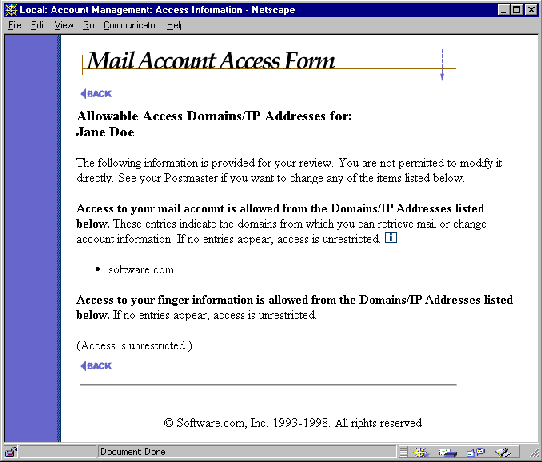
Figure 3-7:
Mail Account Access Form
The following categories of access restrictions are displayed on this form:
The following rules are used to determine whether a user has access to the appropriate service described above:
For example, if the list of General Access Restrictions for your account contains
software.com

123.45.6.78

222.33.44.0
then you can pick up your mail from any machine in the software.com domain. It can also be retrieved from the machine with IP address 123.45.6.78, or from any machine with an IP address in the class-C network 222.33.44 (the 0 acts as a wildcard).
Once you’ve set up your Post.Office account exactly the way the want it, you’ll probably want to get down to the business of sending e-mail to other people. However, just like your letters and post cards, your electronic correspondence can’t be successfully delivered if you don’t know the address of the recipient. This is where the Post.Office Mail Account Directory can help.
As mentioned in Chapter 1, the Internet does not yet have a phonebook-style directory service for looking up a user’s e-mail address. However, Post.Office has it’s own mail directory which gives the names and e-mail addresses of accounts in the local system. Depending on your mail provider, this may be considered sensitive information, so not all sites will offer the mail directory. But if your site does use it, the mail directory can be a very convenient method of obtaining e-mail addresses for friends or coworkers.
To access the mail directory, click on the View Mail Account Directory link on the Account Management menu.
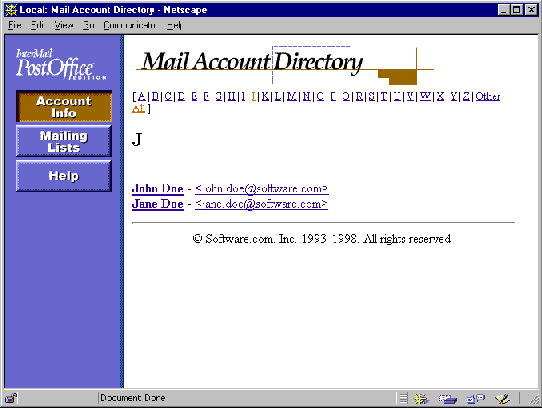
Figure 3-8:
Mail Account Directory
The accounts shown in this mail directory are those that either the Postmaster or the owners of the accounts have decided to list here. A second mail directory is available to users who don’t have accounts in Post.Office, and who therefore cannot log in via the Authentication Information Form. Accounts may be listed in just the local mail directory, in both the local and remote directories, or in neither.
The name of each account listed in this directory is a link to an optional home page for the user. This home page location can be set for your account in the Directory Info Form, which is described in the next section.
Once you’re familiar with the Mail Account Directory feature, you may want to set some directory options for your own account. To do so, click on the Set Directory Information link on the Account Management menu, which displays the Directory Info Form.
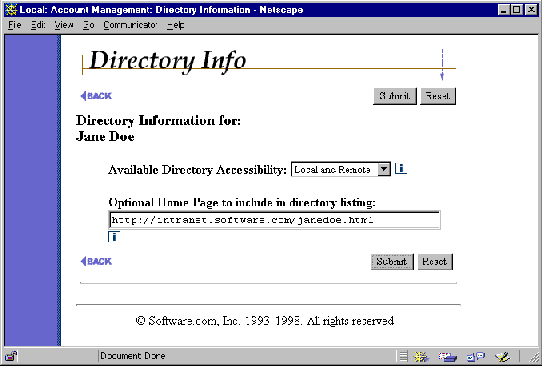
Figure 3-9:
Directory Info Form
The Directory Listing field determines who can see your e-mail address in the Mail Account Directory. The three listing options that you can choose from are as follows:
• Local and Remote. This listing option allows your name and e-mail address to be visible in the Mail Account Directory menus seen by both local and remote users (that is, folks with and without Post.Office accounts on this server). This makes it easier for people to send messages to you by allowing them to find your e-mail address.
• Local only. This listing option is similar to the Local and Remote option above, but restricts the visibility of your account to only local users (folks like you who have Post.Office accounts on this system). When you use this listing, users who can’t log into the Authentication Information Form cannot access your name and e-mail address.
• Unlisted. This option removes your account from any and all Mail Account Directory listings. This is obviously your listing of choice if you don’t want anyone to know about your e-mail account.
Meanwhile, the Optional Home Page field allows you to specify a web page for yourself. If a home page is defined here for your account, users will be able to access your home page from the Mail Account Directory. When specifying a home page in this field, be sure to include the full URL, including the protocol identifier (http, ftp, etc.). For example:
http://www.tenon.com/

http://home.someisp.net/john_doe/home.html
Post.Office ©Software.com, Inc. 1994-1998
