Mailing Lists
In addition to the management of e-mail accounts, Post.Office includes a mailing list manager. Mailing lists are groups of users who share information on a common topic, and allow messages to be distributed to all of the list’s subscribers by submitting a message to a single address. When a message is sent to the list address, it is forwarded to all subscribers of the list, who each receive a copy of the original message.
Mailing lists are similar to bulletin board services (BBS) or the Internet’s USENET newsgroups, except that they use the medium of e-mail. A mailing list can be used for something as important as a list of all your company’s employees, or as trivial as a television sitcom fan club.
A typical application for a mailing list is the creation of an employee list. For example, the MegaHuge, Inc. company might have a mailing list that includes all employees of the company, and which has the e-mail address all@megahuge.com. All employees of MegaHuge receive messages that are sent to this address.
Mailing lists are administered by one or more list owners, who are responsible for the operation of the list. List owners can set a wide range of subscription and posting policies, and have the option of moderating all messages submitted to the list.
This chapter provides a description of the areas of the Post.Office mailing list manager that are available to end users. Several operations of the mailing list manager – such as creating new mailing lists, assigning list owners, and setting a maximum subscriber limit – are reserved for the Postmaster. However, each user with a mail account on Post.Office can view descriptions of the available mailing lists, request subscription to one or more lists, request unsubscription from one or more lists, and manage the mailing lists that he or she owns.
The majority of this chapter describes mailing list operations in the Post.Office web interface. An e-mail interface, which is similar to the popular Majordomo mailing list manager program, is also available and is described in Section 4.8. With the exception of defining the attributes of an owned mailing list, all operations that can be performed in the web interface can be done via this e-mail interface.
To get to the mailing list manager interface, log in to Post.Office as described in Chapter 2. Initially, you will see the Account Management menu. Click on the navigation button at the left labeled Mailing Lists to display the Mailing List Management menu.
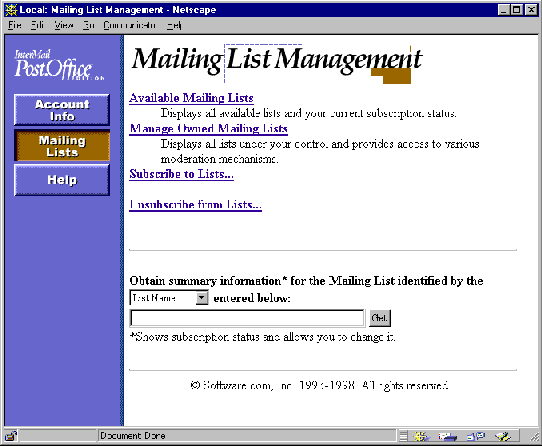
Figure 4-1: Mailing List Management menu
The menu contains four links – Available Mailing Lists, Manage Owned Mailing Lists, Subscribe to Lists, and Unsubscribe from Lists – as well as a text field and execution button. The text field allows you to search for information about a specific mailing list without needing to search through a list of every mailing list in the system, which can save you a lot of time if there is a large number of mailing lists.
The forms and menus displayed from the Mailing Lists Management menu are described in the following sections.
To see which mailing lists are available to you on your mail server, click on the Available Mailing Lists link on the Mailing List Management menu. This displays a list of all of the mailing lists available to you, along with a flag that marks the ones to which you are already subscribed.
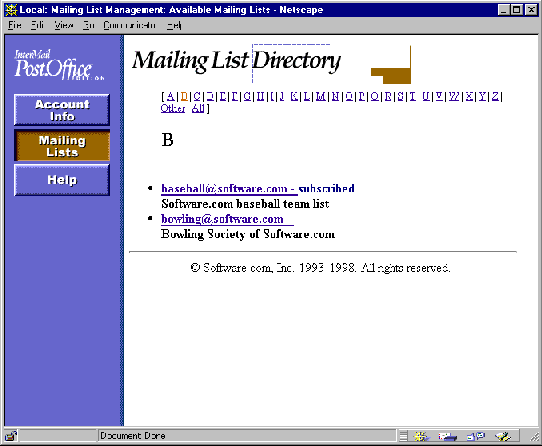
Figure 4-2: Mailing List Directory menu
For each mailing list, an address and a short description are displayed in this menu. If you are currently subscribed to any of these lists, they will be marked by the word subscribed to the right of the list address. Each list address is a link to a Mailing List Summary Form, which provides detailed information for the list and also lets you subscribe to (or unsubscribe from) the mailing list.
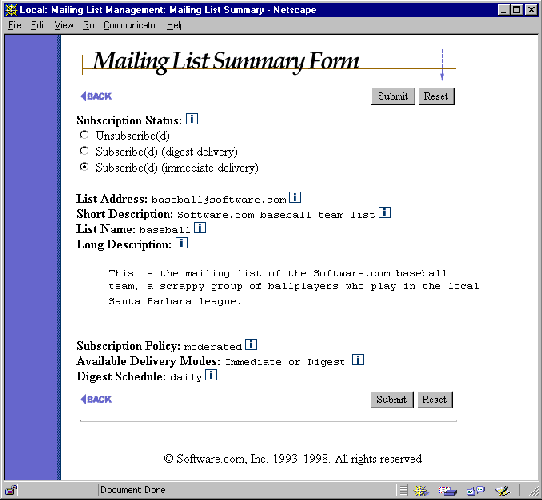
Figure 4-3: Mailing List Summary Form
The following information is displayed in the Mailing List Summary Form:
The basic thing that people do with mailing lists is subscribe to them. This allows computer users such as yourself to receive messages and information on a particular topic from like-minded people (well, people who at least share your interest in the mailing list).
There are several different ways to subscribe to a mailing list in Post.Office. In addition to three different routes to subscription in the web interface, you can use an e-mail interface, which can actually be simpler than using the web interface if you know which list you want to join. This e-mail interface is described in Section 4.8.
'Subscribing' vs. 'Requesting Subscription'
Before jumping in and trying to subscribe to one or more mailing lists, be aware that what you are doing here is not actually subscribing to a list, but requesting to subscribe. The two are not the same thing.
If the subscription policy for a list is Open, then your request will be immediately approved and you’ll be added to the subscriber list. However, if the owner of the mailing list has set the list’s subscription policy to Closed, your request will be rejected and it will be impossible for you to subscribe yourself to the list. If the list owner is a bit more flexible and chooses the Moderated subscription policy, your request will be held for the owner, who can then approve, reject, or ignore it; only when (or if) the owner explicitly approves your request will you be added to the subscriber list.
The Mailing List Summary Form (Figure 4-3) displays the subscription policy of the list, so you should know what expect when you request subscription. Also, to save you the trouble of attempting to subscribe to mailing lists that are closed to you, Post.Office filters out mailing lists with a closed subscription policy when showing you lists of available mailing lists (from the e-mail interface as well as the web interface). So if you see a mailing list, you can safely assume that it is not completely closed to you.
The simplest method of subscribing to a mailing list was illustrated in Section 4.2: first ask for a list of the available mailing lists, and then click on a specific list to view its Mailing List Summary Form. To refresh your memory, here’s what the Mailing List Summary Form looks like:
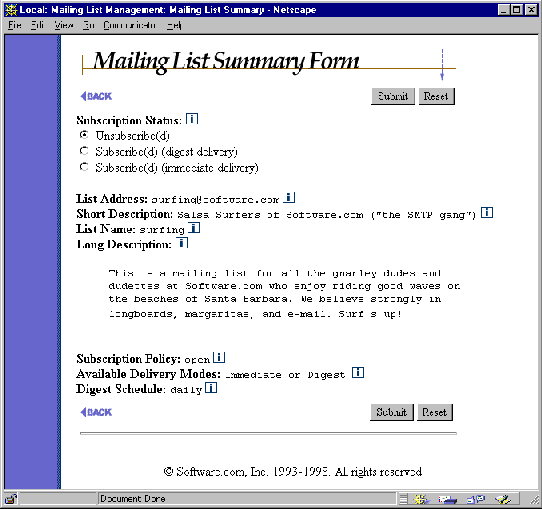
Figure 4-4: Mailing List Summary Form
We’ll spare you the explanation of each of the pieces of information on this form, since it’s already given in Section 4.2. The important thing for us at this point is the Subscription Status field at the top of the form, which displays your current subscription status for this list. To change that status from non-subscribed to subscribed, simply click on the appropriate radio button and submit the form; this submits a request for subscription.
You may have noticed that there are two different subscription options available on the Mailing List Summary Form: Subscribe (digest delivery) and Subscribe (immediate delivery). Selecting either of these options will submit a subscription request. The only difference between the two is the way in which you will receive messages from the mailing list (assuming that you are successful in subscribing to the list).
The immediate mode of delivery is just that: immediate. When messages are posted to the mailing list, they are immediately sent out to all of the list’s subscribers who have selected this delivery mode. This is great for important mailing list postings, such as an announcement to all employees that your company is being sold. However, for more trivial mailing list postings – like the fourteenth message in a debate on whether ferrets or hedgehogs make the better house pet – the immediate mode of delivery is unnecessary, and you may find it annoying to have such messages trickling in one-at-a-time with the rest or your e-mail.
Enter the digest mode of delivery. The idea behind the digest mode is that you receive all messages from the mailing list for a certain time period in one great big message. All mailing lists that support the digest mode of delivery have a corresponding digest schedule, which defines the days and times that the digest is sent out. When the appropriate hour comes, all subscribers using this mode of delivery are sent a digest message that includes the contents of all of the messages posted to the list since the previous digest was sent. The most common digest schedule is daily at a specific hour, but the list owner can specify any days of the week, and any hours in the day, for their list’s digest delivery.
Not all mailing lists support both the digest and immediate modes of delivery. The list owner has the option of allowing one or the other, or both. The supported delivery modes are shown on the Mailing List Summary Form, which displays a radio button in the Subscription Status field for each supported delivery mode. Even if a list does not support a particular delivery mode, no harm will come if you attempt to subscribe using the unsupported delivery mode; you will simply be subscribed in the supported mode.
As described above, list owners have the option of moderating all subscription requests. When the subscription policy of a list is moderated, the list owner will be notified of your subscription request, which will be held for subsequent list owner response. Only if the list owner explicitly approves your request will you be granted subscription status.
The subscription policy of a mailing list is visible on its Mailing List Summary Form, so you should know when to expect your subscription request to be moderated.
Once your subscription request has been approved and you become an official member of a mailing list, you will probably receive a message that confirms the approval and welcomes you to the inner circle of list subscribers. The text of the welcome message is completely defined by the owner, who may also choose to send no welcome message at all, so your mileage will vary.
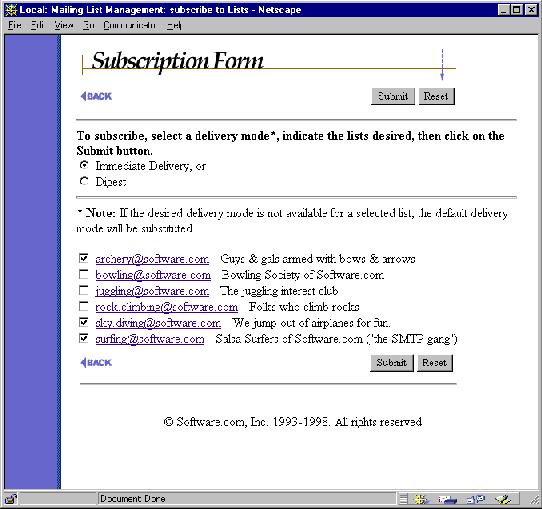
In addition to the procedures outlined above for subscribing to a single mailing list, Post.Office gives you the option of subscribing to multiple mailing lists in the same operation. This is done in the Subscription Form, which is invoked by clicking on the Subscribe to Lists link on the Mailing List Management menu.
This form is an awful lot like the Mailing List Directory menu, shown in Figure 4-2. For each mailing list, the list address and a short description are shown, and by clicking on the list address you can get to the Mailing List Summary Form for that mailing list. However, this form differs from the Mailing List Directory menu in two important ways: first, only the mailing lists that you are not currently subscribed to are shown; second, you can request subscription to multiple several mailing lists at the same time.
To subscribe to multiple lists, enable the check box next to each desired list on the Subscription Form, select the desired mode of delivery from the field at the top of the form, and then click Submit. As with requesting subscription to a single list, you may be subject to moderation as described in the previous section, this time for each of the multiple lists you selected.
After subscribing to a list, you may later decide that you want to switch your delivery mode from immediate to digest, or vice versa. This can easily be done in the Mailing List Summary Form for the mailing list. Simply change the Subscription Status radio button selection from your current delivery option to the other, and then submit the form to commit the change. Refer back to Figure 4-4 if you want another glimpse at the Mailing List Summary Form.
In general, posting a message to a mailing list is as simple as writing some e-mail, addressing it to the list’s posting address, and sending it. If you don’t have the list’s address, you can get it from the Mailing List Directory menu (shown in Figure 4-2).
However, depending on your subscription status for the list, your message may not be accepted for posting. Furthermore, in the case of a list with a moderated posting policy, the list owner may modify your message before posting it, or may choose to reject it completely. Finally, depending on how a list posting has been addressed, some users may get multiple copies of the message.
These nuances of posting a mailing list message are discussed in the following sections.
When defining the policies of a mailing list, the list owner can set posting policies for two different sets of users: subscribers and non-subscribers. This allows for the creation of subscriber-only lists, in which only messages submitted by current subscribers are accepted (or in which the postings of non-subscribers are moderated and scrutinized).
There is no easy way for ordinary users such as yourself to know the current posting policy of a mailing list, so your best bet is to just send your message and see what happens. If it is immediately returned to you with a note that you are not allowed to post to the mailing list, then you can try changing your subscription status and resending. If you need help or information for a specific mailing list, you can also try contacting the list owner.
Even if your message is accepted by the mailing list, there’s no guarantee that the list owner will let it be posted in its original form (if at all), since your message may still be subject to moderation.
If the list owner has decided that all messages submitted to the list from folks like you (be you a subscriber or non-subscriber) should be moderated, sending e-mail to the list will result in your messages being held in limbo, waiting for the proverbial thumbs up or thumbs down from the powers that be. If the list owner approves your message, it is posted to the list; if your message is rejected, it is unceremoniously deleted from the mail system, never to be heard from again.
In addition to the power to approve or reject posted messages, the list owner has the power to edit the contents of all moderated messages. This means that your message may eventually be posted to the list, but it may first be stripped of a few objectionable lines or some typos. Anything and everything in your message may be modified by the list owner if he/she is moderating posted messages, so if your favorite mailing list is being moderated, be aware of this.
To post a message to a mailing list, you must address it to the list’s posting address. However, like all e-mail, that message can have multiple recipients, so you can also address it to individual users and other mailing lists. So what happens if you send a message to both your friend John Doe and a mailing list to which Mr. Doe is a subscriber?
The answer is that John receives two copies of your message: one from you, and one from the mailing list. John may be confused when he gets two copies of the same message, but this is, after all, what you asked for by addressing the message as you did. Also, because the list owner could have modified your message before it was distributed, there was no guarantee that the mailing list version of your message would really be a "duplicate" of your original.
However, for most mailing lists, duplicates can be an annoying side-effect of sloppy addressing that simply clutter up subscribers’ mailboxes. For this reason, all Post.Office mailing lists include an option for preventing the distribution of duplicate messages. This option cannot suppress duplicates in all cases, since some recipients may themselves be mailing lists stored on other mail hosts, and it does not apply to digests.
If you have any questions regarding mailing lists and duplicate messages, contact your Postmaster or the owner of the mailing list.
Requesting to unsubscribe from a mailing list is very similar to the steps you took to subscribe to the mailing list in the first place. As with subscribing, you can unsubscribe from one mailing list at a time, or multiple mailing lists in the same operation. You may also be required to await list owner approval of your request. Like subscription, unsubscription can be handled through the e-mail interface as described in Section 4.8.
The simplest way to remove your account from one or more mailing lists is with the Unsubscription Form, the alter ego of the Subscription Form (Figure 4-5). The Unsubscription Form is invoked by clicking on the Unsubscribe from Lists link on the Mailing List Management menu.
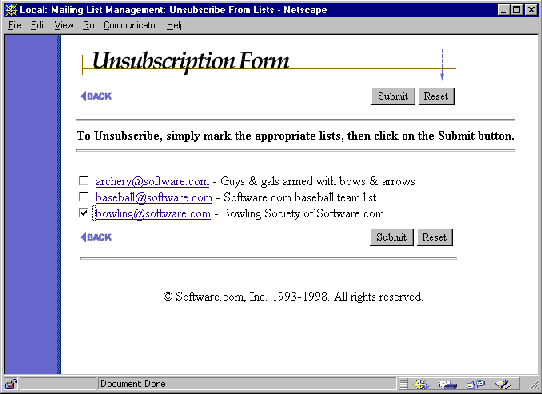
Figure 4-6: Unsubscription Form
This form displays only the mailing lists to which you are currently subscribed. As with the Subscription Form, you can request unsubscription from multiple mailing lists by enabling the check box next to each one, and then submitting the form. You can also click on the address of a list to display the Mailing List Summary Form (shown in Figure 4-4). To unsubscribe from the list using the List Summary Form, select the Unsubscribe(d) radio button and submit the form.
Moderation for unsubscription requests is identical to subscription requests. For lists with a moderated unsubscription policy, you will be removed from the subscriber list only when (or if) the list owner explicitly approves your request.
The equivalent of the welcome message, the farewell message is an optional feature that allows the list owner to give you certain information upon your leaving the subscriber list.
It’s possible for a subscriber to be automatically removed from a mailing list, whether or not they request it. This automatic unsubscription occurs when the mailing list receives bounced (returned) messages sent to a particular subscriber. Instead of eternally sending messages to accounts that may no longer exist, the mailing list keeps its subscriber list current by removing any account that generates a certain number of return bounces (as defined by the Postmaster).
Automatic unsubscription affects only remote users, so if your e-mail account is stored on the same installation of Post.Office as the mailing lists that you’re subscribed to, you needn’t worry about it. However, if your mail provider stores e-mail accounts and mailing lists on separate mail servers, problems with your account may cause return bounces. If you suspect that you have been automatically dropped from a mailing list, contact your Postmaster or the list owner.
Ordinary users such as yourself do not have access to create mailing lists; this level of access is allowed only to the Postmaster. However, you can manage a mailing list that the Postmaster has created and for which you are named as an owner. If you would like to create a new mailing list, notify your Postmaster.
After reading though this chapter and finding repeated references to a shadowy character called the list owner, you may be wondering: just who is this person? It could be you – all users with mail accounts in Post.Office can own any number of mailing lists. However, you do need some help to do this; your mailing lists must be created by the Postmaster, who must also specifically dub the as the list owner. But once that happens, you become the all-powerful administrator of your mailing lists.
List ownership is such a substantial endeavor that we’ve created an entire manual devoted exclusively to helping you manage a mailing list. This document, the Post.Office List Owner’s Guide, is available in online form from the Online Documentation menu.
For those who prefer dealing with all things e-mail through the medium of e-mail, instead of using a state-of-the-art web interface, Post.Office supports such an e-mail interface for the mailing list manager. This interface is similar to Majordomo, a popular UNIX-based mailing list manager developed by Brent Chapman.
The following sections illustrate the proper method for submitting e-mail commands, and describe the commands available in Post.Office.
Like Majordomo, the Post.Office e-mail interface accepts requests submitted to special e-mail accounts, and processes them accordingly. A request is simply an e-mail message that contains one of several keywords for performing certain mailing list operations, such as subscribing to a mailing list, getting a list of your current subscriptions, or getting descriptive information for a mailing list. For example, to request subscription to the list, a user can send an e-mail message that contains the word subscribe.
Because of the simplicity of this interface, it is sometimes easier to accomplish things this way than in the web interface.
List manager requests messages can be addressed to one of two places. The first is the system’s list manager account, which is used when submitting commands for multiple mailing lists. The address of this account is
list.manager@host.domain
The second request message destination is the request account of a specific mailing list, which is used for various support functions for the mailing list, such as sending welcome and farewell messages and processing e-mail commands. The address of the request account varies from list to list. The convention used by Post.Office is to append "-request" to the local portion of the primary list address to get the address of the request account. For example, for a mailing list with the primary address
cycling@software.com
the standard request account address would be
cycling-request@software.com
Although we encourage the use of this simple standard, the request account can be given any unique e-mail address by the Postmaster.
The only difference between sending a request to the system-level list management account, and sending the same request to the request account for a specific list, is that you do not then need to include the name of the list for which you are submitting the request. The mailing list in question is assumed to be the one associated with the request account, which saves you the trouble of including an extra parameter with your request to identify the name of the mailing list.
The syntax for request messages is fairly flexible. The subject line is always ignored, and may be left blank. Commands are entered one per line in the message body, with leading whitespace (spaces or tabs) ignored. Command keywords and any arguments must be separated by at least one space or tab.
For example, to request mailing list information for the mailing list that has the List Name surfing, you would send a message like the following:
|
To: list.manager@software.com
From: john.doe@software.com Subject: --------------------------------------------------------- info surfing |
Assuming the creator of the list shown in the above example followed the convention for the request account address, the above request could have also been addressed as follows:
|
To: surfing-request@software.com
From: john.doe@software.com Subject: --------------------------------------------------------- info |
Notice that we no longer have to tell the system which list we’re trying to get information on. Because this message is sent to a request account for a specific mailing list, the system assumes this is the mailing list that we’re submitting the request for.
Most e-mail commands receive a reply message from the system that returns the requested information or tells you the result of your request. For example, after the message shown in Figure 4-7 is submitted, the response similar to the following would be received:
|
To: john.doe@software.com
From: list.manager@software.com Subject: List Manager response --------------------------------------------------------- >>>>info surfing This is a mailing list for all the gnarley dudes and dudettes at Software.com who enjoy riding good waves on the beaches of Santa Barbara. We believe strongly in longboards, margaritas, and e-mail. Surf's up! |
For subscription and unsubscription requests, the response message may also include information regarding verification or moderation. The response message may also indicate that you do not have the appropriate access to execute the command (for example, if you attempt to subscribe to a mailing list with a closed subscription policy).
More than one command can be submitted in the same message, with each command on its own line. In the following example, the sender is requesting subscription to two mailing lists, and requesting unsubscription from a third:
|
To: list.manager@software.com
From: john.doe@software.com Subject: --------------------------------------------------------- subscribe surfing subscribe mountain_biking unsubscribe yachting |
There is no limit to the number of commands that can included in a single request message. If one of the commands in a request message fails because of a syntax error or access restrictions, the remaining commands are still processed.
Many users have signatures automatically appended to all of their e-mail as it is sent from their mail client. Unfortunately, these signatures can wreak havoc on your ability to submit commands via the list manager e-mail interface, which will attempt to process all of the commands – that is, all of the text – in your request message.
Post.Office will screen out many types of signatures when processing e-mail commands, but you may still experience problems when submitting requests because of your signature. To prevent this, you should use the end command at the conclusion of the your other e-mail commands. This command instructs Post.Office that there are no more commands in this message, so it will not attempt to process any of the remaining text of your message, including your signature.
The following example shows the same requests as Figure 4-10, but with the end command to stop Post.Office from processing the signature.
|
To: list.manager@software.com
From: john.doe@software.com Subject: --------------------------------------------------------- subscribe surfing subscribe mountain_biking unsubscribe yachting end %%%%%%% %% ~ ~ %% ( @ @ ) *****oOOo*(_)*oOOo****** John Doe Jr., Ph.D. (805)882-2470 x000 Software.com (805)882-2473 FAX 525 Anacapa St. (805)555-1076 Page Santa Barbara, CA 93101 (805)555-1176 Cell |
Because the end command signals the conclusion of the valid commands, Post.Office will not attempt to execute mailing list-related operations based on the contents of this signature. If the end command had not been included, an error would have resulted, since
|
%%%%%%% %% ~ ~ %% ( @ @ ) *****oOOo*(_)*oOOo****** |
is not currently a supported e-mail command.
The following table lists the end user commands available from the list manager e-mail interface. Parameters shown between [square brackets] are optional, while parameters shown in italics must be replaced by an appropriate value.
If the request message is sent to the request account for a specific mailing list, you do not have to specify the List Name as a command parameter. However, if the request message is sent to the system’s general list management account (list.manager@host.domain), the listname parameter shown in the table below becomes a required parameter.
| Command | Additional Parameters | Description |
| subscribe | listname [address] [digest] | Requests subscription for the sender (or the specified address). |
| unsubscribe | listname [address] | Requests unsubscription for the sender (or the specified address). |
| which | Returns a list of the sender’s current mailing list subscriptions. | |
| who | listname | Returns the subscriber list if the sender has appropriate access. |
| info | listname | Returns the mailing list’s long description. |
| lists | Requests a list of the available mailing lists. | |
| help | Requests a list of the e-mail commands available to all users. | |
| end | Marks the end of the commands included in the request message, which prevents the system from attempting to process text in the signature. |
The subscribe command is used to request subscription to a mailing list. There are two methods for submitting this command, both of which perform identical subscription requests. As with subscribing from the web interface, your subscription request is subject to moderation; when submitted from the e-mail interface, subscription requests are also subject to verification, described below.
Create an e-mail message addressed to the system-level list management account (list.manager@host.domain) and in the body of the message, enter the following text:
subscribe listname
For listname, specify the List Name of the mailing list. This name is displayed in the Mailing List Summary Form, as well as in the list of available mailing lists returned by the lists command. The name is case-sensitive.
By default, the subscribe command requests the immediate mode of delivery. If you want to subscribe with the digest mode of delivery, include the flag digest after the List Name:
subscribe listname digest
After you have entered the appropriate values, send the message to submit the subscription request.
Create an e-mail message addressed to the request account associated with the mailing list to which you are trying to subscribe (this address is typically the same as the list address, with " -request " after the local address). In the body of the message, enter:
subscribe
Because the message is addressed to the request account for a specific mailing list, you do not need to specify the List Name in the body of the message.
By default, the subscribe command requests the immediate mode of delivery. If you want to subscribe with the digest mode of delivery, include the List Name and digest flag after the subscribe command:
subscribe listname digest
After you have entered the appropriate values, send the message to submit the subscription request.
List owners have the option of verifying the identity of users who submit subscription requests via e-mail. The purpose of this verification is to ensure that nobody can subscribe you to a mailing list except you.
When subscription verification is enabled for a mailing list, attempting to subscribe to the list via e-mail causes Post.Office to send a message containing a verification token to your e-mail address. Upon receiving this message, you should follow the directions contained therein for submitting the token to verify your identity. Only after you submit the verification token will your subscription request be processed.
|
To: list.manager@software.com
From: john.doe@software.com --------------------------------------------------------- subscribe surfing digest |
This command requests subscription to the mailing list surfing for the sender (john.doe@software.com) using the digest mode of delivery.
|
To: surfing-request@software.com
From: susie.queue@software.com --------------------------------------------------------- subscribe |
This command requests subscription for the sender (susie.queue@software.com) to the mailing list associated with the request account surfing-request@software.com. Because the digest flag is not included, the immediate mode of delivery is requested.
The unsubscribe command is used to request unsubscription from a mailing list. There are two methods for submitting this command, both of which perform identical unsubscription requests. As with unsubscribing from the web interface, your request is subject to moderation; when submitted from the e-mail interface, unsubscription requests are also subject to verification, described below.
Create an e-mail message addressed to the system-level list management account (list.manager@host.domain), and in the body of the message, enter the following text:
unsubscribe listname
For listname, specify the List Name of the mailing list. This name is displayed in the Mailing List Summary Form, as well as in the list of available mailing lists returned by the lists command. The name is case-sensitive.
After you have entered the appropriate values, send the message to submit the unsubscription request.
Create an e-mail message addressed to the request account associated with the mailing list from which you are trying to unsubscribe (this address is typically the same as the list address, with "-request" after the local address). In the body of the message, enter:
unsubscribe
Because the message is addressed to the request account for a specific mailing list, you do not need to specify the List Name in the body of the message.
After you have entered the appropriate values, send the message to submit the unsubscription request.
Like subscription requests, list owners have the option of verifying the identity of users who submit unsubscription requests via e-mail. The purpose and usage of this verification is the same as with subscription requests, described in the previous section. Only after you submit the verification token will your unsubscription request be processed, after which it may still be subject to list owner moderation.
|
To: list.manager@software.com
From: joe@software.com --------------------------------------------------------- unsubscribe yachting |
This command requests unsubscription from the mailing list yachting for the sender (joe@software.com).
|
To: yachting-request@software.com
From: sammy@software.com --------------------------------------------------------- unsubscribe |
This one requests unsubscription for the sender (sammy@software.com) from the mailing list associated with the request account yachting-request@software.com.
The which command is used to get your list of current mailing list subscriptions. To get your current subscriptions, create an e-mail message addressed to the system-level list management account (list.manager@host.domain), or to the request account of any mailing list. In the body of the message, enter the following text:
which
|
To: list.manager@software.com
From: jimmy@software.com --------------------------------------------------------- which |
This command requests the list of current subscriptions for the sender (jimmy@software.com). This information includes the List Name for each subscribed mailing list, and is returned in a message like the following:
|
To: jimmy@software.com
From: list.manager@software.com --------------------------------------------------------- >>>>which surfing mountain_biking roller_blading |
The who command is used to retrieve the list of users subscribed to a specific mailing list. There are two methods for submitting this command, both of which return identical data.
Create an e-mail message addressed to the system-level list management account (list.manager@host.domain), and in the body of the message, enter the following text:
who listname
For listname, specify the List Name of the mailing list. This name is displayed in the Mailing List Summary Form, as well as in the list of available mailing lists returned by the lists command. The name is case-sensitive.
After you have entered the appropriate values, send the message to request the subscriber list.
Create an e-mail message addressed to the request account associated with the mailing list for which you want the subscriber list (this address is typically the same as the list address, with "-request" after the local address). In the body of the message, enter:
who
Because the message is addressed to the request account for a specific mailing list, you do not need to specify the List Name in the body of the message.
After you have entered the appropriate values, send the message to request the subscriber list.
|
To: list.manager@software.com
From: jimmy@software.com --------------------------------------------------------- who roller_blading |
This command requests the subscriber list for the roller_blading mailing list.
|
To: surfing-request@software.com
From: jimmy@software.com --------------------------------------------------------- who |
This example requests the subscriber list for the mailing list associated with the request address surfing-request@software.com.
The information returned by these requests includes the e-mail address of all list subscribers, and is returned in a message like the following:
|
To: jimmy@software.com
From: list.manager@software.com --------------------------------------------------------- >>>>who roller_blading <adam.akens@software.com> <bernie.baker@software.com> <charlie.chandler@software.com> <denny.donaldson@software.com> <eugene.ellington@software.com> |
The info command is used to get the long description for a specific mailing list, as defined by the Postmaster or list owner. There are two methods for submitting this command, both of which return identical data.
Create an e-mail message addressed to the system-level list management account (list.manager@host.domain), and in the body of the message, enter the following text:
info listname
For listname, specify the name of the mailing list. This name is displayed in the Mailing List Summary Form, as well as in the list of available mailing lists returned by the lists command. The name is case-sensitive.
After you have entered the appropriate values, send the message to request the list long description.
Create an e-mail message addressed to the request account associated with the mailing list for which you want the long description (this address is typically the same as the list address, with "-request" after the local address). In the body of the message, enter:
info
Because the message is addressed to the request account for a specific mailing list, you do not need to specify the List Name in the body of the message.
After you have entered the appropriate values, send the message to request the list long description.
|
To: list.manager@software.com
From: billy@software.com --------------------------------------------------------- info rock_climbing |
This command requests the long description for the rock_climbing mailing list.
|
To: rock.climbing-request@software.com
From: jimmy@software.com --------------------------------------------------------- info |
This command requests the long description for the mailing list associated with the surfing-request@software.com request address.
Assuming that the senders have the proper access, the information returned by the above requests would include the e-mail address of all list subscribers, and is would look like the following:
|
To: jimmy@software.com
From: list.manager@software.com --------------------------------------------------------- >>>>info rock_climbing There are a whole lot of rocks in the Santa Barbara hills. We climb them, mostly because they're there. This mailing list offers other interesting insights on this fascinating sport with people who are so interesting that they spend their weekends on rocks. Send you interesting questions to the extremely interesting owner of this mailing list at: owner-rock.climbing@software.com |
The lists command is used to get a list of the mailing lists that are available to you for subscription. To get the list of available mailing lists, create an e-mail message addressed to the system list management account (list.manager@host.domain), or to the request account of any mailing list. In the body of the message, enter the following text:
lists
|
To: list.manager@sparky.software.com
From: bobby@software.com --------------------------------------------------------- lists |
This command requests the list of mailing lists available to the sender on the host sparky.software.com. This information includes the List Name and short description for each mailing list, and is returned in a message like the following:
|
To: bobby@software.com
From: list.manager@sparky.software.com --------------------------------------------------------- >>>>lists cycling Cycling Interest Group fine_dining Santa Barbara Restaurant Connoisseurs fishin Folks who like fishin' mountain_biking The mailing list for the REAL cyclists rock_climbing Strange persons who climb rocks roller_blading People who like 'Blading surfing Surfing Club of Software.com yachting An exclusive list for the upper crust |
The help command is used to get a list of the valid e-mail commands as described above. To get this help information, create an e-mail message addressed to the system list management account (list.manager@host.domain), or to the request account of any mailing list. Leave the body of the message blank or enter the following text:
help
The information returned to a help request looks like the following:
|
To: maxie@software.com
From: List.Manager@software.com >>>> help Introduction to the List Manager -------------------------------- This is the Mailing List Manager for Post.Office version 3.5. The interface is similar to Brent Chapman's "Majordomo". How to Access the List Manager ------------------------------ You can interact with the List Manager by sending commands in the body of an e-mail message addressed to "List.Manager@software.com". (Important Note: Commands in the "Subject:" line are NOT processed.) Available List Manager Commands ------------------------------- The Post.Office Mailing List Manager understands the following commands: (Note: In the descriptions below items contained in []'s are optional. When providing the item, do not include the []'s around it.) subscribe <list> [<address>] Subscribe yourself (or <address> if specified) to the named <list>. unsubscribe <list> [<address>] Unsubscribe yourself (or <address> if specified) from the named <list>. which Find out which lists you are on. who <list> Find out who is on the named <list>. info <list> Retrieve the general introductory information for the named <list>. lists Show the lists served by this List Manager server. help Retrieve this message. end Stop processing commands (useful if your mailer adds a signature). |
Post.Office ©Software.com, Inc. 1994-1998