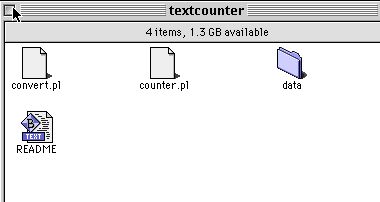
 Now,
once downloaded, take a look through the textcounter.pl file &
the Read Me. There's really not much at all to modify or set up in
the file & as usual, the Read Me in all Matt's Script Archive
script explains pretty much everything.
Now,
once downloaded, take a look through the textcounter.pl file &
the Read Me. There's really not much at all to modify or set up in
the file & as usual, the Read Me in all Matt's Script Archive
script explains pretty much everything.Part 8 - Installing A Page Counter
By Terry Allen
Last time, I detoured from the previous couple of guide installments by going into how to get a Virtual host to support Server Side Includes (SSI) CGI execution. The reason for this was that I was in the process of having to work out how to get a page counter working for a client, which is something I'd never done before.
I went searching for a text counter, because the client's site didn't require anything fancy, but the principle of a text counter is almost identical to a graphical counter. After quite a bit of searching, I found that there were extremely few counters (I only found 2) that worked with plain HTML files, almost all counter CGIs requiring SSI to work.
So, it was back to my old friend - Matt's Script Archive at http://worldwidemart.com/scripts/w here there's a whole pile of great stuff for you to download. The archive contains both a graphical & a text only counter. I chose the text version for the reasons outlined above & read through the various bits & pieces that were available on the site about it & downloaded Textcounter.pl, which contains a simple Perl script & a Read Me file - I chose the .zip archive as I knew Stuffit Expander could extract the archive file & I'm still relatively inexperienced at extracting .tar archives.
Before touching any of the files involved, you need to go back to the last guide about setting up CGI execution for SSI on a virtual host - this is a security risk if you don't have sole control over the virtual host, so be warned. If the person is trustworthy, you don't have much to worry about. If you don't go back to the last guide, you'll get an error message when you try to call up the counter in a page along the lines of - [TextCounter Fatal Error: Could Not Write to File XXX] Once you've completed the last guide & set your server up to SSI with CGI execution, read on.
Now,
once downloaded, take a look through the textcounter.pl file &
the Read Me. There's really not much at all to modify or set up in
the file & as usual, the Read Me in all Matt's Script Archive
script explains pretty much everything.
Reading through, you can now start to edit the actual file, which is called counter.pl. The Read Me file contains info on converting from version 1.2 to 1.2.1, but as you don't have the counter installed yet, you can ignore this bit & skip on to the installation.
The first part of the installation involves editing the counter.pl file. For WebTen users, the first line of the counter.pl script will need to be edited, because the location for Perl isn't listed correctly, so we need to load up the counter.pl script in a text editor such as BBEdit. The very first line of the script reads:
#!/usr/local/bin/perl
WebTen's Perl location is different, so edit the line to read:
#!/usr/bin/perl
Scroll down the file to find some other variables you need to change, which are indicated in the Read Me file. The first of these is the data directory, so you'll now need to decide where to put the data directory. My preference is to put it into the CGI-BIN as it's not accessible from outside the server.
You need to scroll down the counter.pl file to find he part which looks like:
$data_dir = "/path/to/textcounter/data/";
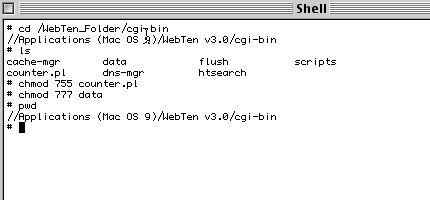
You need to change it to the correct full path on your WebTen server. A lot of people have had trouble with this particular bit & I did myself. Unlike the wwwboard installation, where the full path started off with /usr/local/etc/httpd/ - I found that my first installation of Textcounter didn't work with this path, so I opened up the shell window on WebTen, navigated my way to the CGI-BIN & entered at the prompt:
# pwd
WebTen will then give you the path to the directory you're in, which will be something like:
//Yourserver /WebTen v3.0/cgi-bin
This is the path that I used & WebTen seems to interpret this as a full path, so if you have trouble with the usual full path, try this method.
There are a few other variables you might wish to set, such as the valid URI, which allows you to stop certain sections of the server from using the Textcounter, as well as options to auto create a counter data file, which will save you a lot of time. Other options to set include showing (or not) the date, padding with zeros etc..., but a read through the Read Me & the counter.pl script will give you the idea of what they do.
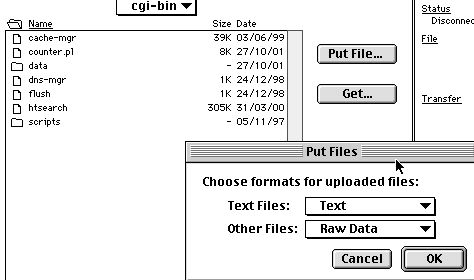 You're just
about there, so save the file & you now need to upload it to the
server, as well as the Data directory you indicated in the variable
above. Importantly, when you upload (most likely via FTP), MAKE SURE
you upload the files as ASCII Text, otherwise your script just plain
won't work.
You're just
about there, so save the file & you now need to upload it to the
server, as well as the Data directory you indicated in the variable
above. Importantly, when you upload (most likely via FTP), MAKE SURE
you upload the files as ASCII Text, otherwise your script just plain
won't work.
Now you have everything in place, you need to go to your WebTen server & set the permissions on the files. The counter.pl script, being a CGI, will need to be set to execute as a CGI, so in the shell window, navigate to the CGI-BIN & at the prompt, type:
# chmod 755 counter.pl
Assuming you've been following the guide, you also need to set the permissions for the data directory, so at the prompt type:
# chmod 777 data
As you might have read in earlier parts of the guide, the 777 number tells the server that it can read & write to the file.
 Well,
you're set up now, so you need to add it to the page(s) you want the
counter added to. Don't forget that you need to change the suffix to
.shtml or edit your WebTen configuration to parse all HTML files as
SSI which might slow down your server if it's under heavy load.
Well,
you're set up now, so you need to add it to the page(s) you want the
counter added to. Don't forget that you need to change the suffix to
.shtml or edit your WebTen configuration to parse all HTML files as
SSI which might slow down your server if it's under heavy load.
The code you need to add to your HTML file to is listed in the Read Me file, so grab that & modify it to read something that pertains to your server, such as:
<!--#exec cgi="/cgi-bin/counter.pl" --></P>
Once you've saved & reuploaded the HTML file, load up a web browser & you should now see a counter at the point in the HTML file you add the above code - congratulations!
I had to get the Textcounter working as a matter of necessity, but if you're looking at add a page counter (there are plenty of different ones out there), this guide will give you the basics of getting pretty much any counter up & running in short order. Good luck.