



System Monitoring
This chapter is intended to assist you in the ongoing maintenance of your Post.Office mail system. The topics discussed in this chapter include:
Post.Office will generate an error message to the Postmaster on any occasion that it cannot carry out its tasks of sending, delivering, or returning mail. Most error messages will involve addresses that Post.Office is unable to process, either because they are not entered correctly or because they do not exist, but many conditions can produce such errors. It is the job of the Postmaster to determine the cause of the error and the appropriate response to it.
There are two kinds of error messages that are sent to the Postmaster: notification messages and action messages. Notification messages are simply informative messages that alert you to the problem so that you can take corrective action, while action messages are e-mail forms that require the Postmaster to resolve the error in some way. This means that while both types of messages indicate an error condition that should be investigated by the Postmaster, action messages require prompt attention – they indicate an error condition that Post.Office could not resolve itself, or which you specifically requested should be held for your intervention. Error conditions reported by action messages will exist until personally resolved by the Postmaster.
The following error conditions will cause a notification or action message to be sent to the Postmaster:
Post.Office allows you to set a few options that affect the handling of error conditions. You can access the form for setting these options from the Status of Deferred Mail menu, which is itself displayed when you click the Deferred Mail menu button at the left of any menu screen. The Status of Deferred Mail menu looks like the following:
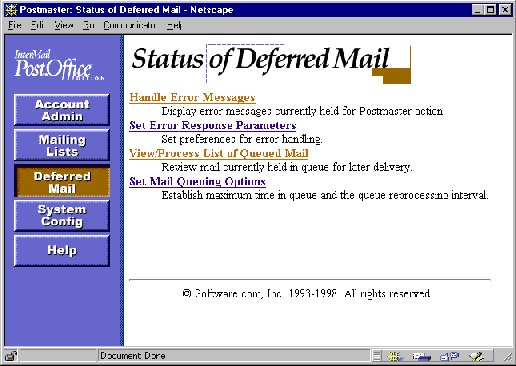
Figure 8-1: Status of Deferred Mail menu
Error Handling options are in the Error Response Parameters Form. This form was introduced in Chapter 4, and can be invoked from both the System Configuration menu and the Status of Deferred Mail menu. From the latter, this form is invoked by clicking on the Set Error Response Parameters link:
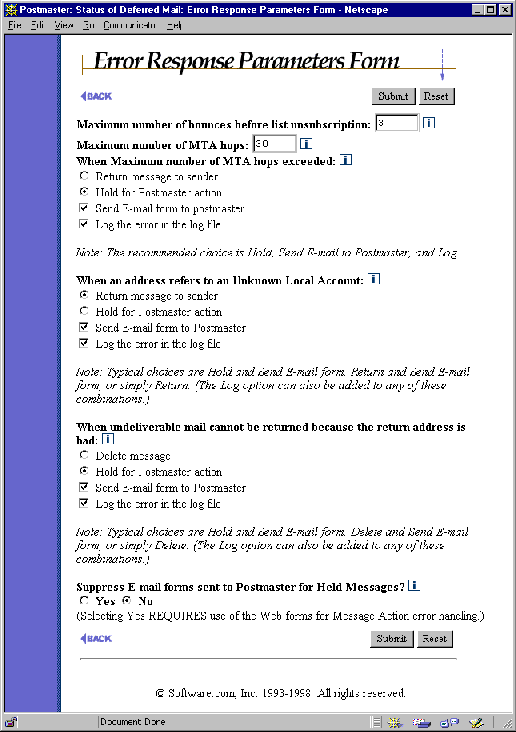
Figure 8-2: Error Response Parameters Form
This form was described in detail in Chapter 4. Since we’re now concerned specifically with error messages, the following options are worth highlighting again:
Many messages don’t require any action on your part, and are sent simply to advise you that something happened. They typically warn you of an error condition, but are occasionally provided for your information only.
For example, if your Error Response Parameters are set to notify you for the Unknown User condition, Post.Office will let you know that someone tried to send a message to your domain to an address that didn’t exist. In most cases, your reaction to this sort of error message will probably be something like "so what?" However, sometimes it’s worth paying attention to such messages. For instance, if you get a deluge of stuff for something like help@your.domain, it’s a good bet that the people trying to get messages through to this address are customers or potential customers, and this would be a hint for you to set up an account for this address.
Another notification message might tell you that somebody tried to exploit a sendmail vulnerability to try to break into your system. While such a message is sent to you as a notification only, it is a good idea to pay attention to it – someone is probably trying to break into your network. This would at least require you to perk up your ears and check for any other signs of a security breach.
Notification messages are sent to the Postmaster from the Error Handler account, and can be distinguished from action messages by their subject ("Notification"). The following is a sample notification which alerts you to the most common type of error, the Unknown User condition:
|
The mail system on sparky.software.com encountered the following error:
The following destination addresses were unknown (please check the addresses and re-mail the message): SMTP <tipe-oh@software.com> The original mail envelope addresses are: User-From: SMTP<jack.flash@software.com> Recipient: [<tipe-oh@software.com>] ------------------------------------------------------------ The message was submitted on Wed, 5 Mar 1997 12:27:30 -0800 by host [10.2.21.3] [10.2.21.3] The original message header is below: ... |
Again, notifications require no response on your part – they’re just the way that your friendly neighborhood Post.Office keeps you up to date on its goings on.
Sometimes its not enough to simply notify the Postmaster of an error. Several error conditions, such as undeliverable or unreturnable messages, require some type of intervention by the Postmaster. Instead of simple notifications, these errors produce action messages; that is, they send e-mail forms to the Postmaster so that you can take appropriate action (get it? "action" messages). These messages are also known as Message Action Forms.
Along with the Unknown User and Maximum MTA hops errors (which can produce action forms at you request), the following error conditions produce action forms:
See Section 8.1.1 for descriptions of these errors.
Like notifications, action messages are sent to the Postmaster from the Error Handler account. They can be distinguished from notifications by their subject: "Post.Office Message Action Form." The following is a sample Message Action Form for the Unknown User condition:
|
The mail system on sparky.software.com encountered the following error:
The following destination addresses were unknown (please check the addresses and re-mail the message): SMTP <jonn.doee@software.com> Options for this mail message are: Action: [] (Delete,Return,Resubmit) Postmaster-Password: [] (Required for any action) The original mail envelope addresses are: User-From: SMTP<typo.man@megahuge.com> Recipient: [<jonn.doee@software.com>] ------------------------------------------------------------ The message was submitted on Tue, 4 Mar 1997 17:48:03 -0800 by host [10.2.101.32] [10.2.101.32] The original message header is below: ... |
It’s important for you to know that action messages are not like notifications – they aren’t just for information, they require you to do something. For instance, in the case of the Unknown User condition, failing to respond to the action message means that the undeliverable message will sit around remaining undeliverable.
Responding to action messages is similar to using other Post.Office e-mail forms: create a reply to the action message which includes the entire form, enter or modify a few pieces of information, and send it. Message Action Forms allow you to choose one of three actions for a problem message: Delete, Return, and Resubmit. To specify an action to be taken on a message, enter the appropriate action between the [square brackets] next to the Action: label.
The Return and Delete options are reasonably self-explanatory, but as for the Resubmit, you may wonder why you’d ever ask Post.Office to retry an operation that failed the first time. This certainly won’t be of much help if the message or error condition stays as-is, but action forms also allow you to modify the destination address of the message’s envelope. This means that you can "rewrite" the destination address of an undeliverable message (or the return address of unreturnable messages) before resubmitting it for delivery.
The following is a sample reply to the Unknown User action form shown in Figure 8-4. Notice that this message includes a keyword for processing the message (in this case, resubmit), as well as the Postmaster password (required for submission) and a new destination address.
|
> The mail system on sparky.software.com encountered the following
> error: > > The following destination addresses were unknown (please check > the addresses and re-mail the message): > > > SMTP <jonn.doee@software.com> > > Options for this mail message are: > > Action: [resubmit] (Delete,Return,Resubmit) > Postmaster-Password: [$ecret] (Required for any action) > > The original mail envelope addresses are: > > User-From: SMTP<typo.man@megahuge.com> > Recipient: [<john.doe@software.com>] > > ------------------------------------------------------------ > The message was submitted on Tue, 4 Mar 1997 17:48:03 -0800 > by host [10.2.101.32] [10.2.101.32] > > The original message header is below: > ... |
When this action message reply is sent to the Error Handler account, Post.Office will attempt to resend the message with the new envelope information. If the new address leaves the original message similarly undeliverable, you’ll receive a new Message Action Form that says so.
If instead of correcting the address and resubmitting the message you wanted to return the original message to its sender, your Message Action Form reply would look like this:
|
> The mail system on sparky.software.com encountered the following
> error: > > The following destination addresses were unknown (please check > the addresses and re-mail the message): > > > SMTP <jonn.doee@software.com> > > Options for this mail message are: > > Action: [return] (Delete,Return,Resubmit) > Postmaster-Password: [$ecret] (Required for any action) > > The original mail envelope addresses are: > > User-From: SMTP<typo.man@megahuge.com> > Recipient: [<jonn.doee@software.com>] > > ------------------------------------------------------------ > The message was submitted on Tue, 4 Mar 1997 17:48:03 -0800 > by host [10.2.101.32] [10.2.101.32] > > The original message header is below: > ... |
Notice that in this form submission, the Action: field contains the word return. The original destination address (jonn.doee@software.com) hasn’t been corrected, but since the message is being returned to sender, its destination address is irrelevant.
Finally, if you want to simply delete the message without attempting delivery or return, your Message Action Form would look just like the above return, but would contain the word delete in the Action: field.
Failure to respond to an initial error message results in delivery of a second notice three days after the original notice. The second action message is labeled with the word RENOTIFICATION in the subject line. Pay particular attention to these messages, as they identify error conditions that remain unresolved despite previous notification. Failure to respond to a renotification does not produce any further warnings.
The importance of prompt response to error conditions cannot be overemphasized. It is one of the primary responsibilities of the Postmaster. Remember, when a message is held for error action, neither the sender nor the recipient is informed that the transaction remains incomplete. Also, messages that are both undeliverable and unreturnable will be left forever like cholesterol deposits clogging the arteries of your server file system, and nobody wants that.
The web-based interface for handling error messages is similar in many ways to the Message Action Form for handling errors via e-mail described in the previous section. However, this web interface has a number of advantages over these e-mail forms, most notably the ability to handle groups of messages in a single operation. The ability to view all error mail currently held by Post.Office in a single web form is another advantage.
The web form for dealing with error mail is the Error Message Handler Form. This form is invoked from the Status of Deferred Mail menu (Figure 8-1) by clicking the Handle Error Messages link.
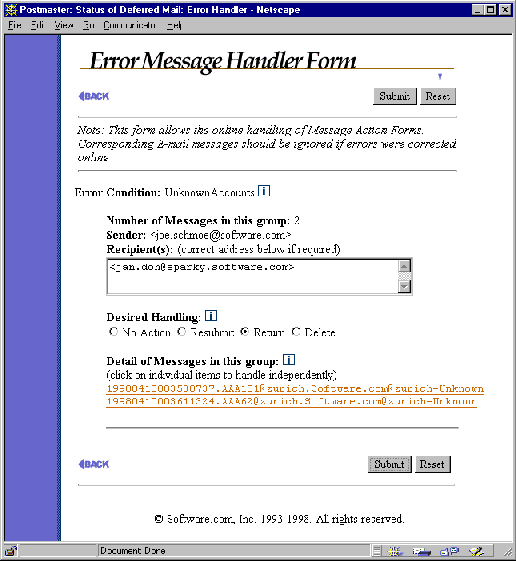
Figure 8-7: Error Message Handler Form
Although it bears little resemblance to the ASCII text Message Action Form, this web form contains exactly the same options. To handle an error message, correct the destination address in the Recipient(s) field (if desired), choose the appropriate radio button for the action from the Desired Handling field (Resubmit, Return, or Delete), and submit the form.
Note that in this example two error messages are grouped together in a single entry. Because many error messages may accumulate that have the same sender, recipient, and error condition (for example, one user who sends a stack of messages to an invalid address), grouping these messages on the Error Message Handler Form gives you a simple way to respond to similar error messages with one operation. You may apply a single error handling option to all items in the group, or select each individual item for independent handling.
To view and/or handle an individual message, click on the message’s identifier (the long name with all the numbers). This link is located under the heading Detail of Messages in this group at the bottom of the message group, and displays a Held Message Form, which looks like the following:
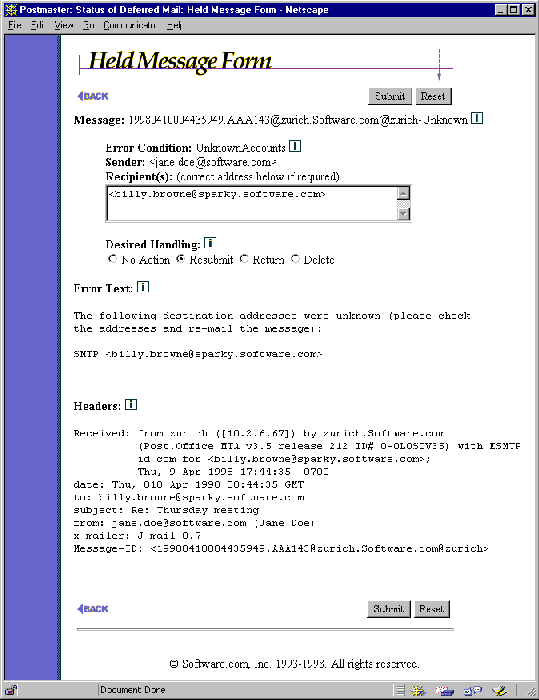
Figure 8-8: Held Message Form
This web form is very similar to the Message Action Form – it allows you to view a description of the error and the headers of the original message, modify the destination address, and select an action to be taken (Resubmit, Return, Delete). Like the Error Message Handler Form, you can execute your selected message handling action by submitting the form.
During its daily routine, Post.Office will often find that it can’t immediately send the mail that it has been asked to deliver to other mail servers. However, provided that the destination mail host exists, Post.Office doesn’t just return the mail; it assumes that the destination host’s mail server is temporarily unreachable, so it "holds" the outgoing messages to that host and will try again later. Messages held in this manner are known as queued mail, since they sit in Post.Office’s mail queue awaiting subsequent delivery.
An outgoing message can be queued for one of many reasons. When displaying the list of queued mail, Post.Office also displays the reason why the message was not immediately delivered. The following are the possible reasons for a message being queued for later delivery:
Once a message is queued for one of the above reasons, all subsequent messages to that domain will be held until the next scheduled queue processing interval (typically one hour). That means, for example, that if you send a stack of 1,000 message to users in a particular domain, but that domain’s mail server is temporarily off-line for some reason, Post.Office won’t try to deliver all 1,000 – when the first message fails to be delivered, Post.Office will queue all 1,000 of them (as well as any subsequent mail for that domain) without attempting delivery, since it knows that this domain isn’t ready to receive mail yet.
Queued mail is organized into groups by destination host. When the queue processing interval has expired, Post.Office will attempt to deliver one from each group of waiting messages. If this attempt is still unsuccessful, the entire group remains queued; if successful – meaning the destination mail host is once again ready to receive message – Post.Office then delivers all of the messages that had been queued for that domain. You can force a delivery attempt before the queue process time expires (as described in Section 8.2.3), but manual intervention is not required.
The queuing of mail is generally harmless, and typically just indicates that the mail server hardware and software which other folks are using aren’t quite the sturdy workhorses that yours are. However, depending on your configuration, the queuing of large numbers of messages could reveal a problem in your own network. For instance, in the case of a firewall system that simply pushes messages to an internal mail server system, if the mail queue of the firewall system has hundreds of messages queued up for the internal system then something is obviously amiss with your internal mail server.
For this reason, it can be a good idea to regularly check the list of queued mail (as described in Section 8.2.3). Depending on the amount of mail going through your system, any more than a handful of queued messages destined for a particular mail host could indicate a problem on the other end.
As noted above, Post.Office allows you to set options that affect the queuing of mail. Mail queuing options are set using the appropriately-named Mail Queuing Options Form, which is invoked from the Status of Deferred Mail menu (Figure 8-1) when you click on the Set Mail Queuing Options link.
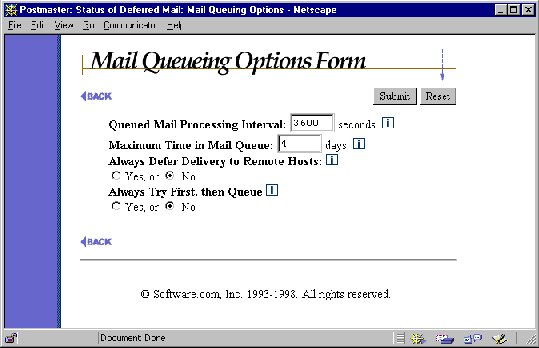
Figure 8-9: Mail Queuing Options Form
This form allows you to set the following mail queuing options:
Queued mail is generally not something that you need to worry about; once you set your system’s mail queuing options as described above, you can just kick back and let Post.Office manage temporarily undeliverable mail. However, it can be a good idea to periodically check the list of queued mail to see if stacks of messages are piling up for another mail server. This can indicate a problem with the destination server, and if the machine is question is on your own network, then you should probably find out what’s going on and correct the problem.
Post.Office allows you to view the list of currently queued messages in both the web and e-mail interfaces. In addition to just viewing the list, you can also specify that a group of messages should be processed (that is, Post.Office should attempt to immediately resend them) or expired (Post.Office should forget about delivery and simply return the messages).
The process option is useful for when you find the problem responsible for a stack of queuing messages and take corrective action; since you know that the destination server is back online, you can have that stack of mail delivered without waiting for the next queue processing interval. The expire option is useful when you find out that the destination server won’t be online anytime soon; since it won’t do Post.Office any good to try resending them, this allows you to return all undeliverable messages from the system so that no more valuable time and disk space is wasted on them.
The web interface form for handling queued mail is known as the List of Queued Mail Form. Like the Queuing Options Form, it is invoked from the Status of Deferred Mail menu (Figure 8-1). Click on the View/Process List of Queued Mail link to display the List of Queued Mail Form.
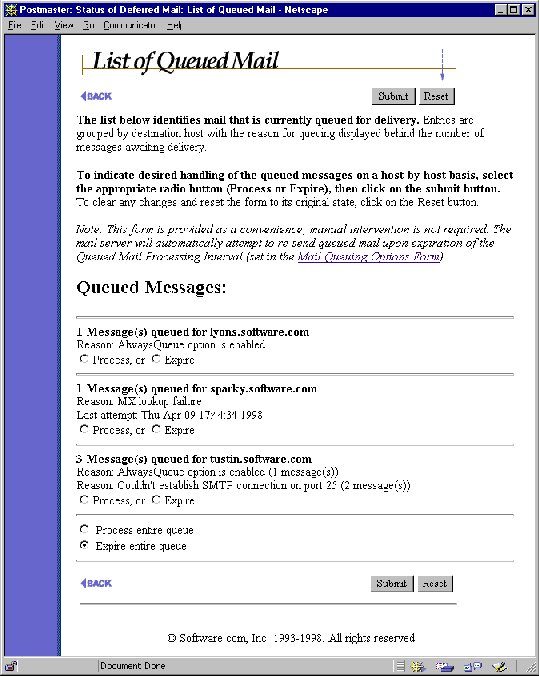
Figure 8-10: List of Queued Mail Form
All queued messages are grouped on this form by their destination host and/or domain. This means that a single entry on this form can represent multiple messages. Each entry includes the number of messages in the group, as well as the reason why the messages were not successfully delivered.
Each message group includes the radio buttons Process and Expire. To request immediate handling of the message group, select the appropriate radio button and submit the form. The Process option attempts to immediately deliver the messages, while the Expire option gives up on the whole group of messages and returns them to sender. Again, Post.Office will automatically attempt to resend at the end of the Queue Mail Processing Interval, and will automatically expire messages after the Maximum Time in Queue has been reached, so manual processing of the mail queue is unnecessary.
You can choose to process or expire all of the messages in the mail queue by selecting the Process entire queue or Expire entire queue options, respectively.
The Queued Mail e-mail form is nearly identical to the web-based List of Queued Mail Form shown above. It allows you to view the number of messages currently in the mail queue, the destination host to which they are supposed to be delivered, and the reason that Post.Office was unable to deliver the messages.
To request the Queued Mail Form, submit an e-mail message to your host’s Configuration Manager address (configuration@host.domain) which contains the following keyword in the message body:
queue
The form returned to this command looks like the following:
|
The following is a list of Queued Mail on sparky.software.com
(Note: It may take several minutes for the queue to process or expire for each host due to the time-out period for attempted contact with unreachable hosts. Please be patient when using this form. Additional information follows the Queued Mail list): flakydomain.com: [] (process or expire) - 3 Message(s) queued. Reason: Couldn't establish SMTP connection on port 25 some.other.com: [] (process or expire) - 1 Message(s) queued. Reason: MX lookup failure megahuge.com: [] (process or expire) - 189 Message(s) queued. Reason: Server failed (MAIL) ... |
As with the web-based List of Queued Mail Form, you can choose to process or expire each group of mail in the queue. Create a reply message that includes the contents of the form, and enter the appropriate keyword (process or expire) in the [square brackets] next to the destination domain. Send the form message to execute whatever mail queuing operations you specified, remembering as always to include the Postmaster password with the form.
|
% mailq
Queued Messages Destination Host --------------- ---------------- 2 math.ucsb.edu 3 megahuge.com % |
Yet another mail queue processing option is the ETRN command, which can be used to instruct remote mail hosts to attempt delivery of queued messages. Unlike mailq (described above), ETRN is an SMTP command; this means that it is executed by assorted mail programs during client connections to the Post.Office SMTP server. This is useful if you have a PPP or a SL/IP connection, or have a similarly intermittent connection to the Internet (or any other network you receive messages from).
Although ETRN is designed to be used by connecting mail servers, you can also execute it manually to request queue processing. To do so, use the telnet utility to log in to port 25 of the Post.Office server system, and enter ETRN followed by "@" and the domain of the queue that should be processed. For example, the following telnet session requests delivery of the queued messages displayed in the mailq example above:
|
220 sparky.software.com ESMTP server (Post.Office v3.5 release
ID#0-0U1000L50S10000) ready Thu, 4 Dec 1997 12:42:38 -0800 HELO 250 sparky.software.com ETRN @math.ucsb.edu 250 Ok ETRN @megahuge.com 250 Ok QUIT |
As discussed in Chapter 5, all e-mail accounts that use the POP3/IMAP delivery method have a mailbox on the server system. E-mail mailboxes are analogous to postal mailboxes; it is into this mailbox that messages are placed as they’re delivered by Post.Office, and it is from this mailbox that messages are taken when requested by a mail client. Consequently, these mailboxes grow in size as e-mail is collected.
Because POP and IMAP mailboxes consume disk storage space on the server, you should understand how they’re stored, how to check their size, and how to clean them out if necessary.
Mailboxes are simply directories on the server file system. All Post.Office mailboxes are stored in one of several directories in a central mailboxes directory. The location of the mailboxes directory is set at installation time, and can be viewed in the Licensing/Configuration Form. This form is invoked from the System Configuration menu by clicking on the View Licensing/Configuration Information link.

Figure 8-12 Licensing/Configuration
Form
The location of the Post.Office Mailbox Directory
is listed in the Configuration Information section of the form. Within this
central mailbox directory are hundreds of numbered sub-directories (from 0 to
499) which contain individual user mailboxes. An individual mailbox directory
has the same name as the account’s unique identifier (UID),
which is based on the Real Name specified for the account at time of creation.
Both the UID and mailbox directory location of each account are shown on the
Account Data Form (refer back to Chapter 5 for illustrations and descriptions
of that particular form).
Within each mailbox is another directory named in; this is the directory that contains the actual message files. The in directory also contains a pair of files used by Post.Office to measure mailbox size and set a lock on the account. These files are named (respectively):
__size__

__size_lock__
The message files themselves are given unique names which include their date and time of receipt, and which look something like the following:
19970227080711159.AAI86@sparky.software.com
When you look in a typical mailbox, you’ll see both the two size files and probably a few messages. The following is a directory listing for a mailbox.
[mail:278/jefe/in] root# ls -l
total 24
-rw-rw---- 1 mta mail 550 Jun 26 15:16 20020626221626.AAB16774@mail.tenon.com
-rw------- 1 mta mail 43 Jun 26 15:17 __cache__
-rw------- 1 mta mail 0 Jun 26 15:17 __lock__
-rw-rw---- 1 mta mail 3 Jul 3 12:22 __size__
-rw------- 1 mta mail 0 Jun 26 15:16 __size_lock__
Although going through mailbox directories is highly discouraged, there are a few conditions in which it can become necessary or desirable for the Postmaster to do so. See Section 8.3.3 for more information.
Because mailboxes consume storage space on your server system, it’s certainly in your interests to keep track of their growth. As discussed in Chapter 5, you can set a limit for the maximum size of each mailbox (recall that when an account reaches its mailbox limit, any new messages sent to that account are returned to sender and the Postmaster is notified). But if you don’t set account limits, or if you’re concerned about the amount of storage being taken up by particular users, you can easily check the size of each user’s POP/IMAP mailbox.
Mailbox sizes can be most easily checked in the List of Accounts menu. This menu displays the Real Name and primary address of each account. By clicking on the Show Quota link in the General Accounts section of the menu, you can display mailbox usage information for each account; this provides a convenient way for you to check up on who’s using up your disk space.
Recall that this menu is invoked from the Account Administration menu by clicking on the List of Accounts link, and looks like the following:
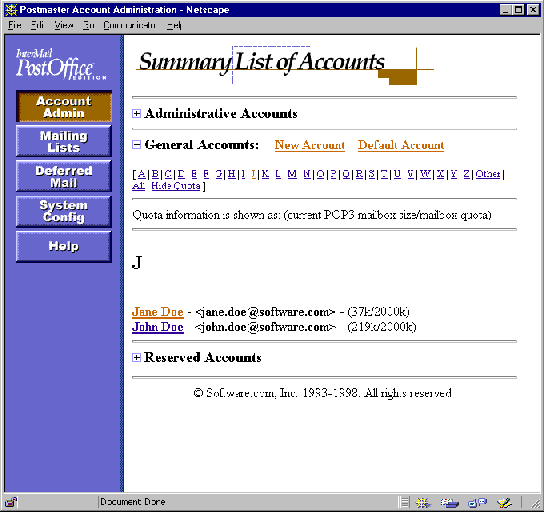
Figure 8-14 List of Accounts menu
If you only want to look at the mailbox usage numbers of a particular account, you can get this information from its Account Data Form.
Things to look for when viewing mailbox usage are accounts that are at or near their limit, and accounts that are taking up an unusual amount of storage space (especially those with no mailbox limit). Depending on what you find, you may decide that the mailbox limits of certain accounts should be raised or reduced. Remember, the idea is to provide your users with enough space to actually use their e-mail account, but not so much that your users can collectively max-out your storage capacity.
Poking around the files in mailbox directories on the server file system is a rare operation that strays pretty far into "not recommended" territory. However, under extreme circumstances, you may need to do this, so you should know how.
Most of the conditions that can require you to directly access a mailbox are all variations of the same problem: an account receives a message that the user’s mail client can’t retrieve. This can be caused by messages that are exceptionally large (especially for users downloading mail through a modem), or which contain special formatting (MIME encoding, etc.) that the user’s mail client can’t handle; a message can even become corrupted or have its file permissions changed in such a way as to prevent delivery. Such a message can shut down mail retrieval for that account, since no subsequent messages can be retrieved until the first one is removed.
Post.Office has no trouble handling messages of enormous size, so if you want to casually toss 10 Mb messages around your mail system, you certainly can. But many mail clients will experience problems when it comes time to receive such mega-messages, especially if the user is downloading their mail via a modem. So while enormous messages are not a problem for Post.Office, they can certainly pose a problem for your users.
Solving the problem of the oversized message is simple: go to the user’s mailbox and delete the offending message (or at least move it out of the way). This is a little more difficult than it sounds, but the procedure breaks down like this:
1. Get the location of the user’s mailbox directory, as shown on the Account Data Form.
2. On the server file system, go to that mailbox directory (remember that this operation requires that you have appropriate user privileges).
3. Find the message of unusual size – this will be the message that is causing the problem. If you find more than one, you might as well delete them all, since each will cause the same problem.
4. Delete the message(s) using normal file system commands.
In the following example, an account has somehow received a 25 Mb message (this scenario can be prevented by setting the limit for maximum message size described in Chapter 4, but for this example, let’s assume that no limit exists). Since the user of this account is using a 14.4 kb modem to retrieve her mail, it would take her literally all day (and night) to get this message. When she discovers the problem, she contacts the Postmaster for help. The Postmaster looks up the mailbox directory location on the user’s Account Data Form, and gets a listing of the files in this directory:
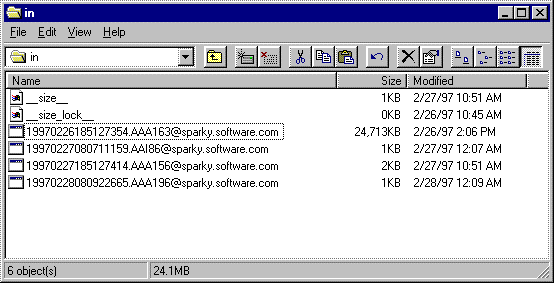
Figure 8-15 Listing
of mailbox directory
It doesn’t take the Postmaster very long to spot the problem – a gargantuan mega-message is blocking delivery of the other messages waiting for this user. By deleting this file, the Postmaster removes the roadblock and restores normal mail delivery.
This section discusses the details of the information recorded in the Post.Office logs. A log is a file that contains a running record of operations performed by Post.Office. Depending on how you have set your logging options, your daily logs can record every message arrival, every user request for POP3 delivery, and every mailing list distribution. These log messages are extremely valuable when debugging problems, since you can view the exact steps Post.Office went through when it encountered whatever problem you run into. Because many logging options include the time required to complete a transaction, logs can also be used to measure mail system performance.
All Post.Office log information for a specific day is kept in a single file and that file is named in the form of post.office-####.log, where #### represents the month and day. For example, the log file for April 15 has the name
post.office-0415.log
The location and contents of log files can be set by the Postmaster in the Logging Options Form. This form is invoked from the System Configuration menu by clicking on the Set Logging Options link, and looks like this:
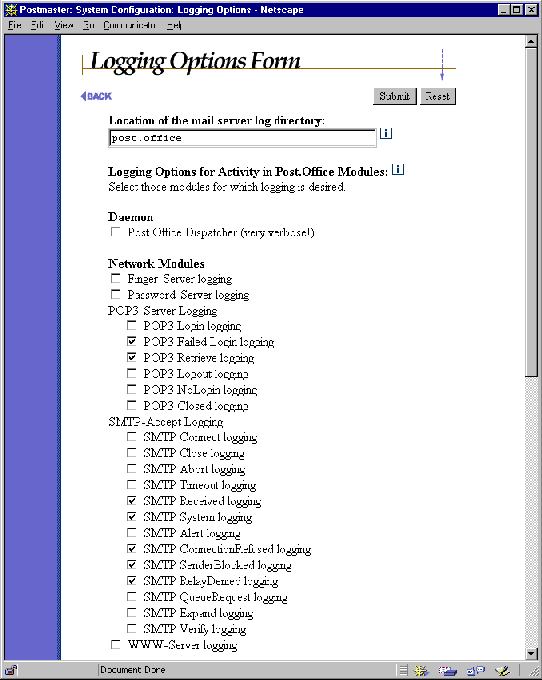
Figure 8-16 Logging Options Form (part 1 of 2)
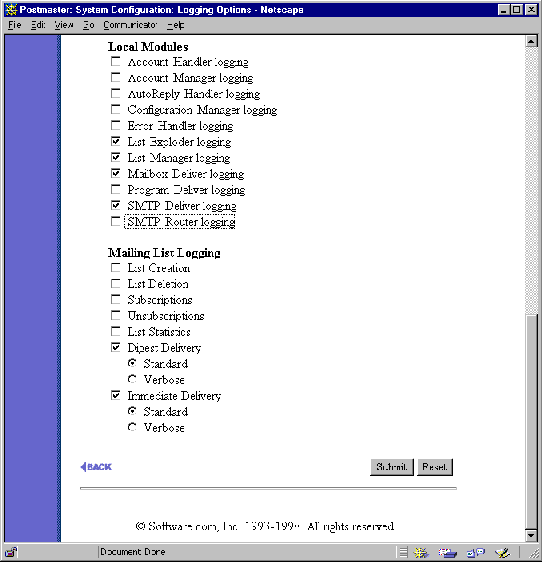
Figure 8-17 Logging Options Form (part 2 of 2)
By default, the log files are kept in the post.office/log directory, and we highly recommend that you leave it as the default. However, you can override the default location by specifying the full path of the directory where you want the logs to go in the text field labeled Location of the mail server log directory. Be sure that the permissions of the log directory you choose allow the Post.Office user to access the log files.
Besides logging directory location, the Logging Options Form allows you to determine exactly which Post.Office activities will be recorded in the logs. These activities fall into four general categories: Daemon, Network, Local, and Mailing List. The following section offers details on the individual logging options.
To turn on logging for one or more activities, enable the check box next to each of the desired logging options (and disable the check box next to unwanted options to turn them off). Changes take effect immediately after submitting changes to this form, so today’s log file will begin logging whatever new options you requested.
Each module that writes an entry in the log file uses a format that is machine readable and can be used for automatic processing. Each entry consists of the current date and time, the module that recorded the information, and the module specific information. The date and time are given in the format YYYYMMDDhhmmss-OGMT: year, month, day, hour (00-23), minute, second, and offset from GMT time.
The following is a sample log snippet:
|
19970226001320-0800:SMTP-Accept:Connect:[10.2.21.3]
19970226001321-0800:SMTP-Accept:Received:[10.2.21.3] :19970226081320963.AAA133@fido.software.com:6703:0 :<zack.taylor@megahuge.com>:<john.doe@software.com> 19970226001321-0800:SMTP-Accept:Close:[10.2.21.3]:1:1:6569 19970226005947-0800:Mailbox-Deliver :19970226085946739.AAA176@sparky.Software.com:John_Doe |
This may look cryptic, but it’s actually quite simple. Four events are logged here:
See? Pretty straightforward, once you know what you’re looking for.
Incidentally, long lines in the log file are not broken into more than one line as shown in this and other examples – this line wrapping is done here for presentation purposes only. There is one case where a single log entry can span multiple lines in the log file, and that is when the error handler module records the contents of a message’s control file. In this case, each line of the multi-line entry is indented with a tab character, so an automatic log file parser should be able to easily detect them.
The following sections contain information on the various Post.Office logging options that are available. Practically everything that Post.Office does can be recorded to a log file. However, you probably won’t record everything, since most of this information is not useful on a day-to-day basis; depending on the amount of activity on your server, it also can create enormous log files and degrade server performance. But many logging options are useful for calculating server performance, and the others are nice to have it available in case you need to do some troubleshooting.
Note that in the format description for each logging entry, values shown between <angle brackets> are values that are replaced with actual data. Except where noted, these values do not literally appear between these brackets in the log files.
This is the mother of all logging options – it records practically every movement of binary bits into, out of, or even close to Post.Office. It is incredibly verbose and creates large, unwieldy log files that you probably won’t enjoy reading through. This option should be used only for very low-level troubleshooting.
The finger server records the connecting host’s IP address (enclosed in [square brackets]), along with the name that requested. The format of this log entry is:
<date-time>:Finger-Server:[<client-IP>]:<name>
For example:
19951020123456-0800:Finger-Server:[234.56.78.90]:frank
This entry records transactions on port 106 related to a password feature used by the Eudora mail client.
There are six different levels of logging for the Post.Office POP server. The Login, Logout, and Retrieve options can be used to determine connection time and resource usage, as well as the frequency with which users are contacting the server. The other three POP3 log options – Closed, NoLogin, and Failed Login – are useful for debugging when a user can’t log in, or for detecting users trying to gain unauthorized access.
Login. This option records client connections to the Post.Office POP3 server. It includes the IP address of the connecting system (enclosed in [square brackets]), and the username of the account being accessed. The format of this log entry is:
<date-time>:POP3-Server:Login:[<client-IP>]:<pop-login>
For example:
19971022182344-0800:POP3-Server:Login:[123.45.67.89]:mike
Failed Login. This option records client connections to the Post.Office POP3 server which were unsuccessful. A POP login typically fails because the specified POP login name does not exist, or the specified password is incorrect. This log entry includes the IP address of the connecting system (enclosed in [square brackets]), the username given by the client, and the reason that the login failed.
The format of this log entry is:
<date-time>:POP3-Server:FailedLogin:[<client-IP>]:

 <pop-login>:<error>
For example:
19971022182324-0800:POP3-Server:FailedLogin:[13.45.6.9]:

 mike:BadPassword
19971022182347-800:POP3-Server:FailedLogin:[13.45.6.2]:

 jdoe:UnknownUser
There are three possible error conditions found in a FailedLogin log entry: UnknownUser (the POP login name does not match that of an existing account), BadPassword (the given password is not correct), and AccessDenied (the login data was correct, but the connecting client is not within the account’s General Access Restrictions).
Retrieve. This option records a log entry for each message downloaded by a user from the POP server. It includes the IP address of the connecting system, the username of the account being accessed, the size of the message (in bytes), the time required to retrieve the message (in seconds), and the return address of the sender (enclosed in <angle brackets>) as defined in the message’s Return-Path header. The format of this log entry is:
<date-time>:POP3-Server:Retrieve:<pop-login>:<bytes>:<seconds>:

 <sender>
For example:
19971022182345-800:POP3-Server:Retrieve:mike:46390:12:

 <joe@foo.bar.com>
Logout. This option records normal closures of POP client connections. It includes the IP address of the connecting system (enclosed in [square brackets]), the username of the account being accessed, and the total connection time of the session (in seconds). The format of this log entry is:
<date-time>:POP3-Server:Logout:[<client-IP>]:<pop-login>:<seconds>
For example:
19971022182344-0800:POP3-Server:Logout:mike:42
NoLogin. This entry indicates that a POP connection was closed normally, but that no login occurred during the session. This could indicate that unauthorized users are attempting (unsuccessfully) to access mail on your system. It includes the IP address of the connecting system (enclosed in [square brackets]), and the total connection time of the session (in seconds). The format of this log entry is:
<date-time>:POP3-Server:NoLogin:[<client-IP>]:<seconds>
For example:
19971117182935-0800:POP3-Server:NoLogin:[10.3.83.19]:20
Closed. Similar to the POP3 Logout logging option, this option records unexpected closures of POP client connections. It includes the IP address of the connecting system (enclosed in [square brackets]), the username of the account being accessed, and the total connection time of the session (in seconds). The format of this log entry is:
<date-time>:POP3-Server:Closed:[<client-IP>]:<pop-login>:<seconds>
For example:
19971117183600-0800:POP3-Server:Closed:[10.3.83.19]:mike:17
There are no less than 13 different levels of logging for the SMTP-Accept module, which is the Post.Office component responsible for receiving incoming messages. These SMTP-Accept logging options are the most important method of determining the mail system load, as they can record information on every message handled by Post.Office – their recipients, their size, the amount of time required to process them, and the return address of the sender. Also included among the SMTP-Accept logging options are entries that record information about messages rejected because of relay restrictions or mail blocking rules, as well as entries which indicate possible tampering.
Connect. This option records SMTP connections, from e-mail clients as well as other mail servers. It includes the IP address of the connecting system (enclosed in [square brackets]). The format of this log entry is:
<date-time>:SMTP-Accept:Connect:[<client-IP>]
For example:
19970226001320-0800:SMTP-Accept:Connect:[10.2.21.3]
Close. This option records the closing of SMTP client connections. It includes the IP address of the connecting system (enclosed in [square brackets]), the total connection time (in seconds), the number of messages sent during the connection, and the total number of bytes sent. The format of this log entry is:
<date-time>:SMTP-Accept:Close:[<client-IP>]:<seconds>:

 <#-messages>:<bytes>
For example:
19970226001321-0800:SMTP-Accept:Close:[10.2.21.3]:1:2:6569
Abort. This option is identical to the Close option above, but indicates that the client aborted its connection. For example:
19971118001632-0800:SMTP-Accept:Abort:[10.2.85.88]:11:0:6
Timeout. This option is identical to the Close option above, but indicates that the client connection timed out. For example:
19971118001632-0800:SMTP-Accept:Timeout:[10.2.85.88]:602:0:6
Receive. This option records the receipt of individual messages. Included in this log entry are the following: IP address of the connecting system (enclosed in [square brackets]), the unique identifier of the message, the size of the message (in bytes), the number of seconds required to accept the message, the sender’s return address (enclosed in <angle brackets>), and a comma separated list of recipient addresses (each enclosed in <angle brackets>). The format of this log entry is:
<date-time>:SMTP-Accept:Received:[<client-ip>]:

 <message-id>:<bytes>:<seconds>:

 <sender>:<recipient>,<recipient>,...>
For example:
19970226001321-0800:SMTP-Accept:Received:[10.2.21.3]:

 19970226081320963.AAA133@fido.software.com:6703:0:

 <zack.taylor@megahuge.com>:<john.doe@software.com>,

 <jane.doe@software.com>
System. This option logs system failures that resulted in the inability to receive a message.
Alert. This option logs security-related warnings, such as when an SMTP client issues commands – such as WIZ or DEBUG – which are intended to compromise server security. This option also records the sending of an exceptional number of invalid SMTP commands, which can indicate an attempt to hack into the mail system. Included in this log entry are the IP address of the connecting system (enclosed in [square brackets]), and the potential security violation. The format of this log entry is:
<date-time>:SMTP-Accept:Alert:[<client-ip>]:

 <possible-security-risk>
For example:
19971118004203-0800:SMTP-Accept:Alert:[10.2.85.88]:

 Client issued ``WIZ''
19971118003812-0800:SMTP-Accept:Alert:[10.2.85.88]:

 Client issued too many bad commands
ConnectionRefused. This option logs network connections which are denied because the client's IP address matches a blocked IP address listed on the Mail Blocking Options Form. Included in this log entry is the IP address of the blocked system (enclosed in [square brackets]). The format of this log entry is:
<date-time>:SMTP-Accept:ConnectionRefused:[<client-ip>]
For example:
19970425164342-0700:SMTP-Accept:ConnectionRefused:[12.45.6.78]
SenderBlocked. This option logs the blocking of messages because the sender address matched a blacklisted pattern. Included with this log entry are the IP address of the client system (enclosed in [square brackets]), the sender address, and the number of failed recipients. The format of this log entry is:
<date-time>:SMTP-Accept:SenderBlocked:[<client-ip>]:

 <sender>:<#-recipients>
For example:
19970425164317-0700:SMTP-Accept:SenderBlocked:[10.3.91.11]:

 <incredible-offer@junkmailer.com>:1000
RelayDenied. This option logs attempted mail relaying that was denied because of settings in the SMTP Relay Restrictions Form. Included in this log entry are the IP address of the client system (enclosed in [square brackets]), the sender’s return address, and the number of failed recipients. The format of this log entry is:
<date-time>:SMTP-Accept:RelayDenied:[<client-ip>]:

 <sender>:<#-recipients>
For example:
19971118005245-0800:SMTP-Accept:RelayDenied:[10.2.85.88]:

 <sir.spamalot@junkmailer.com>:30000
QueueRequest. This option records client usage of the ETRN or QSND commands, which requests processing of the mail queue. Included in this entry are the IP address of the client system (enclosed in [square brackets]), and the remote mail domain for which queue processing was requested. The format of this log entry is:
<date-time>:SMTP-Accept:QueueRequest:[<client-ip>]:<domain>
For example:
19971118005638-0800:SMTP-Accept:QueueRequest:[10.2.1.8]:software.com
Expand. This option records client usage of the EXPN command, which returns the primary address of an account given a valid address for that account. Included in this entry are the IP address of the client system (enclosed in [square brackets]), and the e-mail address specified with the request (enclosed in <angle brackets>). The format of this log entry is:
<date-time>:SMTP-Accept:Expand:[<client-ip>]:<address>
For example:
19971118011036-0800:SMTP-Accept:Expand:[10.2.1.8]:<jdoe@software.com>
Verify. This option records client usage of the VRFY command, which is used to verify the existence of an account given an e-mail address for the account. Included in this entry are the IP address of the client system (enclosed in [square brackets]), and the e-mail address specified with the request (enclosed in <angle brackets>). The format of this log entry is:
<date-time>:SMTP-Accept:Verify:[<client-ip>]:<address>
For example:
19971118011036-0800:SMTP-Accept:Verify:[10.2.5.8]:<jd@software.com>
WWW-Server log entries record events that occur in the Post.Office web interface, such as users logging in to this interface and submitting forms. Included in these log entries is the IP address (enclosed in [square brackets]) of the client system which is accessing the web interface, as well as the type of transaction performed. The format of this log entry is:
<date-time>:WWW-Server:[<client-ip>]:<transaction>
For example:
19971118005122-0800:WWW-Server:[10.2.85.88]:GET / HTTP/1.0

 19971118005131-0800:WWW-Server:[10.2.85.88]:POST

 /Authentication HTTP/1.0
This option records messages handled for a particular local account. Included in this log entry is the unique identifier of the message handled.
<date-time>:Account-Handler:<message-id>
For example:
19971118003322-0800:Account-Handler:

 19971118083321560.AAA176@zurich.Software.com
This logging option records the use of the Account-Manager account to request and submit account-related e-mail forms. Included in this log entry is the unique identifier of the message handled.
This option records the use of the auto-reply feature, and creates a log entry each time an auto-reply message is sent. It includes the unique identifier of the received message that will be automatically replied to.
<date-time>:AutoReply-Handler:<message-id>
For example:
19971118013145-0800:AutoReply-Handler:

 19971118093141843.AAA220@fido
This logging option records the use of the Configuration-Manager account to request and submit system-related e-mail forms. Included in this log entry is the unique identifier of the message handled.
The Error-Handler records several events associated with errors in mail handling. The type of log entries created by this module include the sending of e-mail Message Action Forms to the Postmaster, receipt of these forms with Postmaster instructions, and the arrival of undeliverable messages. Note that the headers of error messages that are in error
The following examples indicate the types of Error-Handler logging. This first example indicates that the Error-Handler account received an e-mail form from the Postmaster:
19971118014014-0800:Error-Handler:19971118094012227.AAA177@fido
The following log entry is the result of invalid information provided in the message whose arrival was recorded in the above example. The reason for the error is given, which in this case is a missing or incorrect Postmaster password:
19971118014014-0800:Error-Handler:Error:

 Authentication Failed for message:

 (19971118094012227.AAA177@fido) Reason: Invalid Password.
The next example is a log entry that records the arrival of a message to Post.Office which could not be delivered for one reason or another. The reason for the error is given, as are the complete headers of the message are provided.
19971118015018-0800:Error-Handler:19971118095015865.AAA98@fido-Unknown

 Function: Error-Handler

 Control-Type: Mail

 Priority: 2

 Submitted-Date: Tue, 18 Nov 1997 01:50:16 -0800

 MIME-Encoding: 7BIT

 Host-From: [10.2.85.88] [10.2.85.88]

 User-From: SMTP<scottm@sparky.software.com>

 Message-Size: 1127

 MTA-Hops: 0

 Channel-To: SMTP <john.deo@software.com>

 Error: SMTP-Router:UnknownAccounts (WriteUnknownAcct)

 Error-Text: SMTP <john.deo@software.com>

 Trace: SMTP-Accept

 Trace: SMTP-Router
This log entry indicates that Post.Office has extracted the list of individual recipients for a message addressed to a mailing list. Included in this log entry is the unique identifier of the message that was worked on by the List-Exploder (that is, the message that was addressed to a mailing list). For example:
19971118173823-0800:List-Exploder:19971119013820651.AAA64@sparky
The option records information about messages which are addressed to the List.Manager account, or to the request handler accounts associated with mailing lists. These are typically messages which contain list manager e-mail commands, or are bounce messages returned by other mail servers. Included in this log entry is the unique identifier of the message that was received. For example:
19971118182616-0800:List-Manager:19971119022609687.AAA141@sparky
This option records the delivery of a message to POP3 mailboxes. Included in this log entry is the unique identifier of the message that was delivered, and a comma-separated list of recipient mailboxes. The format of this log entry is:
<date-time>:Mailbox-Deliver:<message-id>:<mailbox>, ...
For example:
19971118173824-0800:Mailbox-Deliver:

 19971119013823645.AAA220@spoarky.com:Jane_Doe,John_Doe
Similar to the Mailbox-Deliver option above, this option records the delivery of a message to a program. Included in this log entry is the unique identifier of the message that was delivered, and a comma-separated list of recipients (specified by account UID). The format of this log entry is:
<date-time>:Program-Deliver:<message-id>:<account-id>, ...
For example:
19971118173849-0800:Program-Deliver:19971119013823645.AAA220@z.com:

 Jane_Doe,John_Doe
This option logs activities of the SMTP-Deliver module, which is responsible for sending outgoing messages to other mail servers.
The most common SMTP-Deliver log entry is one that records the attempted delivery of a message. Included in this log entry are the unique identifier of the message, the action taken for the message (Delivered or Deferred), the size of the message (in bytes), the host name of the destination mail server, the return address of the message, and a comma-separated list of recipient addresses (each enclosed in <angle brackets>). The format of this log entry is:
<date-time>:SMTP-Deliver:<message-id>:

 <action>:<bytes>:<hostname>:<sender>:

 <recipient>,<recipient>,...>
For example:
19970716011333-0700:SMTP-Deliver:19970716081331455.AAA111@fido:

 Delivered:2019:mail.accordance.com:<skippy@software.com>:

 <joe@accordance.com>
19970716012012-0700:SMTP-Deliver:19970715005131664.AAA513@sparky:

 Deferred:616:maczieg.com:<jdoe@software.com>:

 <scott@maczieg.com>, <chris@maczieg.com>
Other SMTP-Deliver log entries are warnings that indicate that connections to other servers timed out, or were unsuccessful because of problem with the domain’s DNS records. For example:
19970716011847-0700:SMTP-Deliver:Warning:

 MX lookup for foo.com timed out
19970716011853-0700:SMTP-Deliver:Warning:

 MX lookup for bar.com returned no records
19970716131627-0700:SMTP-Deliver:Warning:

 Timed out waiting for SMTP greeting from: 207.177.177.11
This logging option records the activities of the SMTP-Router, the module responsible for reading the headers of incoming messages and determining how they should be handled (delivered to a mailbox, sent to a remote mail server, etc.). Included in this log entry is the unique identifier of the message that was handled.
19951020130722-0800:SMTP-Router:19951020200722.AAA1234@foo.com
This option controls logging for a specific WWW-Server event: the creation of a new mailing list. This log entry includes the List Name of the new mailing list, and is in the format:
<date-time>:WWW-Server:List-Created:<listname>
For example:
19970306183857-0800:WWW-Server:List-Created:surfing
Like the List Creation option above, this option controls logging for a specific WWW-Server event: in this case, the deletion of an existing mailing list. This log entry includes the List Name of the deleted mailing list, and is in the format:
<date-time>:WWW-Server:List-Deleted:<listname>
For example:
19970306183836-0800:WWW-Server:List-Deleted:elvis_fans
This option controls logging for user subscriptions to mailing lists. This may appear as an event logged from two different Post.Office modules: the List-Manager (subscription requests submitted via e-mail), and the WWW-Server (subscriptions via the web interface). Both types of entries include the List Name of the mailing list, the address of the subscriber (enclosed in <angle brackets>), and the delivery mode (digest or immediate) requested.
The format of these entries is as follows:
<date-time>:List-Manager:User-Subscribed:<listname>:

 <subscriber>:<mode>
<date-time>:WWW-Server:User-Subscribed:<listname>:

 <subscriber>:<mode>
For example:
19970306184040-0800:List-Manager:User-Subscribed:surfing:

 <john.doe@software.com>:digest
19970710124120-0700:WWW-Server:User-Subscribed:archery:

 <jane.doe@software.com>:immediate
This option is similar to the Subscriptions option above, and logs user unsubscriptions from mailing lists. This may appear as an event logged from two different Post.Office modules: the List-Manager (unsubscription requests submitted via e-mail), and the WWW-Server (unsubscriptions via the web interface). Both types of entries include the List Name of the mailing list, the address of the subscriber (enclosed in <angle brackets>), and the delivery mode (digest or immediate) that the user was subscribed in.
The formats of these entries is as follows:
<date-time>:List-Manager:User-Subscribed:<listname>:

 <subscriber>:<mode>
<date-time>:WWW-Server:User-Subscribed:<listname>:

 <subscriber>:<mode>
For example:
19970306184040-0800:List-Manager:User-Unubscribed:surfing:

 <john.doe@software.com>:digest
19970710124120-0700:WWW-Server:User-Unsubscribed:archery:

 <jane.doe@software.com>:immediate
This entry indicates the distribution of a mailing list’s nightly statistics message to the list owner(s). It includes the List Name of the mailing list, the number of messages submitted to the mailing list that day, the total size (in bytes) of those messages, the number of subscribers, and the mailing list’s digest schedule. The format of this log entry is:
<date-time>:List-Scheduler:List-Statistics:<listname>:

 <#-messages>:<bytes>:<#-subscribers>:<digest-schedule>
For example:
19970307000046-0800:List-Scheduler:List-Statistics:league:

 13:37:12:daily 5 pm
This option records the distribution of a mailing list’s digest, which is handled by the List-Scheduler module. Included in this entry is the List Name of the mailing list, the unique identifier of the message (enclosed in <angle brackets>), and the size (in bytes) of the digest message. When the Standard mode is selected, the number of subscribers is also shown, whereas the Verbose mode includes a complete list of message recipients (each enclosed in <angle brackets>) instead of only the number.
The format the Standard log entry is:
<date-time>:List-Scheduler:List-Activity-Digest:<listname>:

 <message-id>:<bytes>:<#-recipients>
For example:
19970306170300-0800:List-Scheduler:List-Activity-Digest:surfing: <19970307010258708.AAA95@software.com>:24:39
The format the Verbose log entry is:
<date-time>:List-Scheduler:List-Activity-Digest-Verbose:

 <listname>:<message-id>:<bytes>:

 <recipient>,<recipient>,...>
For example:
19970306170300-0800:List-Scheduler:List-Activity-Digest-Verbose:

 surfing:<19970307010258708.AAA95@software.com>:24:

 <joe.schmoe@software.com>,<john.doe@software.com>
This option is similar to the Digest Delivery option above, and records the distribution of a message to all mailing list subscribers using the immediate mode of delivery. Unlike the Digest Delivery option, this log entry is recorded by the List-Exploder module, but is otherwise nearly identical.
Included in this entry is the List Name of the mailing list, the unique identifier of the message (enclosed in <angle brackets>), and the size (in bytes) of the message. When the Standard mode is selected, the number of subscribers is also shown, whereas the Verbose mode includes a complete list of message recipients (each enclosed in <angle brackets>) instead of only the number.
The format the Standard log entry is:
<date-time>:List-Exploder:List-Activity-Immediate:<listname>:

 <message-id>:<bytes>:<#-recipients>
For example:
19970306183651-0800:List-Exploder:List-Activity-Immediate:surfing:

 <19970307024224950.AAA364@zurich>:2:39
The format the Verbose log entry is:
<date-time>:List-Exploder:List-Activity-Immediate-Verbose:

 <listname>:<message-id>:<bytes>:<recipient>,<recipient>,...>
For example:
19970306183651-0800:List-Exploder:List-Activity-Immediate-Verbose:

 surfing:<19970307024224950.AAA364@zurich>:2:

 <joe.schmoe@software.com>,<john.doe@software.com>,...
A new Post.Office log file is created every day at midnight, with yesterday’s log file left intact for your records. The size of each log file varies depending on the number of logging options you have selected and the amount of mail traffic on your system. Over time, maintaining an excessive number of log files can noticeably impact your server storage space. It is therefore recommended that you go to the log directory periodically and delete log files that you consider too old to be useful.
Post.Office ©Software.com, Inc. 1994-1998
