



Mailing Lists
This chapter contains information regarding the mailing list manager portion of Post.Office from the Postmaster’s perspective. Included in this chapter are the following topics:
Because the Postmaster is only one piece of the user puzzle, several areas of the end user operations in the mailing list manager are not fully described here. The Post.Office User’s Guide contains detailed information on the end user operations and forms that are used to subscribe to a mailing list, submit messages to a mailing list, and unsubscribe from a mailing list. The Post.Office List Owner’s Guide contains information for list owners to assist them in setting up and managing their mailing lists. You should refer to these other two manuals for specific instructions on end user and list owner activities. If you intend to personally manage one or more mailing lists, you should have your own copy of the List Owner’s Guide handy.
A mailing list is a group of users who share information on a common topic. Mailing lists allow electronic messages to be distributed to all of the list’s subscribers by submitting a message to a single address. When an e-mail message is sent to the list address, it is forwarded to all subscribers of the list, each of whom receive a copy of the original message with their regular e-mail. Mailing lists are administered by one or more list owners, who are responsible for the day-to-day operation of the mailing list.
Mailing lists are similar to bulletin board services (BBS) and the Internet’s USENET newsgroups, except that they use the medium of e-mail. A mailing list can be used for something as important as a list of all your company’s employees, or as trivial as a television sitcom fan club.
A typical application for a mailing list is the creation of an employee list. For example, the MegaHuge, Inc. company might have a mailing list that includes all employees of the company, and which has the address all@megahuge.com. When a message is sent to this address, it is forwarded to all employees of MegaHuge.
Working with the mailing list manager is similar to using the account management portion of Post.Office, but offers substantially different operations to different classes of users. Whereas account management operations are divided between the Postmaster and the users who have local e-mail accounts, operations in the mailing list manager involve four classes of users: the Postmaster, list owners, users with local e-mail accounts, and users without local mail accounts (that is, the rest of the known world). Each of these four classes of users have access to a specific portion of the mailing list manager, and it’s pretty important for you to understand what all of these users can do.
Make no mistake about who’s in charge of the mailing list manager: as the Postmaster, you still have the ultimate say in what goes on the system. However, since you probably can’t (and don’t want to) personally maintain each and every mailing list, the system has been set up so that you can easily delegate that authority to one or more mailing list owners. These list owners, as described in the next section, have a broad range of options that they can set for their mailing lists, but only you can create lists, assign owners, and set limits for the amount of mail activity allowed for each mailing list.
These are the activities that the Postmaster – and only the Postmaster – can do with mailing lists:
As Postmaster, you can also perform all list owner operations available in the web interface, such as:
It should be noted, however, that none of the list owner options available in the mailing list manager’s e-mail interface are available to the Postmaster. This is because the e-mail forms for moderation are sent only to the owner of the mailing list, and the list owner’s password is required information for processing any administrative request. If the list owner elects to handle all moderation via e-mail, this means that the Postmaster will have no ability to moderate subscription requests and messages, or modify submitted messages before they are posted to a mailing list.
Although restricting the Postmaster from operations available to your users may seem akin to letting the animals run the zoo, remember that the mailing list manager has been designed to allow the Postmaster pass the job of list ownership to somebody else. If you have problems with sharing and just want to keep complete mailing list authority to yourself, you are certainly welcome to give ownership of all mailing lists to yourself. But doing so may severely cut into your Postmaster duties (you’ve been warned).
List owners are a special class of users to whom the Postmaster has delegated authority over specific mailing lists. Any user who has an e-mail account on your Post.Office server is eligible to own any number of mailing lists, over which he/she has wide-ranging administrative authority, including the ability to define most mailing list attributes. In fact, with the exception of a few limits and security parameters, a list owner’s powers over his/her mailing lists are equal to those of the Postmaster.
Among the tasks that can be performed by list owners are the following:
Although the Postmaster can access all areas of list owner activity in the Post.Office web interface, the same is not true for the e-mail interface, in which only a list owner can execute specific commands. The e-mail interface operations that can be executed exclusively by the list owner include:
Section 7.10.2 gives you a glimpse of the portions of the Post.Office web interface which are available to list owners. However, list ownership is such a substantial endeavor that there is an entire manual devoted to the subject: the Post.Office List Owner’s Guide. Refer to this manual for detailed descriptions of all list owner operations.
All users with e-mail accounts on your Post.Office server – known as local users – can easily interact with the mailing list manager through the same web interface that they use to manage their mail accounts. From this interface, all local users can do the following:
The local user web forms for executing list manager operations are shown in Section 7.10.1. In addition to the web interface, an e-mail interface provides access to the same functionality described above, with the following addition:
All local user operations related to the mailing list manager are described in the Post.Office User’s Guide.
The biggest difference between the account management portion of Post.Office and the mailing list manager is that users outside of your system – literally anyone in the world with an Internet connection – can use it. While this may sound alarming, be assured that these outsiders are confined to a relatively modest and limited area of the interface, and can never modify any part of Post.Office. So relax.
A special part of the Post.Office web interface is provided for these "public" users – known as remote users – and allows them to carry out the following mailing list operations:
In addition to the web interface, an e-mail interface provides remote users access to the same functionality described above, with the following additions:
"Wait a minute," you’re probably thinking, "these are exactly the same tasks that my local users can do." And you’re right – anything that a user with a mail account on your system can do with mailing lists (short of owning a mailing list) can also be done by users from outside of your system. However, all mailing lists make a distinction in their subscription policies between local and remote users. By defining a subscription policy that refuses all subscription requests from remote users, you create a "private" mailing list that is never seen by, or made available to, the teeming masses.
Section 7.10.3 gives descriptions and illustrations of the mailing list management interface available to remote users.
But just how much of an impact? Well, it could be anywhere from "practically no effect" to "practically no mail service," depending on a very large number of variables, such as:
The impact of a single mailing list message on Post.Office could even be "quite definitely no mail service" in extreme combinations of the above factors, so it cannot be stressed enough that mailing lists must be contained and kept from growing to the point where they become a severe problem. Each mailing list includes a series of limits which allow you to do just that, and setting these limits will be your primary method of containing them within acceptable bounds.
Although we wish we could give you an exact breakdown of the type of system strain you should expect given the number and size of mailing lists that you want to create, there are simply too many variables involved to do so. It is therefore up to you to decide how best to contain mailing lists on your particular installation of Post.Office. We recommend that you use these four simple rules:
Each of these rules is explained in the following sections.
The primary method available to the Postmaster for controlling mailing lists is through the setting of list limits. For each mailing list in Post.Office, the Postmaster can set the following limits:
When creating a mailing list, you should set low values – such as the Post.Office default limits – for all of the above limits, and adjust them higher on a list-by-list basis. Unfortunately, this will involve some trial and error, and additional administrative tasks for you at first. But it can also make the difference in keeping your mail system functioning well, which is the important thing here.
Even if a Postmaster sets what he/she thinks are pretty strict values for the limits mentioned above, they may fail to add up the maximum potential load of the mailing list – that is, its cumulative impact on memory, storage space, and microprocessor load – to get a "worst case" estimate of its impact on server performance. A mailing list will rarely (if ever) reach this worst case, but this scenario must always be considered before creating a mailing list.
In the following example, a Postmaster named Susie wants to create two mailing lists for her users. Susie is using a mid-level G3 server system with about 500 e-mail accounts (a very small installation). She has read the above warning, decides to be very cautious considering her modest hardware, and sets limits and policies for both of the new mailing lists as follows:
What happened? Susie didn’t do the math. While the limits she set for the mailing lists may have looked good, when all of the possible load on her system is added up, it’s obvious that the server never had a chance in the "worst case" scenario.
Let’s review Susie’s limits:
While the limit on individual message size is reasonably low, the limit on the total storage size of messages posted to the list (10 Mb) was way too high. But where Susie really got into trouble was in setting the digest delivery schedule for weekly; this means that all of the mail received by the mailing list each week is saved up into one large message, which has a maximum size of seven times the amount of mail received each day:
10 Mb/day x 7 days = 70 Mb
Although 70 Mb is a very large message, Post.Office can certainly handle it given enough time. But this huge message isn’t being sent once to one person, it’s being sent to every subscriber of the mailing list. So the total load on the system from this digest message is equal to the size of the message multiplied by the number of recipients:
70 Mb/subscriber x 100 subscribers = 7000 Mb
That’s right – the server attempted to deliver 7 gigabytes of mail for one mailing list. And because Susie was running two mailing lists, the numbers for the entire system were twice as bad:
7 GB/list x 2 lists = 14 GB
Susie’s server stopped accepting mail because, when the clock struck midnight on Sunday, it attempted to deliver and store 14 gigabytes of mail, which it didn’t have the disk space for. Even if it did, the transaction would have taken a very long time.
You can avoid Susie’s fate when creating mailing lists in Post.Office by simply doing the math:
Okay, the example illustrated in Rule #2 is very extreme, and is given here more as an attention-getter than an indication of reasonable mailing list usage. Most mailing lists do not receive 100 messages daily, as in the case of Susie’s mailing lists, since very few subscribers have the desire or time to read 100 messages every day (10 messages/day is considered an active mailing list). Also, any mailing list subscriber who uses a modem to dial in to his/her mail provider will not long tolerate a mailing list that requires them to download a 70 MB digest message (on a 14.4 kb modem, this would take more than one full day). So while such a mega-mailing list can certainly exist – and will certainly cause problems – it would also be extremely unpopular among subscribers and wouldn’t be hosting such traffic for very long.
The best advice for working with mailing lists is the best advice for most things in life: use your common sense. For mailing lists, this means asking yourself such questions as:
Use the answers to these questions to decide on the appropriate limits for each mailing list. Not only will these limits keep you happy by preventing the overloading of the server, it will also make subscribers happy by preventing the mailing list from dumping unreasonable amounts of mail on them.
Common sense is also required in deciding the number of mailing lists that you will create. Post.Office can support up to 30,000 mailing lists on a single installation, but the number of typical mailing lists that you can safely host depends largely on the configuration of the server system where you’re running it. If you have a top-of-the-line OSX Server with dozens of microprocessors, an obscene amount of memory, and nearly unlimited storage capacity, then you can indeed host 30,000 mailing lists with Post.Office. However, if you’re trying to squeak by on a single-processor iMac system with 96 Mb of RAM, you simply don’t have the resources required for that much system load.
Again, your best bet is to start small – create a few mailing lists and add more only after you have monitored your system’s performance and are sure that you can support the ones that you’ve already got.
Folks, mailing lists are fun and useful when they’re kept under control ... but they have the potential to create severe system overload if left completely unchecked. Make sure you understand the potential problems before you start creating mailing lists. It really is that important.
As discussed in Chapter 5, group accounts – that is, accounts which simply forward mail to a group of users – are similar to mailing lists. In fact, group accounts were used as "virtual mailing lists" by many Post.Office users before the arrival of the mailing list manager. However, group accounts lack most of the convenient features of mailing lists, and will likely be phased out by users in favor of the real mailing lists.
This does not mean that group accounts no longer have value – they do. In some cases, in fact, group accounts provide behavior preferable to mailing lists. You can use both to accomplish the same basic function – forwarding mail sent to a single address to multiple users – so the one you choose should depend on the additional features provided by each.
The following table lists these similarities and differences between the two types of mail distribution mechanisms:
| Feature | Group Account | Mailing Lists |
| Forwards mail sent to a single address to multiple users | Yes. | Yes. |
| Prevents users from receiving duplicate messages | Yes. This means that when a message is sent to both you and to a group account of which you are a member, you will receive only one copy of the message. | Yes, optionally. By default, a message sent to both you and a mailing list to which you’re subscribed will be delivered to you twice: one copy from the sender, and one copy from the mailing list (which may be modified and/or delayed before it gets to you). However, all mailing lists include an option to suppress duplicates. |
| Requires management by the Postmaster | Yes. This can be a burden for the Postmaster to maintain. | No. The tasks related to administering a mailing list are passed off to one or more users, known as list owners. |
| Allows users to add and remove themselves from the list of recipients (subscribers) | No. The Postmaster must add or remove users. | Yes. Users can subscribe and unsubscribe themselves, or can be added/removed by the list owner and Postmaster. |
| Allows Postmaster to set limits on the amount of mail activity | No. | Yes. The Postmaster can set limits on the number of subscribers, the number of posted messages per day, and the size of posted messages. |
| Allows submitted messages to be approved or rejected (moderated) | No. | Yes. |
| Allows submitted messages to be modified before distribution | No. | Yes. |
| Allows requests for being added/removed from the list to be approved or rejected (moderated) | Yes, but not directly – a user can always send a request for group membership to the Postmaster, who can grant or ignore this request at their leisure. | Yes. |
| Provides a regular statistical report on mail activity | No. | Yes, optionally. All mailing lists include an option for sending a daily report on list activity to the list owner. |
| Automatically sends messages to all users added to or removed from the list | No. | Yes. These messages can be defined by the list owner and can be disabled if desired. |
| Can have submitted messages delivered to a program or archive mailbox | Yes. Like any account, a group account can use the POP3 Delivery and Program Delivery options. | Yes, but not directly – this functionality can be achieved by subscribing an account which uses the POP3 Delivery and Program Delivery options. |
| Offers list members a choice of receiving messages immediately or in a group of messages | No. All mail to the group account is immediately distributed. | Yes. Subscribers can choose to receive messages immediately or as a group in a single message (called a digest) |
| When accepting messages for delivery, distinguishes between messages from members and non-members | No. Anyone and everyone can submit messages to the group. | Yes. List owners can close posting of messages sent to the list by non-subscribers (or even subscribers). |
| Allows users to get the list of individual group/mailing list members | No. The Postmaster must provide this information. | Yes. Users can request the subscriber list, which can also be secured and kept from public view. |
| Allows users to view descriptions of the group/mailing list | No. | Yes. |
As you can see, there’s a lot to consider when choosing between a group account and a mailing list. In most cases, a mailing list will be the method of choice. However, if you don’t plan to really use any of the features of mailing lists beyond simply forwarding mail to groups of users, a group account will certainly be adequate.
To access the Postmaster’s mailing list manager interface, log in to Post.Office as the Postmaster. Initially, you will see the Account Administration Menu. Click on the menu button at the left labeled Mailing Lists to display the Mailing List Administration menu.
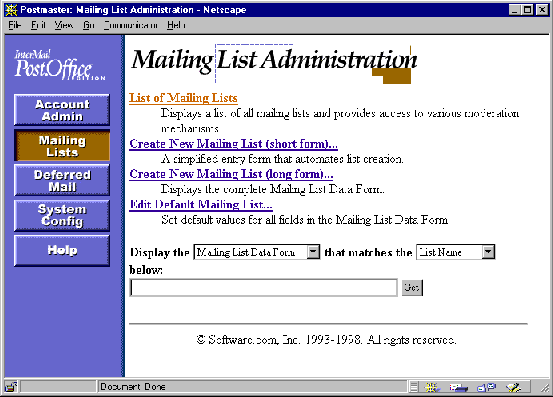
Figure 7-1: Mailing List Administration menu
The menu contains four links, as well as a text field and execution button. These links and the forms that they invoke are described throughout this chapter. For now, the only option on this menu that we’ll look at is the List of Mailing Lists link, which invokes the List of Mailing Lists menu. Similar to the List of Accounts menus, the List of Mailing Lists menu gives an alphabetical list of the mailing lists in the system.
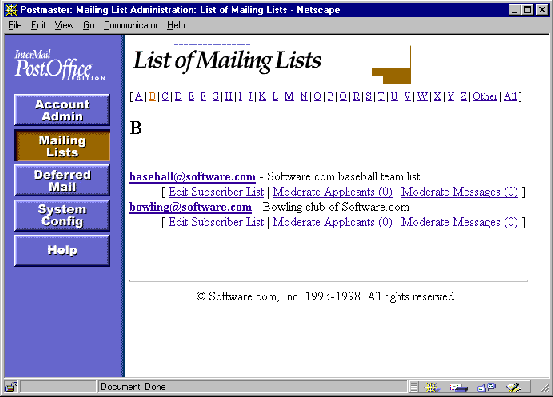
Figure 7-2: List of Mailing Lists menu
All of the attributes of a mailing list are accessed through this menu, so whenever you want to add a subscriber, change a list policy, moderate submitted messages, or do anything else regarding an existing mailing list, this is where you start.
Before you can start creating lists and assigning owners to manage them, you really do need to know what mailing lists can do, what types of options they can have, and what it all means for your job as the mail administrator. This section gives you a peek at the form for defining a mailing list, and walks you through each and every single field contained therein. The form is extremely long, so this will take a little while. Your best bet is to read over this section once and then refer back to it as you get deeper into this chapter and want to know more information about a particular option or field.
The following is the first of several illustrations of the Mailing List Data Form, which is used to modify existing mailing lists, create new lists, and set mailing list defaults. Don’t worry about how you get to this form or default values for the fields; all that is explained later in this chapter. For now, just concentrate on the purpose of each option.
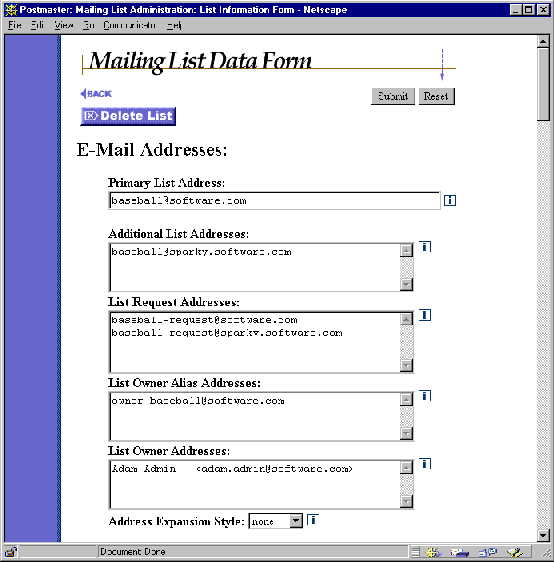
Figure 7-3: Mailing List Data Form (part 1 of 7)
Like mail accounts, mailing lists have associated e-mail addresses. In fact, mailing lists have not one, but three different types of e-mail addresses. Every mailing list-related address must be unique across the system, so setting these addresses is your central task when creating a mailing list.
The most important mailing list address, this is where users will send messages that they want to post to the list. This is a required field for mailing list creation. You can use any format you want in creating a mailing list address, which need only be unique in the system, but for simplicity we recommend that make the local portion of the address identical to the List Name (located in another section of this form).
For example, for a mailing list with the List Name employees, a suitable address would be:
employees@host.domain
Again, this addressing format is simply a convention, and is not a requirement.
Most mailing lists have only one posting address, but like user accounts, they can have any number of additional addresses, with each address being equally valid for the mailing list. These additional address can be useful if a mailing list needs to receive mail at several domains, or if the desired address format changes. Additional addresses are optional, so you need not enter values in this field.
This is the address(es) for the administrative e-mail account (also known as the request handler) that corresponds to the mailing list. This is a required field for mailing list creation. This account is responsible for sending welcome and farewell messages, sending and receiving verification tokens, and receiving e-mail forms and commands for the mailing list. You can use any format you want in creating the Request Address, but again the suggested convention is to append "-request" to the local portion of the mailing list address.
For example, for a mailing list with the address
employees@host.domain
you would specify a Request Address of
employees-request@host.domain
These addresses provide a convenient way for users to contact the owner of a mailing list. This is a required field for mailing list creation. Each address specified here acts as a forwarding account; any e-mail sent to these addresses will be sent to all owners of the mailing list. They also provide anonymity for the list owner, who can give out this address to subscribers instead of his or her personal address, and allow list ownership to change over time without requiring users to learn a new address for contacting the owner.
Like other mailing list-related addresses, you can use any format you want in creating an owner alias address. However, we recommend inserting "owner-" before the local portion of the address to get the owner alias. For example, for a mailing list with the address
employees@host.domain
you would specify an owner alias of
owner-employees@host.domain
This is where you specify the local user(s) who will own the mailing list. Any user with an account in Post.Office can be a list owner, with each owner having equal authority over the list. This is a required field for mailing list creation. List owners cannot add an owner or change ownership of the list; only the Postmaster can set or modify this information.
This option controls the appearance of the To: line in the header of outgoing mailing list messages. The list owner can modify this option, which can be used to distribute the subscriber list. Because of the privacy issues involved, this option could be considered a sensitive one.
The three choices for Address Expansion Style are none, group, and expand.
If none is selected, the destination address for mailing list postings is the primary list address. For example:
To: surfing@software.com
If the group expansion style is selected, the destination of the message includes the List Name of the mailing list, as well as the address of each subscriber to the list. For example:
To: surfing: jane.doe@software.com, joe.smith@software.com, ...
If expand is selected, the destination of the message includes the address of each subscriber to the list, but no mailing list address or List Name. For example:
To: jane.doe@software.com, joe.smith@software.com, ...
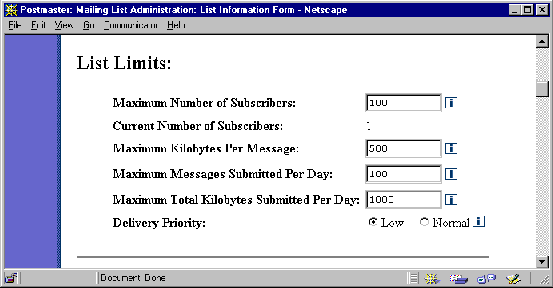
Figure 7-4: Mailing List Data Form (part 2 of 7)
As discussed in Section 7.1.2, the primary method available to the Postmaster for controlling mailing lists is through the setting of list limits. These limits allow you to put restrictions on the amount of e-mail that a mailing list is allowed to receive, and the number of subscribers that each mailing list can have. These limits can be an extremely important tool for are controlling large mailing lists that consume system resources.
The following limits can be set for each mailing list:
This limit sets the total number of subscribers that the mailing list can have. Once it reaches this subscriber limit, any new subscription requests – submitted by individual users, the list owner, or the Postmaster – will be rejected. For convenient comparisons, the Current Number of Subscribers is displayed below this field.
This limit determines the largest message (in kilobytes) that Post.Office is willing to accept for posting to the mailing list. Large messages can dramatically impact server performance, especially when they are distributed to a large number of subscribers. Any message submitted to the mailing list that exceeds this limit will be returned to sender.
Post.Office keeps a count of the number of messages submitted to each mailing list each day. This limit lets you specify the total number of messages that can be submitted to the list each day. If the number of submitted messages reaches this limit, any new messages submitted to the mailing list before midnight (when the daily counter is reset) will be returned to sender.
Not only does Post.Office count the number of messages submitted to each mailing list, but it is also adds up the size of each message. As with the limit on the number of messages, if the total number of kilobytes from all the messages submitted to the mailing list today reaches this limit, any new message will be returned to sender.
This isn’t actually a limit, but it is another Postmaster-defined field which list owners cannot modify. This option determines the priority of e-mail sent out by the mailing list. The available values are Normal (processed the same as other messages) and Low (processed after all other messages). The recommended setting is Low, since it causes mailing list messages to be processed after all regular mail has been handled.
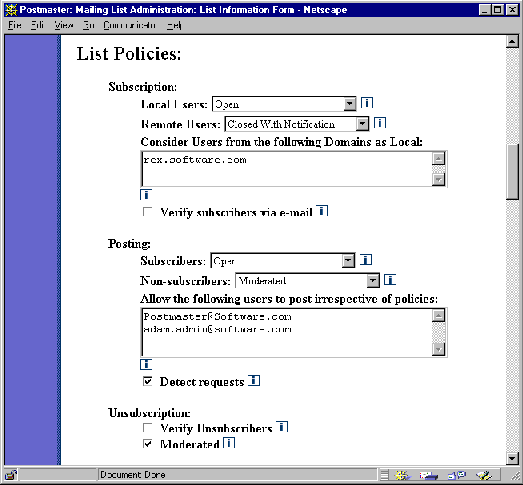
Figure 7-5: Mailing List Data Form (part 3 of 7)
The setting of mailing list policies is the primary setup activity performed by list owners. Because these policies relate to the methods that the list owner will use to administer the mailing list, they are not as important to you as the Postmaster, so we’ll assume that you won’t be paying much attention to these options. However, you should still understand the available policies and what they mean for the system.
These policies specify rules for the handling of subscription requests. The list owner can choose to deny all subscription requests, hold subscription requests for their own approval or rejection, or just open it up and let folks subscribe themselves. Furthermore, there are different policies for local users (those who have e-mail accounts in this Post.Office server) and remote users (the rest of the known world). Setting different subscription policies for these two types of subscribers is useful when mailing lists deal with potentially sensitive information, as in the case of a company’s internal mailing list.
For both Local Users and Remote Users, the available subscription policy selections are:
Closed without Notification. Same as Closed with Notification, but does not send a notification to the list owner.
When the subscription policy for remote users is set to Open or Moderated, the mailing list becomes what is known as "public." The rather important implications of this term are discussed in Section 7.10.3.
Consider Users from the following Domains as Local. You can use this field to extend the subscription policy definition of "local" users to include some remote users by entering the domain of the chosen users here. Any remote user whose domain is listed here will enjoy the same subscription policy as folks who have e-mail accounts on your installation of Post.Office. For example, if this field contains the values
megahuge.com

dough-main.net

titan.tenon.com
then any user whose return address contains one of these domains – such as john.doe@megahuge.com – will have the same subscription rights to this mailing list as local users, even if they don’t have accounts in your installation of Post.Office.
Verify Subscribers via e-mail. When enabled, this option will attempt to verify the identity of all attempted subscribers before submitting their subscription requests. The verification is done by sending a message containing a verification token to the user’s e-mail address. By responding to the message and submitting the token, the user verifies that he/ she is who they claim to be.
This option is especially useful for public mailing lists, since users can claim to be anyone when requesting subscription. By verifying subscribers with this option, you can prevent mischievous computer users from submitting subscription requests on behalf of unsuspecting fellow commuters on the info autobahn.
As with subscription policies, there are two different posting policies for two different classes of users. With posting policies, the distinction is made between subscribers (official list members) and non-subscribers (the rest of the known world).
For both Subscribers and Non-subscribers, the available subscription policy selections are:
Allow the following users to post irrespective of policies. As its label indicates, this field allows you to specify users who are allowed to post to the mailing list, regardless of policies. This means that you or the list owner can close posting to subscribers and non-subscribers alike, and reserve the ability to post to specific users (typically the list owner). To grant this "super poster" status to a user, enter his or her e-mail address in this field. When a message is submitted to the mailing list, it will be immediately distributed to subscribers if the return address of the sender is listed here.
Detect Requests. This posting policy allows you to filter out messages submitted to the mailing list which appear to be requests that were supposed to be sent to the list’s request account. As discussed in the Post.Office User’s Guide, users can subscribe and unsubscribe from a mailing list by sending commands via e-mail to the list’s Request Address. However, some users don’t quite understand this, and may mistakenly post e-mail commands to the mailing list, which can result in stacks of messages sent out to all of the list’s subscribers that contain nothing but the word "subscribe."
When the humor of this cluelessness wears off and it simply becomes an annoyance, you can enable the Detect Requests option, which will check each message posted to the list to determine whether it contains e-mail commands. A message is considered to be a request if the body of the message contains three or less non-whitespace lines, and the subject or body of the message includes any of the following words: subscribe, unsubscribe, add, delete. If a message is rejected because it contained a request command, the message will be returned to the sender and the list owner will be notified.
Unsubscription policies are similar to subscription policies, and include the following options:
Verify unsubscribers. As with the subscription verification option, enabling this field will cause Post.Office to verify the identity of all attempted unsubscribers before removing them from the subscriber list. The user’s unsubscription request will be processed only after submitting the verification token via e-mail.
Moderated. Like the options for moderated subscription, this option will refer all unsubscription requests to the list owner for approval or rejection.

Figure 7-6: Mailing List Data Form (part 4 of 7)
The fields in this section of the form allow you to set security options for a mailing list.
This field allows you to lock a mailing list, which suspends all list activity. When a mailing list is locked, no postings will be accepted by the list, and the list owner will be prevented from modifying or accessing the list in any way. To lock a mailing list, select Yes for this field.
See Section 7.7 for more information on locking a mailing list.
The mailing list manager e-mail interface allows any user to request a copy of the list of subscribers for any mailing list. However, there are many cases in which this data may be considered sensitive and inappropriate for public access. The Subscriber List Access option allows you or the list owner to set rules for who can and can’t use the e-mail interface to get the list of subscribers fore this mailing list.
The Subscriber List Access field is similar to the fields for setting account access and finger access rules, described in Chapter 5. The following algorithm is used to determine if a user can access the subscriber list by submitting the who command via e-mail:
The fields in this section of the form determine how the list owner will interact with the mailing list.
If the list owner decides to moderate postings, subscription requests, or unsubscription requests, this field specifies the method that they will use for that moderation. The available selections are:
This field controls whether the list owner will receive a daily report on the activity of the mailing list. This statistical report is sent daily at midnight. If your server hosts a large number of mailing lists, the cumulative impact of sending daily statistics messages to the owners of all of these lists may cause your mail server performance to suffer at midnight.
These fields control whether or not the list owner will receive certain notifications. By default, the owner will receive a notification from the mailing list whenever a list operation is disallowed because one of the list’s limits have been reached. The owner will also receive a notice whenever a list posting is bounced (returned) by another mail server.
The fields in this section of the form control options for the delivery of postings to the mailing list’s subscribers.
This option determines the delivery types available to subscribers. The three choices are: Immediate only, Digest only, and Digest or Immediate.
The immediate mode of delivery is just that: immediate. When messages are posted to the list, they are immediately sent out to all of the mailing list’s subscribers who have selected this delivery mode. This is great for important list postings, such as an announcement to all employees that paychecks have arrived. However, for more trivial mailing list postings – like the fourteenth message in a debate on whether ferrets or hedgehogs make the better house pet – the immediate mode of delivery is unnecessary, and you may find it annoying to have such messages trickling in one-at-a-time with the rest or your e-mail.
Enter the digest mode of delivery. The idea behind the digest mode is that users receive all messages from the mailing list for a certain time period in one great big message. All mailing lists that support the digest mode of delivery have a corresponding digest schedule, which defines the days and times that the digest is sent out. When the appropriate hour comes, all subscribers using this mode of delivery are sent a digest message that includes the contents of all of the messages posted to the list since the previous digest was sent. The most common digest schedule is daily at a specific hour, but the list owner can specify any days of the week, and any hours in the day, for their list’s digest delivery.
The Delivery Modes field includes the following options:
If the digest mode of delivery is supported by a mailing list, the Digest Delivery Schedule field specifies the schedule for the distribution of the digest. By default, the digest will be distributed daily at midnight, but can be distributed at any number of days and/or hours during the week when you want delivery to take place.
Days of the week are specified in this field by entering the first three letters of the day in all lower-case type (for example, "tue" for Tuesday). Hours are specified as single digits, can include "a.m./p.m." or "am/pm", and can be given in 12-hour or 24-hour format. Minutes cannot be specified when setting a digest schedule, just days and hours.
For example, each of the following examples specifies a delivery time of Monday at 5:00 p.m.:
mon 5 pm

mon 5 p.m.

mon 17
In addition to specific days, the digest delivery schedule can also be given as daily or weekly. The daily option delivers the digest every day at the specified time, or at midnight if no time is specified. The weekly option delivers the digest each Sunday at midnight, or at the specified time. If the delivery schedule is given as a time with no day, the delivery schedule is daily at the given time.
This option provides a method for preventing users from getting multiple copies of messages sent to the mailing list. By default, if a message is sent to both an individual user and a mailing list to which that user is subscribed, the user will get two copies of the message: one from the sender, and one from the mailing list. By suppressing duplicates, you can prevent users from unnecessarily receiving multiple copies of a single message.
When duplicate suppression is enabled, users will get only one copy of a message even if the message is delayed or altered by the list owner. For this reason, suppression of duplicates may not always be desirable. Again, whether or not you use this option depends on the mailing list.
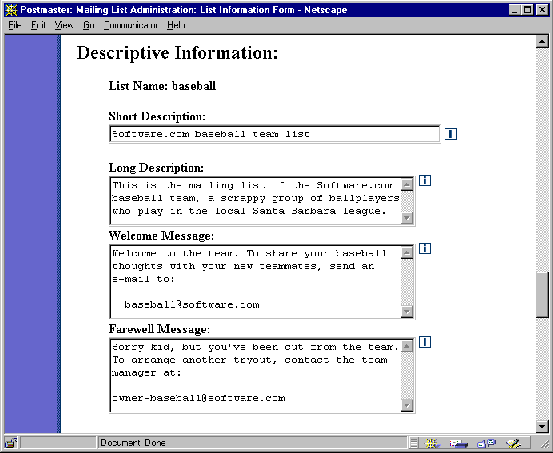
Figure 7-7: Mailing List Data Form (part 5 of 7)
There are several attributes of a mailing list that are intended to give users information regarding the mailing list and what it’s all about. Most of these are optional and do not require values to be specified. These descriptions will typically be set by list owners, who can modify any or all of these values at any time.
The List Name is a unique name that identifies the mailing list in commands submitted to the e-mail interface, and is one of the few required pieces of information that you must supply when creating a mailing list. It is shown in a Mailing List Summary Form in the end user web interface, but is otherwise used only when submitting list commands via e-mail. This attribute cannot be modified after a mailing list is created.
The List Name can include letters (A-Z, a-z) , numbers (0-9), and the addition (+), subtraction (-), and underscore (_) characters. The List Name cannot contain any spaces or non-printing characters.
This is an optional short description or title for the mailing list. This description is displayed in several areas of the web interface for end users, and is used to give potential subscribers a better idea of the purpose for the mailing list. This field can be set by list owners and may include just about anything, or nothing at all. You can enter up to 80 characters in this field.
This is another optional description of the mailing list. The long description is displayed to end users in a Mailing List Summary Form in the web interface, and can also be requested by users through the e-mail interface. Long descriptions generally include the posting address of the mailing list, a fuller explanation of its purpose, and an indication of the list policies for subscribing and posting. The list owner can modify this field from the e-mail interface, as well as the web interface.
This is an optional greeting message which is sent to all new subscribers of the mailing list, regardless of how they were added to the subscriber list. Information typically included in the welcome message are things like a fuller explanation of list policies, an e-mail address for contacting the list owner, the schedule for digest deliveries, and some basic instructions for using the e-mail interface. If this field is left blank, no welcome message is sent to new subscribers.
Similar to the welcome message, the farewell message is sent to users after they have been removed (voluntarily or otherwise) from the subscriber list. This message applies only to unsubscription operations, so if the mailing list is deleted by you or the list owner, no farewell message is sent; this allows you to exterminate resource-hogging mailing lists without creating a slew of new messages for the server to handle. If this field is left blank, no farewell message is sent to users who are removed from the subscriber list.
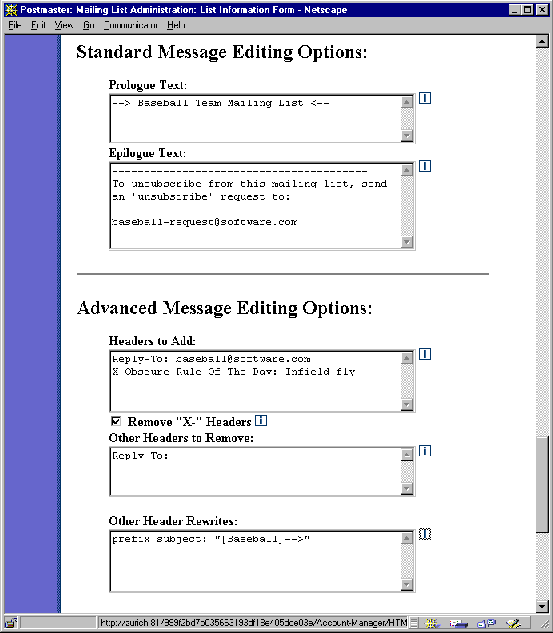
Figure 7-8: Mailing List Data Form (part 6 of 7)
Along with the basic policies and descriptions, mailing lists have a series of additional options for the automatic editing of mailing list postings. All of these options can be set and modified by the list owner.
The Standard Message Editing Options are used to specify text that will be inserted before and after the body of each message posted to the mailing list. The text in the Prologue Text field is inserted before the body of the message, and the text from the Epilogue Text field is inserted after the message body.
The prologue typically contains the List Name and/or short description of the mailing list, which marks the message as an "official" mailing list posting. The Epilogue typically includes an e-mail address for contacting the list owner, an address for submitting e-mail commands, and instructions for unsubscribing.
The following is a sample mailing list posting with a prologue and epilogue:
|
To: constitution@software.com
From: tjeffers@software.com Subject: Preamble ---------------------------------------- CONSTITUTIONAL CONVENTION INTEREST GROUP ---------------------------------------- We, the people, in order to form a more perfect union, establish justice, ensure domestic tranquillity, provide for the common defense, promote the general welfare and secure the blessings of liberty, to ourselves and our posterity do ordain and establish this constitution for the United States of America. - TommyJ ---------------------------------------- CONSTITUTIONAL CONVENTION INTEREST GROUP ---------------------------------------- To unsubscribe from this mailing list, send message containing the word "unsubscribe" to: constitution-request@software.com To get a list of valid e-mail commands and instructions on their usage, send message containing the word "help" to the above address. Send any problem reports or questions to: owner-constitution@software.com |
In this example, the prologue – which announces the name of the mailing list – makes up the first three lines of the message body. The epilogue, which is inserted after the poster’s original message and signature, includes the relevant addresses for the mailing list and instructions for unsubscribing.
The options in this section pertain to the adding or removing of e-mail headers. All of these fields are optional, and should be used only by people who are well-versed with the standards for specifying optional e-mail headers.
Headers to Add. This field is used to add headers to each message posted by the mailing list. As with Prologue text, inserting a message header can be used as a way to mark "official" list postings. You can also use this field to specify a "Reply-To:" header if you want users to send responses to the mailing list (instead of the author of the message). The syntax for each header entered in this field must be valid according to RFC-821, such as the following:
Reply-To: surfing@software.com

X-Mailing-List-Manager: Post.Office
Remove "X-" Headers. When enabled, this option removes all message headers that start with "X-" from messages before they are posted to the mailing list. Some mail clients add this type of header to messages, which in rare cases can cause incompatibilities between mail clients.
Other Headers to Remove. Any other RFC-821 style headers specified in this field will also be removed from messages before they are posted to the mailing list. There is no wildcard matching in this field, so to be removed, a header must be identical character-for-character to a value in this field. For example, if you set a "Reply-To:" header in the Headers to Add field above, you probably want to remove the "Reply-To:" headers added by various mail clients by setting the following header to remove:
Reply-To:
Other Header Rewrites. This field allows you to insert a prefix or suffix into the text of an existing header. Although all headers may be rewritten with this feature, it is only recommended for use with the subject header. By inserting some text before or after the original subject of a mailing list posting, you can allow subscribers to easily identify list-related messages and use mail filters to sort them.
To request header rewriting, enter the keyword prefix or suffix, followed by the header that you want to rewrite (i.e., Subject:), followed by the text of your prefix/suffix enclosed in "double quotes". For example, you might enter a prefix such as
prefix Subject: "[Surf list] "
or a suffix such as
suffix Subject: "-(Cycling list)"
When a header is rewritten, its original text is preserved just as the original sender wrote it; the text specified in this field is merely inserted immediately before or after the user-defined text. For example, using the rewrites specified above, a message with the subject "go this weekend?" would have the following respective subjects when sent to subscribers:
Subject: [Surf list] go this weekend?

Subject: go this weekend?-(Cycling list)
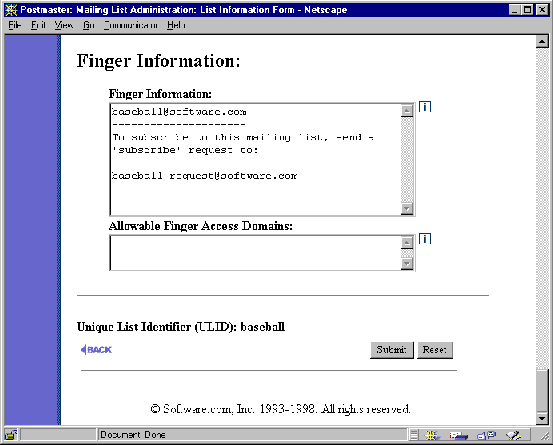
Figure 7-9: Mailing List Data Form (part 7 of 7)
As with e-mail accounts, mailing lists can have finger information associated with them. The following fields pertain to this information for the mailing list:
As in the Finger Information field in the Account Data Form, this field is used to specify the information returned by the finger service when a user requests this information for the mailing list. There is no limit on the number or type of characters that can be entered here.
Like the finger access restrictions field in the Account Data Form, this field is used to restrict access to the mailing list’s finger information by specifying the domains or IP addresses that are given access to view this information. The same rules that apply to accessing account finger information apply to mailing list finger information.
The final piece of information on the Mailing List Data Form is the Unique List Identifier (ULID). This value is similar to the Account Identifier (UID) described in Chapter 5, and is used with the Post.Office command-line utilities. The value of the ULID is based on the List Name, is set at the time of list creation, and cannot be modified.
Refer to Chapter 11 for information on using the ULID with mailing list-related command-line utilities.
Now that you have a good understanding of the various bits and pieces of a mailing list, you are ready to start creating new mailing lists. This is the operation that you will perform the most often when working with the mailing list manager, since it’s the one task that you cannot delegate to the owner of the list. For this reason, we’ve tried to greatly streamline the process of list creation, since an important administrator like yourself obviously has more significant and interesting things to do with your time.
Like mail accounts, the first step to speeding up the list creation process is the setting of default mailing list attributes, defined in the following section. Once you have established a good set of defaults, you can begin creating mailing lists in one of two ways: the long way, or the short way. These two methods of list creation are described in Sections 7.4.2 and 7.4.3.
The secret to streamlining the creation of new mailing lists, like new e-mail accounts, is to set defaults for any and every field. This is especially true for mailing lists, which have more than 40 attributes, only four of which must be unique across the system. By setting defaults for all of the other fields, list creation can be quick and painless.
The form for setting default mailing list values – like other mailing list-related web forms – is invoked from the Mailing List Administration menu. To refresh your memory, this menu is displayed when the Mailing Lists menu button is selected, and looks like this:
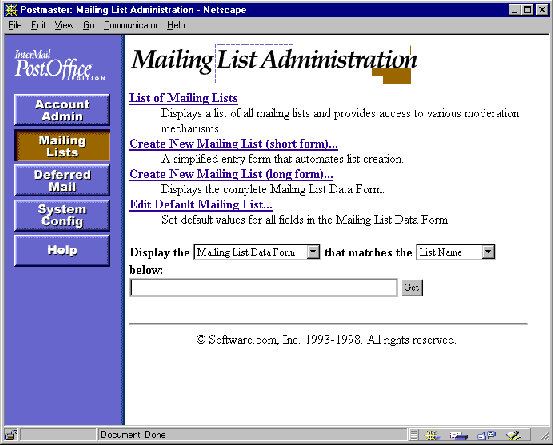
Figure 7-10: Mailing List Administration menu
To set mailing list defaults, click on the Edit Default Mailing List... link on this menu. This displays a Mailing List Data Form, like the one shown in Section 7.3. We won’t subject you to another round of illustrations of this form, so just refer back to Figure 7-3 through Figure 7-9 if you want to see this entire form again.
The most important mailing list defaults for you to set are the limits, which control the amount of activity that mailing lists are allowed. These fields are critical for controlling mailing lists and preventing them from impacting your server performance, so you should never create a mailing list without giving it some set of limits.
The following limits can be set for each mailing list. These limits can be viewed by the list owner, but can be set and modified only by the Postmaster.
The Delivery Priority field should, in most cases, be Low, so this is the recommended default for this field. This causes outgoing message from the mailing list to be processed by Post.Office only when messages of normal priority have been processed (that is, normal, non-mailing list messages).
As mentioned in Section 7.1.2, the setting of mailing list limits is extremely important. The amount of mail that is appropriate for a mailing list on your system depends on what type of system you have, how much memory is available, how much storage is available, how many users depend on your system for their mail, the reliability of your Internet connection, and about a million other variables. In general, you should start with low limits and adjust them up as needed.
In addition to the important stuff, there are a number of mailing list attributes which certainly don’t require a default value, but for which you may wish to set one anyway. The first type of these are the fields which require values that are unique across the system:
A mailing list cannot be created without a unique value for each of these fields. Since no two lists can have the same List Name, Request Address, etc., you can never save more than one new mailing list with the default value for these fields. However, you may want to use these default fields to specify some naming convention, which serves as a reminder for your preferred format for these mailing list fields. For example, if you want to follow the Post.Office convention of assigning mailing list addresses, you could set default values like the following:
| Field Name | Suggested Value |
| Primary List Address | listname@host.domain |
| List Request Addresses | listname-request@host.domain |
| List Owner Alias Addresses | owner-listname@host.domain |
| List Name | listname |
These defaults provide you with a template for specifying the addresses. Again, this is just a convenience that you can use if you find it helpful.
Another type of mailing list attribute for which you may want to set default values are those that define important policies. Although the list owner can modify these values, he/she may find it helpful if you provide some guidance on these particular items:
As always, you should choose defaults that best suit your particular environment, but the following are good guidelines for default values:
| Field Name | Suggested Value |
| Subscription Policy – Local Users | Open or Moderated |
| Subscription Policy – Remote Users | Closed (with or without notification). This means that, by default, mailing lists will not be visible to remote users. |
| Detect requests | On |
| Consider Users from the following Domains as Local | Any domain besides your local mail domains from which users should be considered "local" by your mailing lists (for example, if you have a second mail server handling mail for other domains). |
| Allow the following users to post irrespective of policies | The Postmaster address for your site; this allows you to post to lists at any time. |
| Delivery Mode | Both digest and immediate |
| Digest Delivery Schedule | Something different from existing digest schedules |
| Prologue Text | Information that includes the List Name or short description, so subscribers realize that messages are from a mailing list. |
| Epilogue Text | Information that includes the Owner Alias Address, instructions for unsubscribing, and instructions for getting help through the e-mail interface. |
| Subscriber List Access | "subscribers". This allows only members of the mailing list to receive the subscriber list through the e-mail interface. Because of the privacy issues involved, this field may be a sensitive one, so select a default that reflects your organization’s policies on these matters. |
Yet another type of mailing list attribute for which you should consider picking defaults are those which aren’t all that important, but which are a tad complicated:
The Post.Office List Owner’s Guide provides descriptions of these fields with instructions for using them. But let’s be realistic – only one in ten computer users even knows what a manual looks like, so we can’t assume that your list owners will take the time to learn about these options. It’s probably safe to assume that list owners will change only the highly-visible mailing list attributes (like the Long Description and Welcome Message), and leave the rest of them alone. Therefore, if you want any kind of values for these fields, you should probably set defaults for them.
Finally, if you are designating mailing list administration to only a few people, you may want to set a default user e-mail address in the List Owner Addresses field. This allows you to automatically assign ownership to a specific local user, even yourself, if that’s the way you choose to administer the mailing list manager.
Many of the optional but mailing list-specific fields on the Mailing List Data Form – such as the Short Description or Welcome Message – will almost certainly be changed by the list owner at the earliest opportunity, so defaults for these fields are unnecessary. Obviously, you’re welcome to set defaults for these if you like, and they can be useful for demonstrating to new list owners the type of settings that you recommend (for example, giving them welcome and farewell message templates, or selecting a particular group of policies that you favor for novices). But don’t lose any sleep over these.
Once you’ve set up whatever default mailing list attributes you’ll be using, you can create a mailing list from the Mailing List Administration menu (Figure 7-10) by clicking on the Create New Mailing List (long form)… link. This displays a Mailing List Data Form, just like the one shown in Figure 7-3 through Figure 7-9.
Initially, the Mailing List Data Form contains all of the default values that you specified. To complete the creation of the mailing list, you must set new values for the attributes that must be unique for each mailing list. To review, the following are the required fields:
Primary List Address. The address to which users send messages that they want to post to the mailing list.
List Request Addresses. The address(es) for the administrative e-mail account (also known as the request handler) that corresponds to the mailing list.
List Owner Alias Addresses. Addresses which forward messages to the owner(s) of the mailing list.
List Name. The unique name that identifies the mailing list in commands submitted to the e-mail interface.
Also, the List Owner Addresses field must contain at least one e-mail address for a user with an account in Post.Office. The other address fields can each be just about anything, provided they are all unique across the system and that all addresses fields contain valid SMTP e-mail addresses. For simplicity, as well as compliance with existing mailing list management programs, we recommend that you use the following address conventions (again, these are simply suggestions):
| Field Name | Suggested Value |
| Primary List Address | listname@host.domain |
| Additional List Address | listname-list@host.domain |
| List Request Addresses | listname-request@host.domain |
| List Owner Alias Addresses | owner-listname@host.domain |
| List Name | listname |
If you specified defaults for all of the other mailing list attributes, simply submit the Mailing List Data Form with new values for the above required fields to create the mailing list. That’s it – you’re done with this one. While the new mailing list will eventually be given specific descriptions, welcome/farewell messages, policies, etc., creating these for each mailing list is the list owner’s job. You can certainly spend a lot of time setting up each new mailing list with specific information if you so choose, but you’ll probably be a lot happier if you delegate these mundane tasks to the list owner.
Although the process described in the previous section isn’t very cumbersome, the Mailing List Data Form is indeed large and loaded with dozens of complex fields. For just this reason, we’ve given you a shortcut for creating mailing lists that allows you to specify only the few important mailing list attributes. The remaining attributes are either taken from the default mailing list values or are generated automatically, which can save you a significant amount of time when creating multiple mailing lists.
This shortcut is called the New Mailing List – Short Form, and is invoked from the Mailing List Administration menu (Figure 7-10) by clicking on the Create New Mailing List (short form)… link.
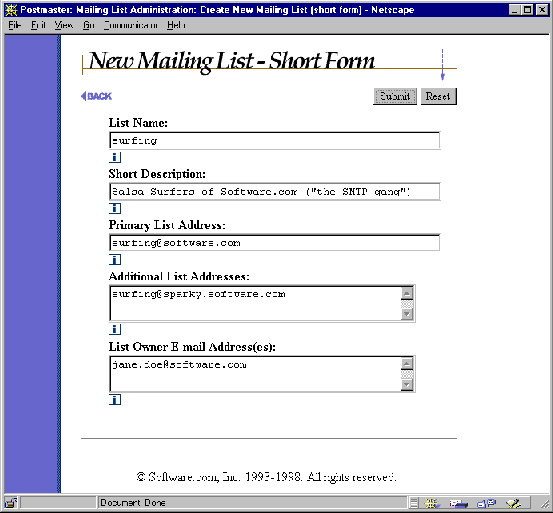
Figure 7-11: New Mailing List – Short Form
This shortcut form contains fields for the following mailing list attributes:
List Name. The unique name that identifies the mailing list in commands submitted to the e-mail interface.
Short Description. An optional short description or title for the mailing list. You aren’t actually required to enter a value here, but the short description is shown in several areas of the web and e-mail interfaces.
Primary List Address. The address to which users send messages that they want to post to the list.
Additional List Addresses. Other valid addresses for posting messages to the list. Additional addresses can be useful if you use multiple addressing formats or multiple domains, but they are not required.
List Owner E-Mail Address(es). The owner(s) of the mailing list.
By filling in values for the above fields and submitting this form, you create a new mailing list that has these settings, as well as the default values you specified for the remaining mailing list attributes. An owner greeting form, like the one shown in Figure 7-12, is sent to the owner(s) of the new mailing list.
You may have noticed that two fields that were required for creating lists with the "long" form – the List Request Address and the List Owner Alias Addresses – are not available on the "short" form. How can this be, when these addresses must be unique throughout the system? The answer is that Post.Office generates these addresses for you, based on the posting address(es) that you supplied for the mailing list. The generated values follow the Post.Office convention of appending "-request" after the local portion of the list address to create the Request Address, and inserting "owner-" before the list address to create the List Owner Alias Addresses.
Values for both the List Request Address and List Owner Alias Addresses are similarly generated for each posting address that you provide (that is, the primary address plus any additional addresses). For example, if you entered the following information in the New Mailing List – Short Form:
Primary Address:      surfing@software.com

Additional Addresses: surfing@sparky.software.com
then the following addresses would be automatically generated when the form is submitted:
List Request Address: surfing-request@software.com

    surfing-request@sparky.software.com

List Owner Aliases:  owner-surfing@software.com

    owner-surfing@sparky.software.com
You can verify that these addresses were created by bringing up the Mailing List Data Form for the new mailing list and inspecting the associated addresses. As with any mailing list attribute, you can always modify these addresses later if you want.
When the mailing list is created, the local user (or users) who you dubbed as the list owner will receive a greeting message that announces the creation of the mailing list.
The following is a sample greeting message:
|
An electronic list account has just been opened for you, and has been configured as indicated below. See the instructions below the account summary for information on how to make changes to your mail account as well as for explanations about each of the fields.
List-Addresses: surfing@software.com surfing@sparky.software.com List-Name: surfing Remote-Subscriber-Policy: open Verify-Subscriptions: yes Verify-Unsubscriptions: no Moderate-Unsubscriptions: no Subscriber-Posting-Policy: open Nonsubscriber-Posting-Policy: closed Digest-Schedule: daily =========================================================== Outsiders can subscribe by connecting to: http://sparky.software.com/guest/RemoteListSummary/surfing You can maintain the list via: http://sparky.software.com |
Included in this message are the values you set for such list parameters as the List Name and policies for subscription, posting, and unsubscription. The owner greeting message also includes two URLs: one is the regular web address for logging into Post.Office, while the other is the address to a Mailing List Summary Form for public subscription to the mailing list. List owners can distribute this URL to potential subscribers to allow them to subscribe via the remote user web interface, as described in Section 7.10.3.
Although routine changes to the mailing list – such as adding and removing subscribers, changing a policy, and setting a new welcome message – can (and should) be done by the list owner, the Postmaster’s supreme authority over the system includes the ability to modify all existing mailing lists, regardless of who owns them. This section describes the portions of the Postmaster’s interface that you can use to carry out such modifications.
Mailing list attributes are set in the Mailing List Data Form, just like the one you used to set mailing list defaults and create new mailing lists (the long way, that is). This form should be familiar to you by now; if it isn’t, look over Section 7.3 for a refresher.
You can access the Mailing List Data Form for a mailing list in two ways: the first is via the shortcut field at the bottom of the Mailing List Administration menu; the second is from the List of Mailing Lists menu, which displays all of the mailing lists in Post.Office. We’ll start with the Mailing List Administration menu, which looks like the following:
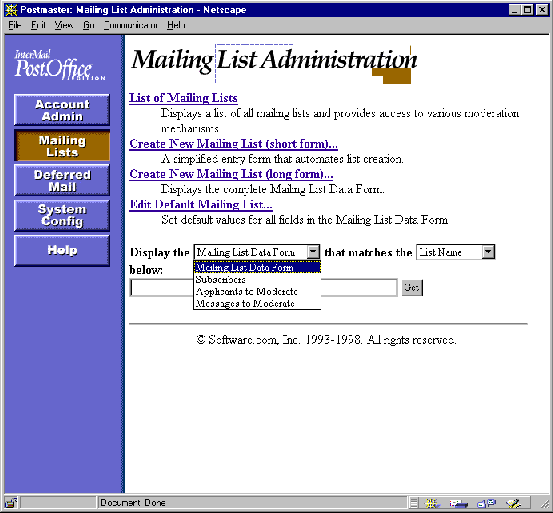
Figure 7-13: Mailing List Administration menu
Notice the drop-down menu and text field at the bottom of the browser window. This field is similar to the Account Management menu shortcut field described in Chapter 5, and allows you to directly access mailing list-related forms without generating the entire list of mailing lists. To display the Mailing List Data Form for a specific mailing list, enter its List Name or one of its addresses in the text field, select Mailing List Data Form from the drop-down menu, and click Get.
The more general method of accessing mailing list data is to display the List of Mailing Lists menu, and then select a particular mailing list. This menu is displayed when you click the List of Mailing Lists link on the Mailing List Administration menu.
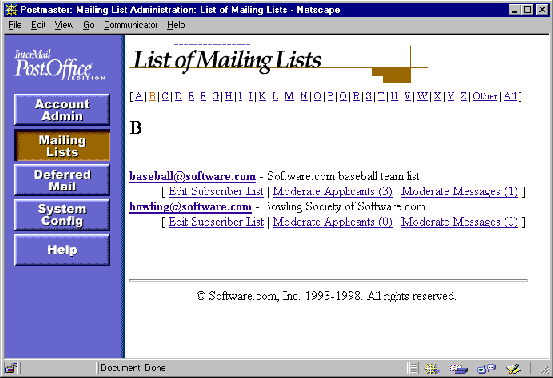
Figure 7-14: List of Mailing Lists menu
This menu includes the primary address and short description of each displayed mailing list. Each mailing list address is the link to a Mailing List Data Form, so click on the appropriate address to view and/or modify the list’s attributes.
We won’t subject you to viewing this entire form again, so refer back to Figure 7-3 through Figure 7-9 if you want another look at the Mailing List Data Form. As with all other forms, you can make changes by modifying the contents of one or more form fields and clicking Submit. To cancel your changes, click Reset or
 .
.
Note that the List of Mailing Lists menu includes three additional links for each mailing list. These links allow you to access forms for performing other mailing list-related operations: editing the subscriber list, moderating subscription and unsubscription requests, and moderating messages (the numbers next to the moderation links indicate the number of applicants or messages that are currently waiting for moderation). Subscriber list operations are discussed in the following section, while moderation issues are covered in Section 7.6.
One of the most important attributes of a mailing list is its list of subscribers. The subscriber list can be modified in the List of Subscribers Form, which is displayed by clicking the Edit Subscriber List link for a mailing list in the List of Mailing Lists menu (Figure 7-14), and which looks like the following:

Figure 7-15: List of Subscribers Form
To add subscribers, enter an e-mail address for each new subscriber in the Subscribers to Add field, and select a delivery method for these subscribers. To remove subscribers, enter the address of each soon-to-be non-subscriber in the Subscribers to Delete field. To commit the changes to your subscriber list, submit the form.
Subscribers added or removed in this manner are exempt from the intermediate steps endured by users who attempt to subscribe or unsubscribe themselves. This means that no verification or moderation will take place for these users, even if the policies for the list include those options. If a list has closed subscription policies, users can still be added to the subscriber list in this form.
It’s possible for a subscriber to be automatically removed from a mailing list. This automatic unsubscription occurs when the mailing list receives bounced (returned) messages sent to a particular subscriber. Instead of eternally sending messages to accounts that may no longer exist, the mailing list keeps its subscriber list current by removing any account that generates too many return bounces (as defined in the Error Response Parameters Form, discussed in Chapter 4).
Automatic unsubscription affects only remote users, so the users whose accounts are stored in your installation of Post.Office needn’t worry about it. However, if you store e-mail accounts and mailing lists on separate mail servers, problems with your site’s accounts may cause return bounces.
The list of current subscribers can be viewed from the List of Subscribers Form described above by clicking on the View Current Subscribers link. You can also go directly to the list of current subscribers from the shortcut field on the Mailing List Administration menu (Figure 7-13 above), which includes the menu entry Subscribers. Both of these methods display a View List Subscribers Form:
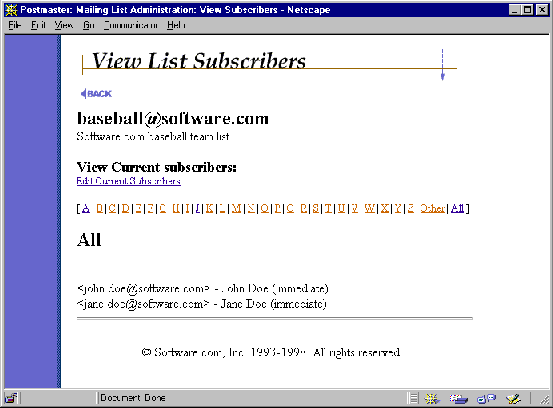
Figure 7-16: View List Subscribers Form
The e-mail address and delivery mode of each subscriber are given here. Use the A-Z links to search through subsets of subscribers, or click on the All link to view a list of all list subscribers.
To go to the List of Subscribers Form, click on the Edit Current Subscribers link. If you want to go all the way back to the List of Mailing Lists menu, click the
 link.
link.
If a mailing list has policies to moderate subscription requests, messages, or unsubscription requests, the list owner will be required to periodically approve or reject new requests or messages. This moderation can be done by the list owner through the web interface and/or e-mail interface, depending on how the moderation policy of the mailing list has been set.
Although moderation is generally the jurisdiction of the list owner, the Postmaster also has the power to moderate messages and subscription requests for any mailing list. However, this Postmaster moderation power applies only to mailing lists that have a moderation policy that includes the web interface (i.e., the moderation policy is Web only or Web and e-mail). When one of these moderation modes is selected, the Postmaster can use the same moderation web forms as the list owner.
Both subscription and unsubscription requests that are held for moderation can be resolved with the Applicants to Moderate Form. As with other mailing list-related forms, you can get to the Applicants to Moderate Form from two locations. The first is from the shortcut field on the Mailing List Administration menu (Figure 7-13), which includes the menu entry Applicants to Moderate. The second is from the List of Mailing Lists menu (Figure 7-14), which includes a Moderate Applicants link for each mailing list. Both methods display an identical Applicants to Moderate Form, which looks like the following:
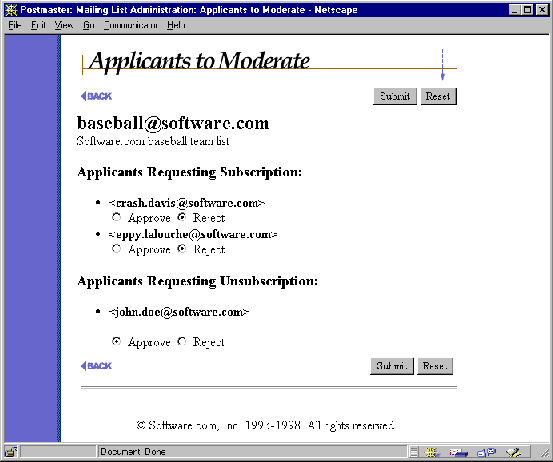
Figure 7-17: Applicants to Moderate Form
This form includes the radio buttons Approve and Reject beneath each would-be subscriber or unsubscriber. Select the appropriate radio button for each user and submit the form to carry out your judgment. Approved users are immediately added to the subscriber list and will receive the list’s welcome message (if one exists), while rejected users are notified (politely) that their request was denied.
If you approve or reject only some of the applicants, the unmoderated leftovers will continue to be held for future judgment.
Messages that are held for moderation can be resolved with the Messages to Moderate Form. As with other mailing list-related forms, you can get to the Messages to Moderate Form from two locations. The first is from the shortcut field on the Mailing List Administration menu (Figure 7-10), which includes the menu entry Messages to Moderate. The second is from the List of Mailing Lists menu (Figure 7-14), which includes a Moderate Messages link for each mailing list. Both methods display an identical Messages to Moderate Form, which looks like the following:
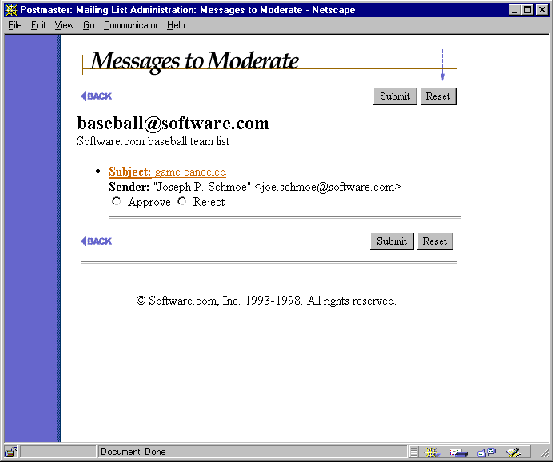
Figure 7-18: Messages to Moderate Form
For each waiting message, the form displays the subject of the message, the sender, and the radio buttons Approve and Reject. You can give each message your blessing or denial by selecting the appropriate radio button and then submitting the form. As with subscription requests, approving/rejecting only some of the messages causes the remaining submissions to be held for subsequent moderation.
If you want to view the actual contents of a message before deciding on its fate, you can do so by clicking on the subject line of the message. This displays the Moderated Message Form, which allows you to read the message and approve or reject it.

Figure 7-19: Moderated Message Form
As with the Messages to Moderate form, you can approve or reject the message by selecting the appropriate radio button (Approve or Reject) and submitting the form. You can also click on the Edit Message Text link, which invokes yet another form, the Message Text Form. This final message form is used to modify the text of a message before it is posted to the mailing list.
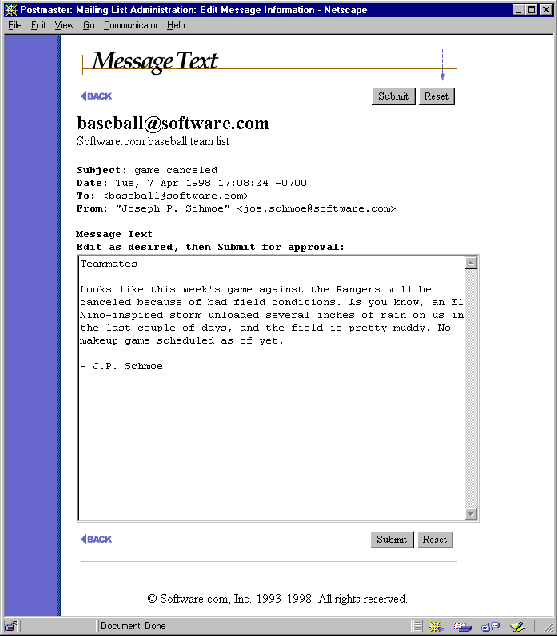
Figure 7-20: Message Text Form
To modify the message, simply edit the contents of the Message Text field and submit the form. Submitting changes to the message takes you back to the Moderated Message Form, which you can use to then approve or reject the modified message.
Like accounts, mailing lists can be locked to suspend activity. Locking a mailing list allows you to shut it down without permanently deleting it from your system. When a mailing list is locked, no postings will be accepted by the list, and the list owner will be prevented from modifying or accessing the list in any way.
To lock a mailing list, set the Lock mailing list option to Yes on the Mailing List Data Form (refer back to Figure 7-6) and submit the form. You can restore the list to normal operation by resetting this option to No.
Deleting a mailing list is very similar to deleting an account, as described in Chapter 5. Mailing lists can be deleted by clicking on the Delete List button shown at the top of the Mailing List Data Form.
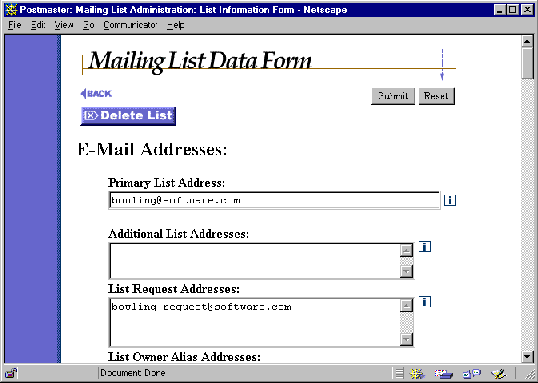
Figure 7-21: Mailing List Data Form (the top of it, at least)
After clicking this button, you will be asked to confirm the deletion before the list is permanently removed from the system.
Remember that subscribers will not receive the farewell message when the mailing list is deleted. This allows you to remove resource-draining mailing lists without generating a stack of new messages to distribute. If you want to notify all of the list’s subscribers that the mailing list will be deleted, you can first manually unsubscribe all users from the List of Subscribers Form (which causes each subscriber to receive the farewell message) and then delete the list.
As discussed in Chapter 5, Post.Office includes a special mailing list that distributes postings to all accounts on your system that use the POP3 delivery method. The postmaster account is the owner of this mailing list, which has the posting address All-Mailboxes@host.domain.
Note again that this list distributes messages
only to accounts that use the POP3/IMAP method of delivery. By default, your
accounts that use only forwarding, Unix delivery, or program delivery will not
receive messages sent to this list. To include these accounts in the All-Mailboxes
list, manually add these accounts to its subscription list in the Subscribers
Form.
As described at the beginning of this chapter, the mailing list manager involves four different classes of Post.Office users, all of whom have different levels of access to different parts of the program. The mailing list manager interface for the Postmaster was described in the previous sections, but different interfaces exist for the three other user types. As the person responsible for running the mail system, you’re probably curious about just what these interfaces look like.
This section takes a brief tour of the mailing list manager interfaces to local users, list owners, and remote users. For more information on these operations, refer to the Post.Office User’s Guide and the Post.Office List Owner’s Guide.
The mailing list manager web interface available to local users is very similar to the end user account management interface. After logging in to Post.Office from the Authentication Information Form, users can click on the Mailing Lists menu button at the left to display the Mailing List Management menu.
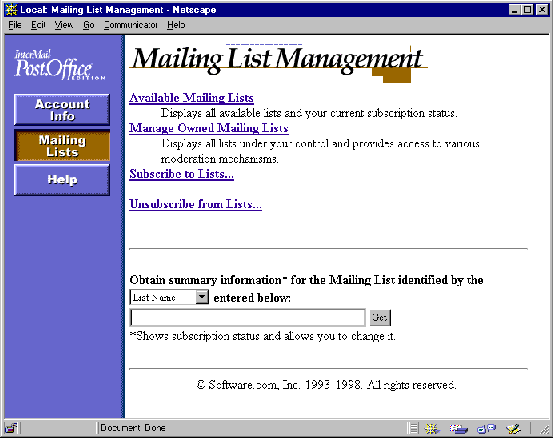
Figure 7-22: Mailing List Management menu
The menu contains four links – Available Mailing Lists, Manage Owned Mailing Lists, Subscribe to Lists…, and Unsubscribe from Lists… – as well as a text field and execution button. The text field allows users to get information about a specific mailing list without generating a list of every mailing list in the system.
To see which mailing lists are available to them, users click on the Available Mailing Lists link. This displays an alphabetical list of the mailing lists that have an open or moderated subscription policy for local users, along with a flag that marks the ones that they are already subscribed to.

Figure 7-23: Mailing List Directory menu
For each mailing list, an address and a short description are displayed in this menu. If the user is currently subscribed to any of these mailing lists, they will be marked by the word subscribed to the right of the list address. Each list address is a link to a Mailing List Summary Form, which provides detailed information for the list and also lets users subscribe to (or unsubscribe from) the mailing list. This is the same form that is invoked by using the shortcut field on the local user’s Mailing List Management menu (Figure 7-22).
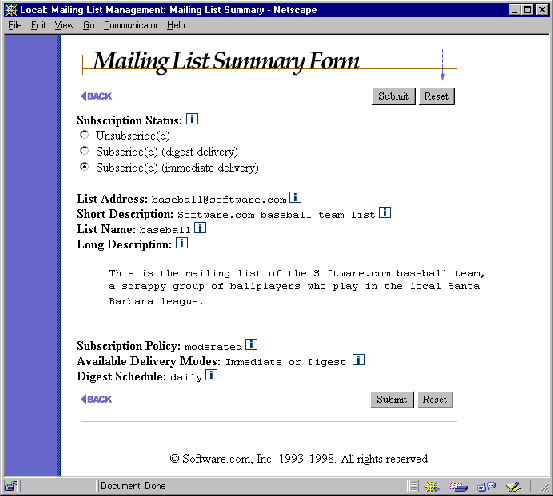
Figure 7-24: Mailing List Summary Form
In addition to the Mailing List Summary Form, local users have two other forms for requesting subscription or unsubscription for mailing lists: the Subscription Form, and the Unsubscription Form. These are the forms invoked from the Subscribe to Lists… and Unsubscribe from Lists… links on the Mailing List Management menu, and they allow users to submit requests for multiple mailing lists. These forms display only the mailing lists that apply to the current operation, so only mailing lists to which the user is already subscribed show up in the Unsubscription Form (and vice versa for the Subscription Form).

Figure 7-25: Subscription Form

Figure 7-26: Unsubscription Form
Like on the Mailing List Directory menu, the address of each mailing lists shown on the Subscription Form and Unsubscription Form is a link to a Mailing List Summary Form, which the user can view to get more information on a particular mailing list.
The web interface available to list owners is a combination of the local user and Postmaster list manager interfaces. As local users, they have access to the same forms for subscribing and unsubscribing from mailing lists that are available to all local users. However, list owners can also access forms for carrying out administrative tasks by clicking on the Manage Owned Mailing Lists link on the Mailing List Management menu. This displays the Owned Mailing Lists menu.
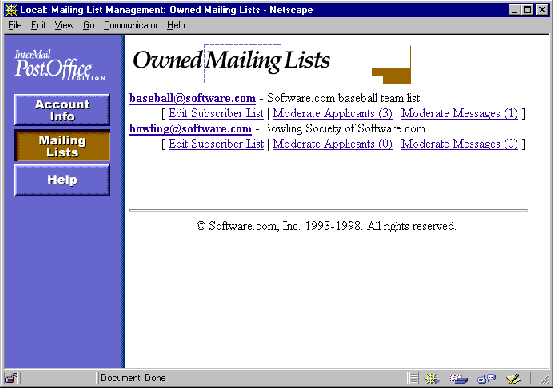
Figure 7-27: Owned Mailing Lists menu
As you can see, this menu is very similar to the Postmaster’s List of Mailing Lists menu, but contains only the mailing lists owned by the user. Each list address is a link to a Mailing List Information Form, which is similar to the Postmaster’s Mailing List Data Form and allows the list owner to modify most attributes of the list. Three additional links for each mailing list allow list owners to access the same Subscriber List Form (Figure 7-15), Applicants to Moderate Form (Figure 7-17), and Messages to Moderate Form (Figure 7-18) available to the Postmaster. The tasks performed by the list owner are identical to the techniques described in Sections 7.5 and 7.6.
A mailing list is referred to as "public" if its subscription policies allow users without e-mail accounts on your Post.Office server to subscribe to the mailing list (recall from Section 7.3.3 that there are separate subscription policies for users with and without e-mail accounts in Post.Office). These users – known as remote users – obviously cannot use the same interface to subscribe to mailing lists as local users, since they cannot log in to the system from the Authentication Information Form.
Nevertheless, remote users are still offered a web-based interface for subscribing to mailing lists hosted by the Post.Office. This interface can be accessed from the Authentication Information Form by clicking the Mailing List Directory button, which displays the Mailing List Directory menu for remote users.
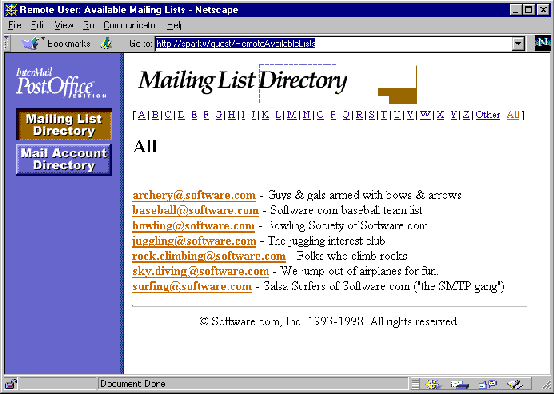
Figure 7-28: Mailing List Directory menu (remote user version)
This form is very similar to the local user’s Mailing List Directory, and allows remote users to view the mailing lists in Post.Office.
Although users can get to this form through the Authentication Information Form, they can also simply go to it directly, since no login or authentication information is required (remember, this is the "public" area). This means that you can provide remote users with a URL that takes them specifically to a form for subscribing to your public mailing lists.
For all installations of Post.Office, this public mailing lists URL is at:
http://host.domain/guest/RemoteAvailableLists
Users can click on an individual list address in the Mailing List Directory to access a Mailing List Summary Form for that list.
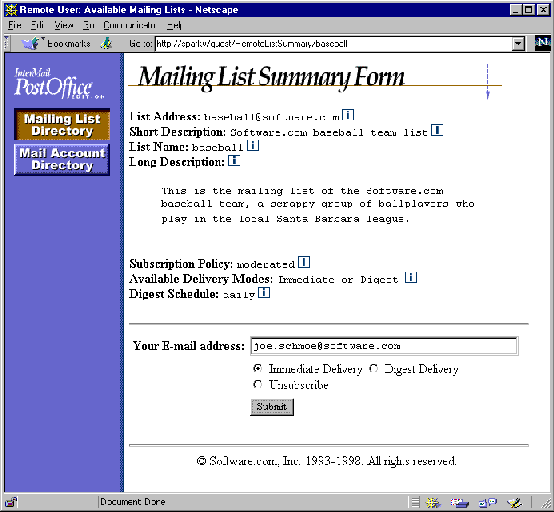
Figure 7-29: Mailing List Summary Form (remote user version)
Notice that this version of the List Summary Form includes a text field to allow the user to enter his or her e-mail address when requesting subscription. This information is required to process subscription requests by remote users because they did not provide an address and password in the Authentication Information Form.
Like the public Mailing List Directory menu, users can directly access these public Mailing List Summary Forms instead of going through the menu. This form can be found for each public mailing list at:
http://host.domain/guest/RemoteAvailableLists/listname
Remember from the above section on local users that when displaying lists of mailing lists, Post.Office filters out the mailing lists that have a closed subscription policy. This rule also applies in the case of remote users: if a mailing list’s remote user subscription policy is closed, this mailing list is hidden from all users who do not have Post.Office accounts on your system. So if you have a sensitive mailing list – like an internal employee list – you can ensure that it is safely hidden from the teeming masses by closing its subscription policy to remote users.
In addition to the web interface, Post.Office provides an e-mail interface for interacting with the mailing list manager. However, the mailing list manager e-mail interface supports only end user and minor list owner operations; the Postmaster’s administrative mailing list manager tasks can be carried out only from the web interface. So while this e-mail interface allows end users to request subscription to (and unsubscription from) mailing lists, and allows list owners to moderate subscription requests and messages, it does not allow the Postmaster to create, modify, or delete mailing lists.
Because you can’t actually do any Postmaster-specific operations via the list manager’s e-mail interface, it doesn’t really apply to you. However, the rest of this section offers you an overview of using the e-mail interface to give you a better idea of what we’re talking about here. For more information on executing specific end user or list owner operations via the e-mail interface, refer to the Post.Office User’s Guide and Post.Office List Owner’s Guide, respectively.
Like the popular Majordomo list manager program, the Post.Office e-mail interface accepts requests submitted to special e-mail accounts, and processes them accordingly. A request is simply an e-mail message that contains one of several keywords for performing certain mailing list operations, such as subscribing to a mailing list, getting a list of your current subscriptions, or getting descriptive information for a mailing list. For example, to request subscription to the list, a user can send an e-mail message that contains the word subscribe.
Because of the simplicity of this interface, it is sometimes easier to accomplish things this way than in the web interface.
List manager requests messages can be addressed to one of two places. The first is the system’s List Manager account, which is used when submitting commands for multiple mailing lists. The address of this account is
list.manager@host.domain
The second request message destination is the request account of a specific mailing list, which is used for various support functions for the mailing list, such as sending welcome and farewell messages and processing e-mail commands. The address of the request account varies from list to list. The convention used by Post.Office is to append
"-request" to the local portion of the primary list address to get the address of the request account. For example, for a mailing list with the primary address
cycling@software.com
the convention for the request account address would be
cycling-request@software.com
The only difference between sending a request to the List Manager account and sending the same request to the request account for a specific list is that you do not then need to include the name of the list for which you are submitting the request. The mailing list in question is assumed to be the one associated with the request account, which saves you the trouble of including an extra parameter with your request to identify the name of the mailing list.
The syntax for request messages is fairly flexible. The subject line is always ignored, and may be left blank. Commands are entered one per line in the message body, with leading whitespace (spaces or tabs) ignored. Command keywords and any arguments must be separated by at least one space or tab.
For example, to request mailing list information for the mailing list that has the List Name surfing, you would send a message like the following:
|
To: list.manager@software.com
From: john.doe@software.com Subject: --------------------------------------------------------- info surfing |
Assuming that you followed the convention for the request account address when creating the mailing list, the above request could have also been addressed as follows:
|
To: surfing-request@software.com
From: john.doe@software.com Subject: --------------------------------------------------------- info |
Notice that we no longer have to tell the system which list we’re trying to get information on. Because this message is sent to a request account for a specific mailing list, the system assumes that this is the mailing list for which we’re submitting the request.
Most e-mail commands receive a reply message from the system that returns the requested information or tells you the result of your request. For example, after the message shown in Figure 7-30 is submitted, the response similar to the following would be received:
|
To: john.doe@software.com
From: list.manager@software.com Subject: List Manager response --------------------------------------------------------- >>>>info surfing This is a mailing list for all the gnarley dudes and dudettes at Software.com who enjoy riding good waves on the beaches of Santa Barbara. We believe strongly in longboards, margaritas, and e-mail. Surf's up! |
For subscription and unsubscription requests, the response message may also include information regarding verification or moderation. The response message may also indicate that you do not have the appropriate access to execute the command (for example, if you attempt to subscribe to a mailing list with a closed subscription policy).
More than one command can be submitted in the same message, with each command on its own line. In the following example, the sender is requesting subscription to two mailing lists, and requesting unsubscription from a third:
|
To: list.manager@software.com
From: john.doe@software.com Subject: --------------------------------------------------------- subscribe surfing subscribe mountain_biking unsubscribe yachting |
There is no limit to the number of commands that can included in a single request message. If one of the commands in a request message fails because of a syntax error or access restrictions, the remaining commands are still processed.
Many users have signatures automatically appended to all of their e-mail as it is sent from their mail client. Unfortunately, these signatures can wreak havoc on your ability to submit commands via the list manager e-mail interface, which will attempt to process all of the commands – that is, all of the text – in your request message.
Post.Office will screen out many types of signatures when processing e-mail commands, but you may still experience problems when submitting requests because of your signature. To prevent this, you should use the end command at the conclusion of the your other e-mail commands. This command instructs Post.Office that there are no more commands in this message, so it will not attempt to process any of the remaining text of your message, including your signature.
The following example shows the same requests as Figure 7-33, but with the end command to stop Post.Office from processing the signature.
|
To: list.manager@software.com
From: john.doe@software.com Subject: ----------------------------------------------------- subscribe surfing subscribe mountain_biking unsubscribe yachting end %%%%%%% %% ~ ~ %% ( @ @ ) ******************oOOo*(_)*oOOo******************* John Doe Jr., Ph.D. (805)882-2470 x000 Software.com (805)882-2473 FAX 525 Anacapa St. (805)555-1076 Page Santa Barbara, CA 93101 (805)555-1176 Cell |
Because the end command signals the conclusion of the valid commands, Post.Office will not attempt to execute mailing list-related operations based on the contents of this signature. If the end command had not been included an error would have resulted, since
|
%%%%%%%
%% ~ ~ %% ( @ @ ) *****************oOOo*(_)*oOOo****************** |
is not currently a supported e-mail command.
The following table lists the commands available to all users – both local and remote – from the mailing list manager e-mail interface. Parameters shown between [square brackets] are optional, while parameters shown in italics must be replaced by an appropriate value.
If the request message is sent to the Request Address for a specific mailing list, you do not have to specify the List Name as a command parameter. However, if the request message is sent to the system’s general list management account (list.manager@host.domain), the listname parameter shown in the table below becomes a required parameter.
The following table lists the commands available for performing list owner activities via the e-mail interface. Parameters shown between [square brackets] are optional, while parameters shown in italics must be replaced by an appropriate value.
As with end user requests, if the request message is sent to the Request Address for a specific mailing list, you do not have to specify the List Name as a command parameter. However, if the request message is sent to the system’s general list management account (list.manager@host.domain), the listname parameter shown in the table below becomes a required parameter.
Again, consult the Post.Office User’s Guide and Post.Office List Owner’s Guide for information on using these e-mail commands to execute specific mailing list operations.
Post.Office ©Software.com, Inc. 1994-1998
