



System Configuration
This chapter contains instructions for setting up Post.Office after it has been installed and is up and running. Included in this chapter are the following topics:
There are a very large number of available Post.Office system configuration options, dealing with everything from security to performance to your preferences for the handling of undeliverable mail. However, many of these are fine-tuning parameters that you’ll be revising only after you gain more experience with your mail system. If you’ve installed Post.Office for the first time, here’s a checklist of items that you should set up immediately before you get your e-mail system going:
To access the Postmaster’s web-based system administration interface, log in to the web interface as the Postmaster (refer back to Chapter 3 if you’re not sure how to do this). After your login information is confirmed, you will be taken immediately to the Account Administration Menu. Click on the System Config menu button at the left of the accounts menu to display the System Configuration menu, which looks like the following illustration:
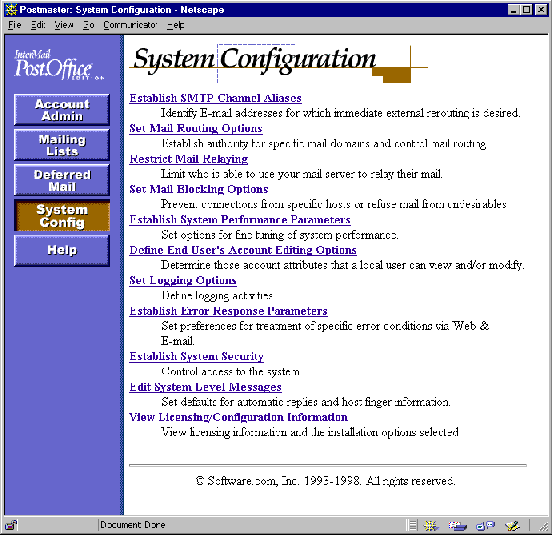
Figure 4-1 System Configuration menu
No less than 12 forms are invoked from the System Configuration menu. Every last one of these forms in discussed in the following sections, which display a copy of each form and descriptions of every field contained therein.
The Channel Aliases Form contains optional rules for special mail routing. These rules are called channel aliases, and are the most efficient way to screen incoming messages and immediately re-route those which need to be forwarded to another host. So be efficient and keep your computer speeding down the information superhighway!
Channel aliases can be used to route mail to an individual who has moved and is receiving mail on another machine. They allow you to request that all mail which arrives for a specific address be resent to another specific address. This involves modifying the message’s envelope information to reflect the new destination address, so the change is permanent.
The Channel Aliases Form is invoked from the System Configuration menu by clicking on the Establish SMTP Channel Aliases link, and looks like the following illustration:
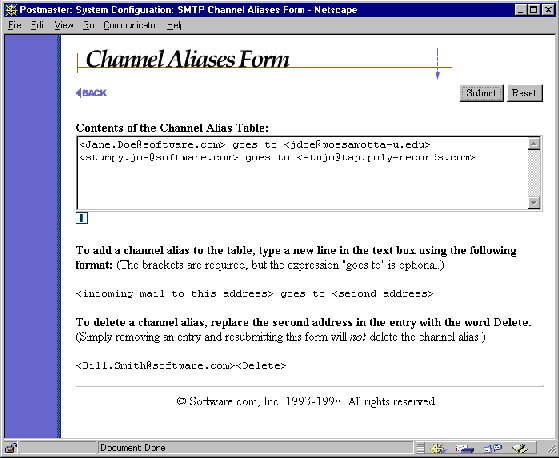
Figure 4-2 Channel Aliases Form
To set up an SMTP channel alias address, enter both the incoming and outgoing addresses in the large text area field. Each line of the table can contain one (and only one) channel alias pair. The format for alias entries is as follows:
<Mail-To-This-address> goes to <2nd-address>
The <angle brackets> around the addresses are required, but the "goes to" statement is not. So both of the following examples are valid channel aliases:
<Jane.Doe@domain> goes to <Jane.Doe@host.domain>
<Bill.Smith@host.domain> <Smith@newhost.newdomain>
Messages will be rerouted according to a channel alias only if its destination address is identical to an address listed in the Channel Aliases Table.
For example, if Ms. Jane Doe leaves her position in the private sector to serve you in our government in Washington DC, and she has been receiving mail to these addresses:
Jane.Doe@Software.com
jane.doe@sparky.software.com
jd@sparky.software.com
then we would probably set up a channel alias entry for each address, like the following:
|
<Jane.Doe@Software.com> <jd@whitehouse.gov>
<jane.doe@sparky.software.com> <jd@whitehouse.gov> <jd@sparky.software.com> <jd@whitehouse.gov> |
Deleting an alias from the SMTP Channel Aliases table is not done by simply deleting the alias from the list of aliases and submitting the form. Instead, you must replace the outgoing address you wish to delete with the word "delete," and then submit the form. For example, if you created the above example channel aliases and later want to delete two of them, you would submit changes like the following:
|
<Jane.Doe@Software.com> <delete>
<jane.doe@sparky.software.com> <delete> <jd@sparky.software.com> <jd@whitehouse.gov> |
The Mail Routing Form covers the configuration of the SMTP mail channel, and it used to establish a variety of options specific to the SMTP configuration. This is one of the first forms that you should use to set up Post.Office after installation.
The Mail Routing Form is invoked from the System Configuration menu by clicking on the Set Mail Routing Options link, and looks like the following illustration:
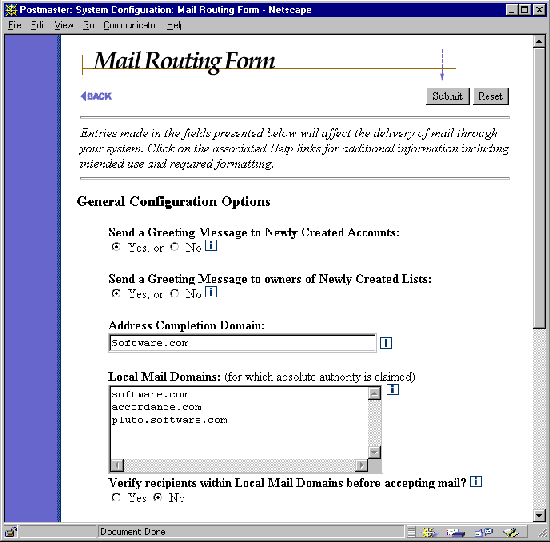
Figure 4-3 Mail Routing Form (part 1 of 2)
The fields in this part of the form affect global account-management options.
By default, Post.Office sends a greeting message to new users when their accounts are created. The greeting message informs the users of some of their account settings, and explains how they can customize their account. A sample greeting message is shown in Chapter 5. If you prefer that your users not get this greeting message (for example, if you want to keep them in the dark about the account options that are available to them through the web interface), select No for this field.
By default, Post.Office sends a greeting message to list owners when their mailing lists are created. The greeting message informs the list owner of some of the new list's settings, and explains how they can customize the mailing list via the Post.Office web interface. A sample list owner greeting message is shown in Chapter 7. If you prefer that list owners not get this greeting message (for example, if you don’t want them to know about the mailing list configuration options available to them through the web interface), select No for this field.
When mail arrives for a recipient whose address is incomplete by SMTP standards, the domain specified here will be added to their address. If no domain is specified here, then the hostname plus domain of the server system will be assumed.
For example, if the Address Completion Domain is set to software.com, then mail addressed simply as
To: joe.schmoe
will have the address completion domain added and will therefore be sent to
To: joe.schmoe@software.com
For more information on address completion, refer to the discussion of mail flow in Chapter 10.
This is a list of all the mail domains and specific individual hosts whose mail is handled exclusively by this machine. If a domain or host is listed here and mail comes in with an address at that domain or at that host, the message is delivered to an account on this machine (unless no account exists, in which case the message is handled according to the settings of the Unknown Local Account error action). This machine is not the primary mail handler for any domain or host that is not listed here (but it can still receive mail for addresses in the unlisted domain if an account is set up with an appropriate address).
Take care in assigning local mail domains. The goal is to claim the maximum authority allowed without overstepping your bounds. If two servers handle your mail, each should claim authority for the appropriate host.domain (for example, fido.software.com and sparky.software.com), but only one should claim the entire domain (for example, software.com).
If this option is selected, the system will refuse to accept mail that is addressed to unknown accounts within your local mail domains. Post.Office rejects the message with a standard notice; response to that notice (an error message, storage in a dead letter file, etc.) is controlled by the sender’s mail client, so your mileage may vary. See Chapter 10 for a discussion of the effect that this option on mail routing.
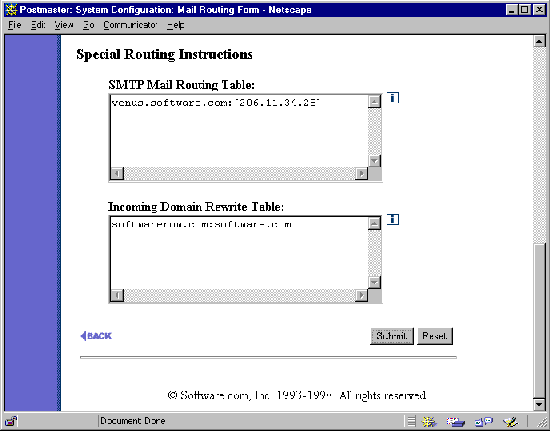
Figure 4-4 Mail Routing Form (part 2 of 2)
These options allow you to set options for controlling the routing of mail into or out of Post.Office.
Entries made in this table allow you to route mail to a host other than the destination specified in the original address (that is, to a different computer). Normally this is used only in a situation where a firewall prevents direct access to the destination mail server, or when mail needs to be sent through a gateway to another network (such as a UUCP network). The format for entries in the table is:
original_domain:destination_host.domain
For example, to configure Post.Office to route mail to a UUCP gateway you might use the following entry:
uucp_domain:uucp.gateway.host
If you want to specify an IP address for the destination host (as opposed to a host.domain name) you must enclose the IP address in a set of square brackets, as in the following examples:
domain:[206.11.34.28]
The asterisk (*) character is used as a wildcard which will match any string of characters. A default route can be set up using this wildcard so that all mail goes to a single machine as in this example:
*:mail.hub.machine
A default route should only be used if it is absolutely necessary (as in a gateway or firewall situation) since it puts an additional burden on the mail hub machine and can slow it down.
Add as many entries to the table as you need, but remember that the order is important, since it indicates the routing sequence. Keep that in mind when entering values that include a wildcard. For example, a normal set of entries to properly route internal mail from a host within the software.com domain to another internal mail server (or to a gateway machine prior to going to the firewall) would appear as follows:
software.com:mailserver2.software.com

*.software.com:mailserver2.software.com

msmail.com:msmail_gateway.software.com

*.msmail.com:msmail_gateway.software.com

*:fido.software.com
These entries would cause all internal mail addressed to @software.com or @anyhost.software.com to be sent directly to the other internal mail server, while internal mail addressed to @msmail.com or @anyhost.msmail.com would be sent to the internal gateway machine; however, all mail sent to other domains on the Internet would go to the firewall machine, fido, where it would be sent on to its destination.
If you are using a firewall and your external DNS records do not include identification of internal mail servers or internal gateway machines, you need to add entries to the Mail Routing Table to route mail to those servers prior to routing to the firewall. This can be accomplished by using a "*" as the second host, or by specifying its hostname and domain.
The mail routing entries below route outgoing mail from a host within the software.com domain, which is protected by a firewall installed on the host fido.software.com to the mail server identified in the internal DNS records (which may differ from the server identified in external records):
software.com:*

*.software.com:*

*:fido.software.com
The above entries cause all internal mail (that is, all mail sent to @software.com or @anyhost.software.com addresses) to be sent directly to the host indicated by the internal DNS; however, all mail to other domains on the Internet would go to the firewall machine, fido, where it would be sent on to its destination. Such routing is useful in a firewall situation (or for a domain with intermittent SL/IP or PPP access to the Internet) where outgoing mail cannot be sent directly to some destinations.
The Mail Routing Table may also be used to route outgoing mail to a port other than port 25 (the standard SMTP port). This feature provides added flexibility and is particularly useful in gateway configurations where the gateway is capable of listening to a port other than Port 25.
To do so, append a "#" character and the desired port number to the end of the mail routing entry (as illustrated below).
*.domain:host.otherdomain#26
This option is used to rewrite domain names in the destination address of incoming messages. Domain rewriting allows the accounts at your site to receive mail at multiple domains, without needing to create alias addresses for each account.
For example, if the domains accordance.com and rex.software.com are rewritten to software.com in incoming messages, an account with the address john.doe@software.com can receive mail sent to any of the following addresses:
john.doe@software.com

john.doe@accordance.com

john.doe@rex.software.com
Each entry in the Incoming Domain Rewrite Table must consist of a domain name followed by a colon (:) and a second domain name. Both domains must be valid for the Internet, containing one or more words separated by periods, with each word containing only letters, digits, or hyphens. Both domains may include hostnames, but can not include wildcard (*) characters.
For example:
host1.domain.com:host2.some-other-domain.com

old-domain.net:new-domain.com
The SMTP Relay Restrictions Form is used to prevent users and/or systems from relaying mail through Post.Office. Preventing mail relay can be a very important issue if your mail server is not behind a firewall or is otherwise left exposed to the great wide Internet. Refer to Chapter 1 for a refresher on the concepts of mail relaying and the havoc it can wreak on your mail server if left unstopped.
The SMTP Relay Restrictions Form is invoked from the System Configuration menu by clicking on the Restrict Mail Relaying link. The form is divided into two sections: the first section is used to define the sources (specific computers and/or users) of relay mail that you want to prevent, while the second section is used to define what mail destinations (if any) should receive relay mail that you restricted in section one. Together these sections allow you to define a rule for the handling of relay mail, and then define exceptions to that rule.
The following illustration shows the first section of the SMTP Relay Restrictions Form:
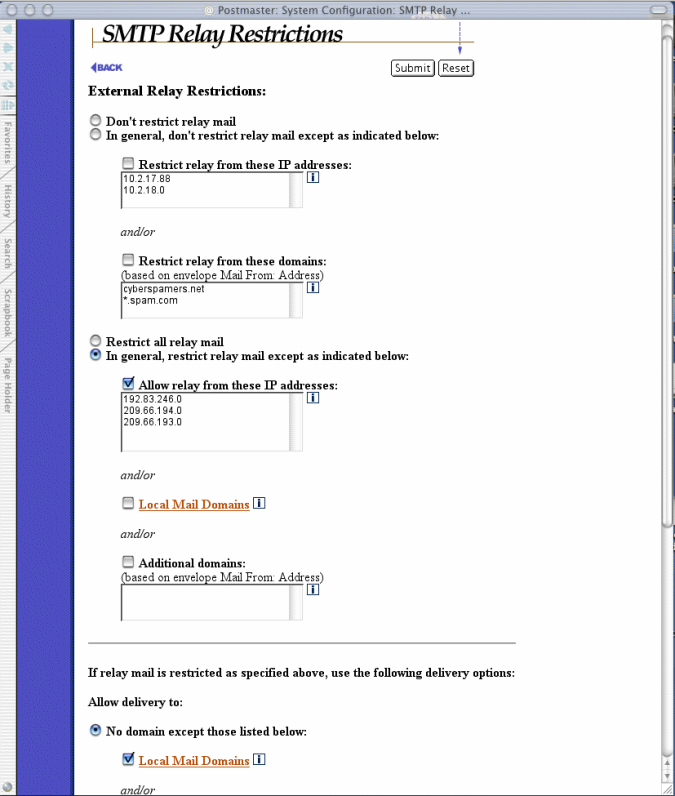
Figure 4-5 SMTP Relay Restrictions Form (part 1 of 2)
This radio button field allows you to specify rules for the restricting of relay mail. The four available selections are:
• Don't restrict relay mail. This option allows all users to relay mail through your mail server without restriction.
• Don't restrict relay mail except as indicated below. This option, which includes fields for specifying the systems and/or domains that are restricted from relaying, allows you to maintain a mostly open system which allows relaying except in special cases. When using this option, you would typically specify the IP address of a system that has been abusively relaying mail through your server, or the domain in the return address of these relayed messages.
• Restrict all relay mail. This option restricts all relay mail, including messages sent by your own local users (recall from Chapter 1 that a local user causes mail to be relayed whenever he or she sends a message which is addressed to a mail host other than his/her SMTP server). This option provides the ultimate in security, but in most cases is too restrictive.
• Restrict relay mail except as indicated below. This option, which includes fields for specifying the systems and/or domains that are free to relay, allows you to maintain a mostly restricted system which allows relaying only in special cases. This is the typical selection for sites which want to restrict mail relaying. When using this option, you would typically enable the Local Mail Domains option to allow local users to relay mail, and also specify the IP address of systems which use your mail server as an SMTP hub.
When specifying the IP addresses of systems which are or are not restricted from relaying, you can enter an IP address that uses 0 (zero) as a wildcard to specify an entire network. For example, restricting relay from the IP address
222.33.44.0
restricts all relay mail from any machine with an IP address in the class-C network 222.33.44.
When specifying the domains which are or are not restricted from relaying, you can enter a domain name that includes the * character as a wildcard to specify all of the hosts in a domain. For example, restricting relay from the domain
*.promos.com
restricts all relay messages whose return address includes these domains, such as:
free.stuff@promos.com

incredible.credit.card@credit.promos.com

phone.service@phone.promos.com
When relay restrictions are set using domain names, Post.Office checks the return address on the envelope of every message in the system against the list of allowed or restricted domains. Because a user can easily alter his/her return address to include any domain, using domains to restrict or allow relaying is not as secure as restricting by IP addresses.
Remember again that the fields described above in the External Relay Restrictions portion of the form do not prevent relay mail, they restrict it. Mail that is restricted may still be allowed to be relayed by Post.Office, depending on the delivery rules that you set at the bottom of the SMTP Relay Restrictions Form. If you don’t stop the delivery of restricted relay mail, you are not preventing mail relay!
To permit or deny the delivery of specific relay mail, use the fields in the second section of this form, which looks like the following:

Figure 4-6 SMTP Relay Restrictions Form (part 2 of 2)
This radio button field is used to define rules for the delivery of relay mail that is restricted according to the rules that you set at the top of this form. The available selections are:
• No domain except those listed below. This option denies the delivery of all restricted relay mail except when addressed to one or more specific domains. This is the recommended relay configuration. Included with this option are fields for allowing delivery of relay mail to Local Mail Domains and/or other domains. The Local Mail Domains option should always be enabled when using this delivery option, while the Additional Domains field should include domains for which your mail server is an MX backup.
• Any domain except those listed below. This option allows the delivery of all restricted relay mail except when addressed to one or more specific domains. Remember that selecting this options means that you are not preventing the type of relay that you decided to restrict in the first section of the form.
As in the relay restriction fields, you can enter a domain name in the delivery fields that includes a * character as a wildcard to specify all hosts in that domain. For example, denying delivery to the domain
*.remote-net.com
prevents the delivery of restricted relay mail addressed to this domain, or to any host in this domain.
If delivery of a relayed message is prevented, Post.Office returns an error to the sender indicating that the attempt to relay mail to the specified domain was denied. The event is also entered in the Post.Office logs (if SMTP-RelayDenied logging is enabled). If a relayed message is addressed to multiple users, some of which are located in a denied domain, normal delivery will take place for the users whose domains are not denied.
The following scenarios demonstrate the uses of the Post.Office anti-relay features, and give directions for dealing with specific situations of concern to mail administrators.
Scenario #1: "A particular system is using my server to distribute junk e-mail. How do I stop this?"
By reviewing the Post.Office logs, you should be able to get the IP address of the offending system (this information is given with the SMTP-Accept:Receive log entries that record information on incoming messages). To prevent relaying from this host, but otherwise leave your mail server available for relaying, execute the following steps in the SMTP Relay Restrictions Form:
1. Select the External Relay Restrictions radio button labeled Don't restrict relay except as indicated below.
2. Enable the check box above the text field labeled Restrict relay from these IP addresses, and enter the IP address of the offending system in this field.
3. In the delivery section at the bottom of the form, select the radio button labeled No domain except those listed below. This allows you to deny delivery of the relay messages from the system whose IP address you specified in step 2.
4. Enable the check box field for the Local Mail Domains delivery option. This allows the restricted system to continue to send messages to users within your local mail domain while still preventing this system from simply relaying messages through your mail server.
5. Enable the check box field for the Additional Domains option. In the text field below it, enter any additional domains that should be allowed to receive mail relayed through your server, such as sites for whom you are a backup MX site.
Scenario #2: "Someone distributed the name of my mail server to people who relay junk e-mail, and now several users are relaying mail through my system, which is killing my server's performance."
If you can't eliminate the problem of mail relaying on your server by restricting a few specific systems, change your relay settings to be more restrictive. Use the following settings in the SMTP Relay Restrictions Form:
1. Select the External Relay Restrictions radio button labeled Restrict relay mail except as indicated below.
2. Enable the check box field labeled Local Mail Domains in the relay restrictions portion of the form. This allows users whose return addresses match one of your local mail domains to continue sending mail through your installation of Post.Office.
3. Enable the Additional Domains option directly below the Local Mail Domains field that you enabled in step 2. In the text field below this check box, enter the other hosts and/or domains of users who should have access to send mail through your system. Remember that relay mail is restricted based on the sender’s return address, so be sure to include the hostnames and domains in the return addresses of all users who should be using your installation of Post.Office as their SMTP server.
4. In the delivery section at the bottom of the form, select the radio button labeled No domain except those listed below.
5. Enable the check box field for the Local Mail Domains delivery option. This allows restricted system to continue to send messages to users within your local mail domain while still preventing it from simply relaying messages through your mail server.
6. Enable the check box field for the Additional Domains option. In the text field below it, enter any additional domains that should be allowed to receive mail relayed through your server, such as sites for whom you are a backup MX site.
Scenario #3: "I want to restrict access to my mail server so that it allows only following: a.) all systems within my specific range of IP addresses can send mail to anyone; b.) all users in my local mail domains can receive mail from anywhere. How do I do this?"
This configuration is the most secure (short of disallowing all relay), because it allows relaying only by systems within a network, as defined by a range of IP addresses. Meanwhile, users with e-mail accounts on this server will not be prevented from receiving legitimate message from any e-mail sender.
To set these relay and delivery rules, set the following in the SMTP Relay Restrictions Form:
1. Select the External Relay Restrictions radio button labeled Restrict relay mail except as indicated below.
2. Enable the check box field labeled Allow relay from these IP addresses in the relay restrictions portion of the form. Enter the IP address(es) that reflects the IP addresses of your network, using a 0 (zero) as a wildcard where appropriate. For example, entering the IP addresses
222.33.44.0

127.0.0.1
will allow relay mail from any machine with an IP address in the class-C network 222.33.44, as well as from the server system itself (localhost).
3. In the delivery section at the bottom of the form, select the radio button labeled No domain except those listed below.
4. Enable the check box field for the Local Mail Domains delivery option.
5. Enable the check box field for the Additional Domains option. In the text field below it, enter any additional domains that should be allowed to receive mail relayed through your server, such as sites for whom you are a backup MX site.
The effect of the above settings is that a message will never be handled by Post.Office unless it is either a.) sent from a system whose IP address is within your network; or b.) addressed to a user in your local mail domains. Again, this is the most secure configuration for preventing mail relay.
Scenario #4: "The administrator of another domain is complaining that my mail server is being used to relay unsolicited mail to his users. How do I prevent outsiders from relaying mail to his server, while still allowing my own users to send mail there?"
Although you'll probably want to deny outsiders from relaying mail through your system for security and performance reasons (as described in scenarios 1-3), you may decide to allow relay unless the people who receive this mail complain about it. In this case, you can prevent relayed mail from going to the complaining domain by using the following settings in the SMTP Relay Restrictions Form:
1. Select the External Relay Restrictions radio button labeled Restrict relay except as indicated below.
2. Enable the check box field labeled Allow relay from these IP addresses in the relay restrictions portion of the form. Enter the IP address(es) that reflects the IP addresses of your network, using a 0 (zero) as a wildcard where appropriate. For example, entering the IP addresses
222.33.44.0

127.0.0.1
will allow relay mail from any machine with an IP address in the class-C network 222.33.44, as well as from the server system itself (localhost).
3. In the delivery section at the bottom of the form, select the radio button labeled Any domain except those listed below. In the text area field below this radio button, enter the domain that you don't want to receive relayed mail. This means that restricted relay mail (that is, all relay mail from users outside of your network) will be delivered to all domains except the one you entered here.
The Mail Blocking Form is used to prevent specific users and/or systems from sending mail – any mail – to your mail server. Like relay-prevention, Post.Office’s mail blocking features are useful when dealing with distributors of "junk" e-mail who barrage your users with unsolicited mail. However, because mail blocking is an all-or-nothing proposition that may prevent your users from getting mail that they really want, blocking is recommended only in extreme cases.
The Mail Blocking Form is invoked from the System Configuration menu by clicking on the Set Mail Blocking Options link, and looks like the following illustrations:

Figure 4-7 Mail Blocking Form (part 1 of 2)
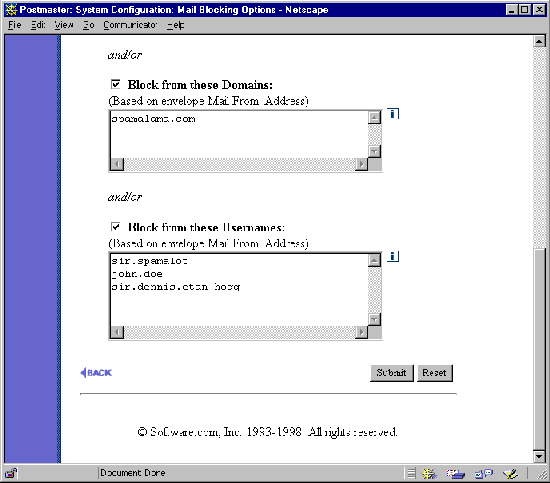
Figure 4-8 Mail Blocking Form (part 2 of 2)
By default, the selected radio button option for the Block Incoming Mail From field is No one, which disables all mail blocking. To enable blocking, change this option to Block Incoming Mail as Indicated Below and enable the check box fields for the types of blocking that you want to use.
There are four different criteria that you can use to block incoming mail: by IP address, and by the address, domain, and username of the sender’s return address.
This option allows you to block all SMTP network connections to Post.Office from specific computers or networks, as defined by IP address. When accepting network connections, Post.Office checks the IP address of the connecting system against the list of IP addresses specified in this field; if the IP address of the connecting system is listed here, Post.Office refuses the connection.
To block connections from an entire network, enter an IP address that uses 0 (zero) as a wildcard. For example, specifying the IP addresses
123.45.6.78

222.33.44.0
blocks all SMTP connections from the machine with IP address 123.45.6.78, or from any machine with an IP address in the class-C network 222.33.44.
When Post.Office refuses a connection from a blacklisted system, an SMTP-Accept:ConnectionRefused event is entered in the Post.Office log (if you are logging this event). For example:
19970425164342-0700:SMTP-Accept:ConnectionRefused:[123.45.6.78]
This log entry indicates that a system with a blocked IP address attempted to connect to Post.Office. The IP address of the blocked system is given at the end of the log entry.
This option allows you to block incoming mail based on its envelope return address. When accepting messages, Post.Office checks the return address on the envelope of each message against the list of e-mail addresses specified in this field; if the return address is listed here, Post.Office rejects the message by reporting to the sending system that the destination address(es) of the message do not exist.
For example, specifying the e-mail addresses
joe@junkmail.net

cybermailer@promos.com

free-money!@freecash.com
blocks all messages which have a return address that is identical to one of these. When a message is blocked because of its return address, an SMTP-Accept:SenderBlocked event is entered in the Post.Office log (if you are logging this event). For example:
19970425164317-0700:SMTP-Accept:SenderBlocked: [10.3.91.11]:<joe@junkmail.net>:3
In this example, the address joe@junkmail.net was in the list of blocked addresses, and was prevented from submitting mail to Post.Office. The number 3 at the end of the log entry indicates the number of intended recipients of the blocked message.
This option allows you to block incoming mail based on the domain of its envelope return address. When accepting messages, Post.Office checks the domain of the return address of each message against the list of domains specified in this field; if the domain of the return address is listed here, Post.Office rejects the message and notifies the sender that he/she is not allowed to send mail to the destination address(es).
For example, entering the domains
promos.com

freecash.com

host1.someisp.net
blocks all messages whose return address includes one of these domains, such as:
incredible.credit.card@promos.com

free-money!@freecash.com

susie.queue@host1.someisp.net
However, messages from
jack.flash@someisp.net

more-free-money!@more.freecash.com
will not be blocked, because the domains of these addresses are not specified in the above example. Note that in this field, unlike domain fields on the SMTP Relay Restrictions Form, wildcards can not be used with domain names to specify all hosts in a domain.
When Post.Office refuses a message a blocked domain, an SMTP-Accept:SenderBlocked event is entered in the Post.Office log (if you are logging this event). For example:
19970425164317-0700:SMTP-Accept:SenderBlocked: [10.3.91.11]:<offer@promos.com>:5000
In this example, the domain promos.com was in the list of blocked domains, and was prevented from submitting mail to Post.Office. The number 5000 at the end of the log entry indicates the number of intended recipients of the blocked message.
This option allows you to block incoming mail from e-mail addresses that include one or more specific usernames (the username is the portion of an e-mail address to the left of the "@" symbol). This feature is useful if you want to block mail from distributors of "junk" e-mail who send messages from multiple domains but with the same username. When accepting messages, Post.Office checks the return address username on the envelope of each message against the list of usernames specified in this field; if the username of the return address is listed here, Post.Office rejects the message and notifies the sender that he/she is not allowed to send mail to the destination address(es).
To block all mail from a specific username, enter the username in this field. For example, specifying the usernames
incredible-offer

john.doe
blocks all messages whose return address includes these usernames, such as:
incredible-offer@junkmailer.com

incredible-offer@megamailer.com

incredible-offer@supermailer.com

john.doe@megapromo.com

john.doe@friendlyisp.net
When Post.Office refuses a message from a blocked username, an SMTP-Accept:SenderBlocked event is entered in the Post.Office log (if you are logging this event). For example:
19970425164317-0700:SMTP-Accept:SenderBlocked: [10.3.91.11]:<incredible-offer@junkmailer.com>:30000
In this example, the username incredible-offer was in the list of blocked usernames, so the sender was prevented from submitting this message to Post.Office. The number 30000 at the end of the log entry indicates the number of intended recipients of the blocked message.
The System Performance Parameters Form is used for setting a variety of options relating to server storage requirements and performance. Although Post.Office comes with a set of predefined defaults for these options, they will likely be among the first things that you modify after installation.
This form is invoked from the System Configuration menu by clicking on the Establish System Performance Parameters link, and looks like the following illustration:
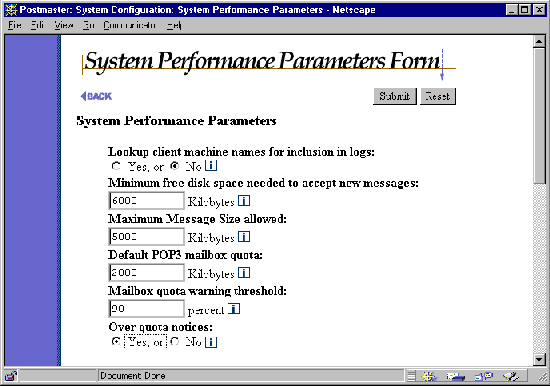
Figure 4-9 System Performance Parameters Form (part 1 of 2)
Lookup Client Machine Names: Enable this option by selecting Yes if you would like to have Post.Office perform a name lookup (via the DNS) on all connecting client machines. If enabled, machines will be referred to by their domain names; otherwise they will be referred to by their IP addresses. Places where these names show up include the process table, the log file, and "Received" lines in message headers. If you handle a large volume of messages, be aware that selecting this option will slow down Post.Office slightly.
Minimum Free Disk Space: Post.Office tries to use all available disk space in its spool area for the processing of messages – new mail will be accepted as long as it fits on the disk. If you would like Post.Office to leave some of the disk empty, enter the desired space to be reserved (in kilobytes) in this field. If this field is left blank (the default option), no free disk space is reserved. Similarly, if the contents of this field are deleted, the reservation is set aside and Post.Office will continue receiving mail as long as it fits on the disk.
When Minimum Free Disk Space is specified, any incoming messages that – if received – would cause free disk space to drop below the reserved minimum are refused by Post.Office until enough space becomes available. Messages refused in this manner are not returned to sender, but are simply queued by the sending system for a later attempt.
If the Post.Office spooling directory and the mailboxes do not reside on the same disk, the check for minimum free disk space may be performed more than once for each message. First, the SMTP-Accept process will check the disk where the Post.Office directory resides; if this check fails, the message will be queued by the sending system for a later attempt. If the initial check succeeds, the message is accepted by Post.Office. A second check is run on the disk where the mailboxes reside if Mailbox-Deliver is called; if it succeeds, the mail is delivered to the appropriate mailbox. If the check fails, the mail is queued internally for a subsequent attempt at mailbox delivery.
Maximum Message Size: The entry made in this field indicates the maximum message size (in kilobytes) that will be accepted by your mail server. Acceptable values are from 64 to 1,000,000 kilobytes. Incoming messages that exceed the established limit are not accepted; they are returned to their sender with notification that the original message was too large, as in the following sample notification:
|
This Message was undeliverable due to the following reason:
Your message is larger than the destination computer is willing to accept, so it was returned. The error message below indicates the size of your message and the maximum size allowed by the receiving e-mail system. You may be able to split your message into several smaller pieces and have them delivered separately. Size of this message: 116683 bytes Server maximum size: 65536 bytes |
If the Maximum Message Size field is blank (the default value), no limit will be enforced and messages of any size will be accepted.
It’s important to understand that the message size limit applies to the total message, including any attachments. This condition is further complicated by the fact that the conversion operation associated with attachments results in four characters being transmitted for every three in the original text, so a file that was originally 300k in size will add 400k when attached.
Your particular organization may require some large message transfers, but if not, set a reasonable limit – say, 3 Mb – for this field. If your users frequently transmit messages with attachments, you should probably consider surveying your users to find average messages sizes before establishing this limit.
Default POP3 mailbox quota: The entry in this field is used as the maximum POP3 mailbox size for any user that does not have a size limit explicitly set in their account. Acceptable values are from 100 to 1,000,000 kilobytes. If this field is left blank (the default option), then no limit will be enforced and mailboxes can grow to any size. Similarly, if the contents of this field are deleted the system is reset to allow mailboxes of limitless capacity.
Mailbox size limits apply to only those accounts with POP3 or IMAP delivery, which allows you to control system resources and prevent users from acquiring more than their fair share of disk space. Messages that would increase the size of a user’s POP3/IMAP mailbox beyond the established limit are not accepted; instead, they are returned to their sender with a message indicating that the intended recipient’s mailbox is full. The Postmaster is also notified.
Mailbox quota warning threshold: To prevent users from reaching their mailbox size limits, it's a good idea to alert them when their accounts are approaching their quota. This field allows you to set a warning threshold that will trigger such a notification. Enter an integer value from 1 to 100 in this field to indicate the percentage of the quota that that triggers the warning. For example, if an account has a 2 MB mailbox quota, a quota warning threshold of 90 will cause the account to receive a warning message when the amount of mail in its mailbox exceeds 1.8 MB (90% of 2 MB).
Over quota notices: This option controls whether or not a warning message will be sent to an account when its mailbox has exceeded its quota warning threshold (defined in the field above). This notification informs users of their account’s quota and their current mailbox usage, and provides information on deleting mail form the mailbox. Because users should be aware of their mailbox usage, we highly recommend that you use this feature.
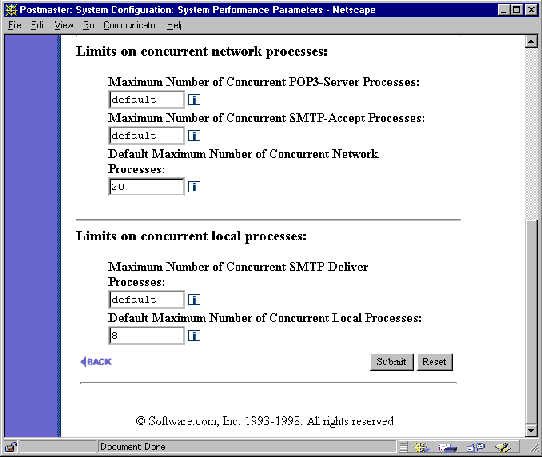
Figure 4-10 System Performance Parameters Form (part 2 of 2)
Maximum Number of Concurrent POP3 Client Connections. Entries in this field override system defaults and set an independent limit for the maximum number of concurrent POP3 client connections. If the field is blank (or contains the word "default") the default value will be applied to this network process.
Maximum Number of Concurrent Incoming SMTP Connections. Entries in this field override system defaults and set an independent limit for the maximum number of concurrent incoming SMTP connections. If the field is blank (or contains the word "default") the default value will be applied to this network process.
Default Max Concurrent Network Servers. The default value established in this field applies to all network processes (Finger-Server, the Password-Server, the POP3-Server, SMTP-Accept, and the WWW-Server) unless overridden by specific entries in the fields labeled Maximum Number of Concurrent POP3 Client Connections, and Maximum Number of Concurrent Incoming SMTP Connections.
It’s important to understand that the default limit on concurrent processes applies to each process independently. If the default limit is eight, then eight instances of each network process can be run at the same time (not a total of 8 network processes).
This feature provides Postmasters with the flexibility required to fine tune their system for improved performance. These parameters control the mail system’s use of processor time to either limit the mail system’s impact on systems heavily loaded with other concurrent application programs or to ensure sufficient processor allocation to the mail system as necessitated by the number of users served by this Post.Office installation.
With regard to limits on concurrent processes, it is generally recommended that default values be set low and individual limits be increased as required.
Maximum Number of concurrent Outgoing SMTP Connections. The entry in this field overrides the system default and sets an independent limit for the maximum number of concurrent outgoing SMTP connections. If the field is blank (or contains the word "default") the default value will be applied to this local process.
Default Max Concurrent Local Processes. The value entered in this field applies to all local processes (Account-Manager, AutoReply-Handler, Configuration-Manager, Error-Handler, Mailbox-Deliver, SMTP-Deliver, List-Manager, List-Scheduler, List-Exploder) by default.
The default value applies to each process independently. It is generally recommended that defaults be set low and individual limits increased as required. The recommended default value for local processes is 5; it is highly recommended that you do not change this default, especially if you’re using mailing lists. If you need to assess the local processes and what they do, you can go clobber yourself with the architecture nitty gritty in Appendix A.
Again, remember that the default limit on concurrent processes applies to each process independently. If the default limit is eight, then eight instances of each local process can be run at the same time (not a total of 8 local processes).
The End User’s Account Options Form allows you, the Postmaster, to restrict the operations that are available to end users in the Post.Office web interface. By default, all user with mail accounts in Post.Office can perform the follow account-related tasks:
However, you may decide that some of these options are not compatible with your organization’s policies. For instance, you may decide that users should not be allowed to change their mail delivery method or view the access restrictions that you’ve put on their account. Because of this, the End User’s Account Options Form allows you to "hide" one or more of these operations from users in the web interface, which prevents users from accessing (or even being aware of the existence of) these hidden options.
The End User’s Account Options Form is invoked from the System Configuration menu by clicking on the Define End User’s Account Editing Options link, and looks like the following illustration:
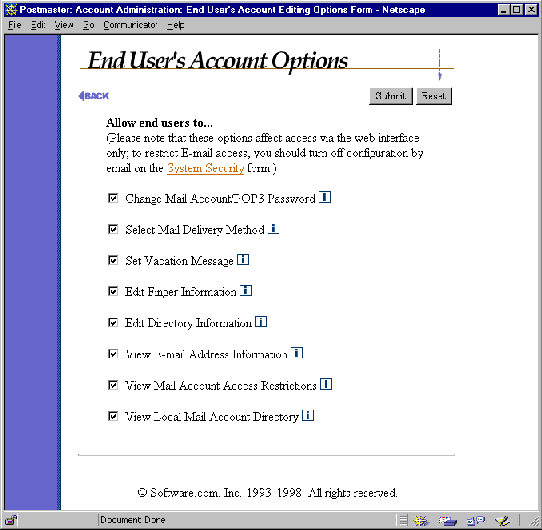
Figure 4-11 End User Account Options Form
Each of the toggle buttons on this form corresponds to a menu entry on the end user’s Account Management Menu, and a corresponding form in the end user web interface. When an end user option is disabled, the end user’s menu simply doesn’t show the link to the appropriate form, so access to that form – and the functionality it offers – is unavailable.
The items available in the End User’s Account Options Form are:
The following is an illustration of the complete, unrestricted Account Management menu for end users:

Figure 4-12 End user’s Account Management Menu ("before")
And now here’s the same menu after the options for changing the password, setting mail delivery, and viewing the Mail Account Directory have been disabled by the Postmaster:
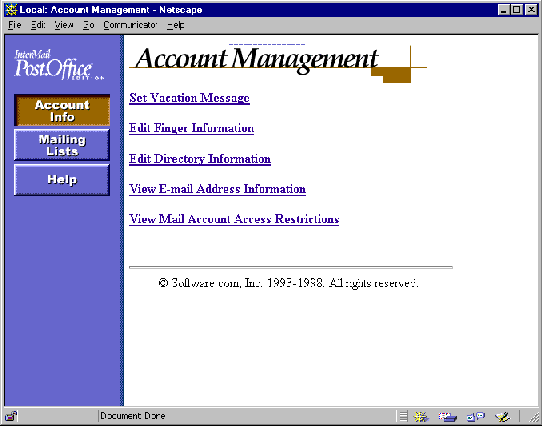
Figure 4-13 End user’s Account Management Menu ("after")
Remember, setting end user account options is a global operation, so all users of the installation of Post.Office pictured above will be confined to only these three account management items.
The Logging Options Form allows you to request the activities within Post.Office that you want to be recorded in the daily system log file. Log files – as described in Chapter 8 – are useful for troubleshooting odd or unintended mail system behavior.
This form is invoked from the System Configuration menu by clicking on the Set Logging Options link, and looks like the following illustrations:
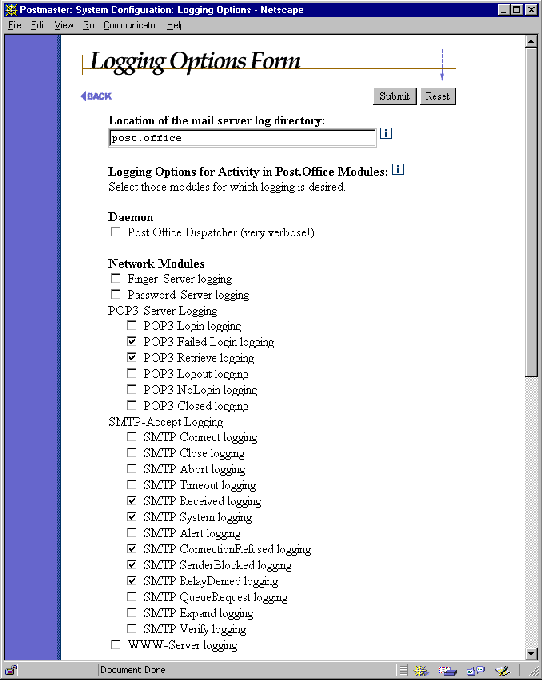
Figure 4-14 Logging Options Form (part 1 of 2)
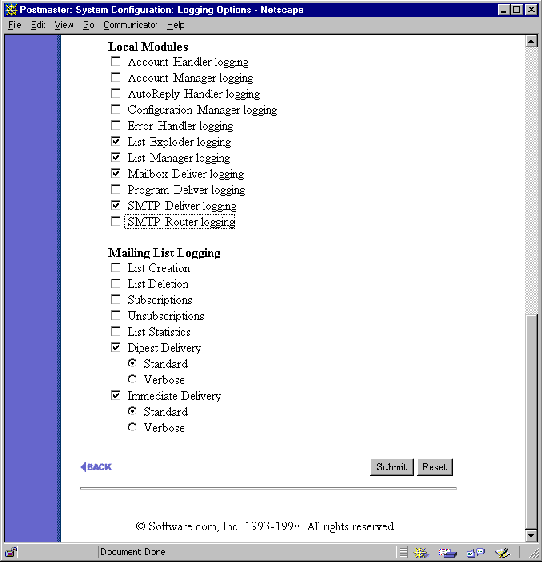
Figure 4-15 Logging Options Form (part 2 of 2)
By default, all log files are kept in the post.office/log directory, but you can override this by specifying the full pathname of the directory where the logs should be stored. You do not need to specify the full path name to use the default – use the special keyword "post.office" to request the default directory location. Our recommendation is to leave this field as-is.
All Post.Office log information for a specific day is kept in a single file, named in the format post.Office-####.log (where #### represents the month and day). The log files are automatically rotated on a daily basis. The location of the log file is under Postmaster control via the above directory location field.
Each module that writes an entry in the log file uses a format that is machine readable for automatic processing. Each entry consists of the current date and time, the module that recorded the information, and the module specific information. The date and time are relative to the local time zone in the format YYYYMMDDhhmmss (year, month, day, hour (00-23), minute, and second). The module specific information varies on a per module basis.
See Chapter 8 for information on reading Post.Office log files.
The Error Response Parameters Form defines rules for the handling of undeliverable messages. You can choose to set the system on auto-pilot and just have it bounce (that is, return to sender) all undeliverable or otherwise problematic messages, or you can choose to send all such message to the Postmaster (you) for manual processing.
This form is invoked from the System Configuration menu by clicking on the Establish Error Response Parameters link. A similar link on the Status of Deferred Mail menu invokes this same form.
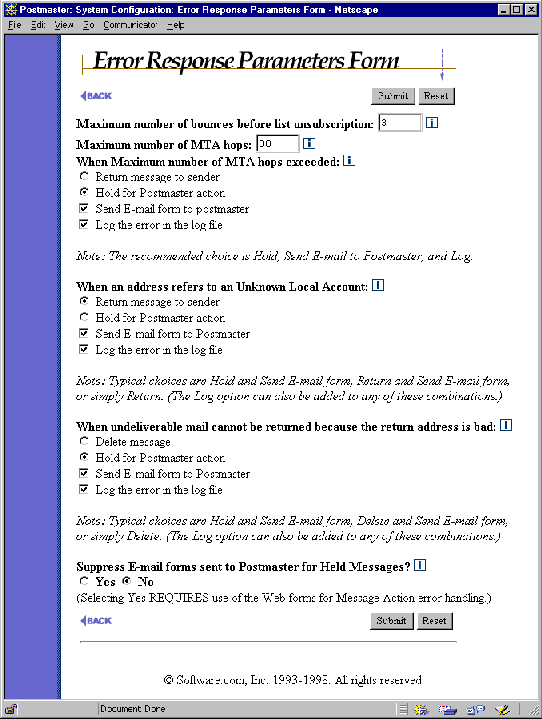
Figure 4-16 Error Response Parameters Form
Maximum number of bounces before list unsubscription This option is used to keep the membership of Post.Office mailing lists up-to-date. Because the computer users of the world tend to change their e-mail addresses quite frequently, subscriber lists often include addresses that are no longer valid. Having obsolete e-mail addresses in a subscriber list is undesirable, because they cause Post.Office to waste processing time sending list postings to the non-existent subscribers, and handle resulting bounce messages from other mail servers.
When a mailing list posting causes a bounce message from a remote mail server, Post.Office counts this bounce against the unreachable subscriber. When the number of bounces recorded against a subscriber reaches the number specified here, the subscriber will be dropped from all mailing lists on your system.
Maximum MTA Hops. This parameter is used to prevent mail loops. Usually a mail loop is caused by having two e-mail accounts on different machines that forward mail to each other. Any mail sent to either of these accounts could bounce back and forth between the machines forever. Fortunately, these loops can be detected and stopped since each mail server stamps all incoming messages as Received. By counting the number of Received lines in the message header, Post.Office knows how many hops the message took to get here. The recommended value for this parameter is 30. If the number of hops of an incoming message exceeds the maximum specified in this parameter, an error results and will be handled according to the Max Hops Exceeded field below.
When Maximum number of MTA hops exceeded. When a message arrives whose number of MTA hops exceeds the limit defined in the above field, the error will be handled as you request here. Accounts that cause mail loops need to be corrected as soon as possible; hence, the strongly recommended combination of actions for this error is to hold the message and notify the Postmaster so that the responsible account can be corrected.
When an address refers to an Unknown Local Account. This error means that a message addressed to one of the local domains was received with an address that did not correspond to an account, mailing list, or channel alias on the system. Often this is caused by the sender mis-typing the address. It can also mean that an account or alias should be added to the system.
The recommended response to this condition is to hold the message (Hold for Postmaster action) and notify the Postmaster (Send e-mail form to postmaster). This combination is especially important when upgrading from a different mail system or redistributing users among various hosts. The Postmaster is notified via e-mail of each error by the arrival of a Message Action Form, and can submit this e-mail form to process the undeliverable message.
Because held messages can also be handled via the web interface, you may choose to hold the message, but not notify the Postmaster via e-mail. You should select this combination only if you intend to handle all Unknown User errors exclusively through the web interface.
If you do not wish to handle mail addressed to Unknown Users you should select the Return option. Once the mail system is up and running smoothly, it is common to then return unknown user mail (with or without Postmaster notification).
When undeliverable mail cannot be returned because the return address is bad. This error means that Post.Office attempted to return a message to its sender (for example, in the case of a message addressed to an unknown local user), but could not because the return address of the original message does not exist. Often this is because the sender has configured their e-mail client incorrectly; in other cases -- such as with distributors of "junk" e-mail – it is because the sender does not want to receive direct responses to their message.
Because this error condition involves a message that could be neither delivered nor returned, the recommended response is to Delete the message, Send a notification to the Postmaster, and Log the error.
Suppress e-mail forms sent to Postmaster for Held Messages? By default, Postmasters receive notification via e-mail when errors occur that require Postmaster action. Setting this field to Yes will suppress delivery of those messages and require all error handling to be accomplished via web forms. If you wish to maintain the option of handling errors via e-mail or via the web you should select No.
This form is invoked from the System Configuration menu by clicking on the Establish System Security link, and looks like the following illustration:
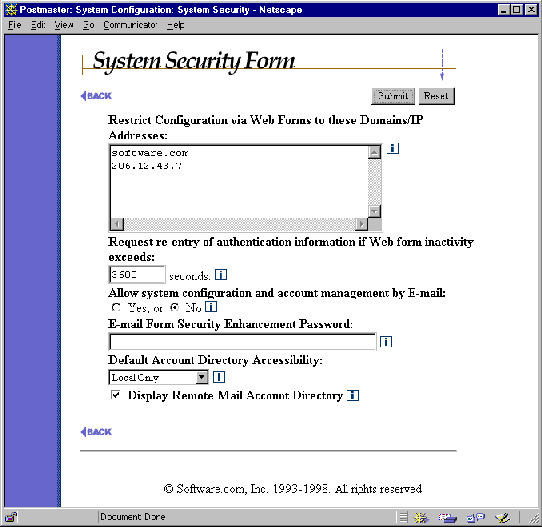
Figure 4-17 System Security Form
Restrict Configuration via Web Forms to these Domains/IP Addresses. This option allows you to set access restrictions for all web configuration of Post.Office on this host. These restrictions are specified as domain names and/or IP addresses, one per line in this field. You probably want to ensure that users who have no business poking around your e-mail can’t access your mail server, so be sure to enter hostnames, domain names, and/or IP addresses that provide access to only a few computers.
The following algorithm used to determine if a connecting client has permission to access the Post.Office web interface based on the information entered in this field:
For example, suppose configuration is limited to the following:
software.com
Postmasters and users alike can only make configuration changes from a machine in the software.com domain, such as sparky.software.com, even if the Access Restrictions for their accounts are less restrictive and they know the correct password.
Request re-entry of authentication information if Web form inactivity exceeds ___ Seconds. After a certain period of inactivity, the web server automatically closes the session as a safeguard. This protects you from absent-mindedly logging in to Post.Office and then leaving work for the day with your web browser still running, which would otherwise allow anyone to sit down at your computer and begin impersonating your Postmaster persona. This field allows you top specify your preference for the length of this timeout period. A good setting is 600 seconds (10 minutes).
Allow system configuration and account management by e-mail. If you do all your configuration through the web interface, you might as well turn this off by selecting No. Otherwise, set this field to Yes to allow yourself the option of using the e-mail interface. Turning off e-mail configuration represents another level of security.
E-mail Form Security Enhancement Password. Use this field to set the encryption key used to make the Form Identifier (at the bottom of all e-mail forms). This is especially useful if you need the ability to transfer mail accounts between different machines. Two machines with the same E-mail Form Security Password will be able to submit forms from one machine to the other most easily.
Default Account Directory Accessibility. This field sets a global default for the visibility of accounts in the Mail Account Directory. This directory displays the Real Name and Primary E-mail Address of each listed account, with optional links to user home pages. Directory accessibility can be controlled globally with this option, or can be set on an account-by-account basis. When the Directory Accessibility of an account is Default, the account will have whatever listing status that you define here.
There are three selections for this field:
• Local Only specifies that accounts are visible only in the Mail Account Directory accessible to local users (that is, users who have Post.Office accounts on your system).
• Local and Remote specifies that accounts are visible in the Mail Account Directory for both local and remote users. This means that users from outside of your system will be able to view the Real Name and Primary E-mail Address of the accounts in the public Mail Account Directory.
• Unlisted specifies that accounts should not be listed in the Mail Account Directory.
Display Remote Mail Account Directory. This option controls whether or not a Mail Account Directory will be available to remote users. When this option is enabled, a Mail Account Directory menu button will appear on the Authentication Information form; by clicking on this button, users can view a listing of accounts that have been specified as visible here (see the available account listing types above shown above). Disabling this option removes this menu button from the Authentication Information form, thereby disabling the public Mail Account Directory.
The System-Level Default Messages Form provides various default finger and auto-reply messages for Post.Office to use in a pinch. It provides information used to answer finger queries which include the name of the host system but no username, and provides auto-reply messages for accounts that are using this feature but which have no auto-reply message.
Admittedly, providing a default auto-reply message isn’t the most useful thing in the world, since the point of such messages is that they provide some type of account-specific information. However, this option is here for you if you decide that having defaults for such values makes sense for your organization.
The System Level Default Messages Form is displayed from the System Configuration menu by clicking on the Edit System-Level Messages link, and looks like this:
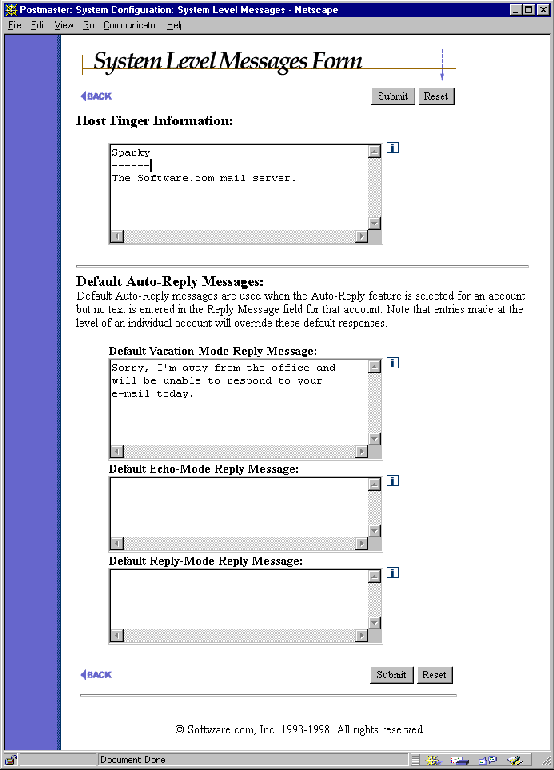
Figure 4-19 System-Level Messages Form
Host Finger Info: This is the response provided to queries that do not include a user name and are therefore addressed more generally to your company or organization. This is a good place to put miscellaneous information about your company and maybe a couple of contact names and e-mail addresses. However, this information probably won’t get seen by many users.
For example, if you finger "software.com" without specifying a host-name or someone’s address you’ll get a couple e-mail addresses that you can use to contact us as well as our postal address and phone number.
Default Vacation Message. Hopefully your users will remember to make their own vacation messages before they take off for Las Vegas or Graceland. However, users may enable the vacation message feature for their account without having actually written one; in this case, the vacation message specified here is provided for them. This is a good place to leave a fairly generalized message saying something along the lines of "The person you tried to contact is on vacation..."
Default Echo Message. Like the default vacation message described above, this message is sent on behalf of accounts which have the auto-reply feature enabled in Echo mode, but which have no auto-reply message.
Default Reply Message. Like the default vacation message, this message is sent on behalf of accounts which have the auto-reply feature enabled in Reply mode, but which have no auto-reply message.
The Licensing/Configuration Information Form is a read-only form that provides a variety of information about your particular installation of Post.Office. This information can be very useful for troubleshooting and system administration.

Figure 4-20 Licensing/Configuration Information Form
This part of the Licensing/Configuration Form contains information regarding the licensing of your particular Post.Office installation.
This part of the Licensing/Configuration Form contains information that is useful during troubleshooting or when you need more information about the server system where Post.Office is running.
Post.Office ©Software.com, Inc. 1994-1998
