



Account Management
This chapter discusses e-mail accounts controlled by Post.Office, and includes the following topics:
Information about the users who receive e-mail on your system is organized by Post.Office into accounts. An e-mail account is the electronic equivalent of a P.O. box. The information included in an e-mail account identifies the recipient by name and address, determines how messages are accepted and delivered for that account, and defines the directory information that is provided.
Accounts contain, among other information, the name of the user, their e-mail address or addresses, how and where they receive their e-mail, what their password is, and what their directory information is. The sum of the information in all accounts is held in an internal Post.Office account database. There are eight principle kinds of information for each account in the database:
While most of the account information is controlled solely by the Postmaster, certain items which apply only to the account – namely the password, delivery information, vacation message, and finger information – can be changed by the account’s owner. This allows individual users to set a few account options without bothering the Postmaster, but still prevents them from making any changes that could potentially compromise system security.
Although all accounts in Post.Office include the attributes described above, there are three different main types of Post.Office accounts: Administrative accounts, general accounts, and reserved accounts. Each of these groups have sub-groups that further divide accounts into special categories.
Two types of accounts fall into the category of administrative accounts: the Postmaster account itself, and the general accounts of all users who have been given Postmaster privileges (i.e., you). These accounts are displayed apart from the general user accounts to signify their importance.
Postmaster Account. The Postmaster account represents a function, not a person, but the account itself can receive e-mail just like any other account. All messages sent to the Postmaster account are forwarded all of the users who have been given Postmaster privileges. In this way, the Postmaster account is technically a group account (described later in this section).
The Postmaster password – that is, the password defined for the Postmaster account – is required for carrying out all configuration and account management. It is something you don’t want to share, since it gives you access to every detail of the Post.Office system.
The Postmaster account is created on installation and cannot be deleted from the accounts database. The general account of the initial Postmaster is also created during installation, but this account can be later deleted or reduced to the role of non-Postmaster (provided at least one other general account has been given Postmaster privileges).
Designated Postmasters. These are the individual users who have been granted Postmaster privileges (that is, people like you). These are the people who are sent (and can respond to) error notifications and other system maintenance tasks. A user need not have a mail account in Post.Office to be a designated Postmaster, so just about anybody with an e-mail address can be your mail administrator. You can also have any number of designated Postmasters if you decide to share this solemn duty with other users.
In addition to the Postmaster account, several other reserved accounts exist in Post.Office. These accounts have special features necessary for the operation of the program, and are used frequently, but not necessarily directly. Most of these accounts are used only if you decide to operate the system via the e-mail interface (an old Post.Office feature which remains supported for backward compatibility), but you should still be familiar with these accounts.
Reserved accounts include the following:
• Default Account. This is the account that holds default information used in the creation of all new accounts. This isn’t technically an account, since mail cannot be addressed to it, but it exists in the account database and contains all of the attributes of an account. All of the information included in this account is inserted into the New Account Data Form whenever you create a new account.
• Account Manager. This account sends and receives e-mail forms for transactions involving account management, and has the default address accounts@[IP.address].
• Configuration Manager. This account sends and receives e-mail forms for transactions involving Post.Office system settings, and has the default address configuration@[IP.address].
• Error Handler. This account sends and receives e-mail forms regarding the handling of undeliverable or unreturnable mail, and has the default address error-handler@[IP.address]. The e-mail interface for error-handling is described in Chapter 8.
• List Manager. This account sends and receives messages related to mailing lists, and has the default address list-manager@host.domain. The e-mail interface to mailing list functions is described in Chapter 7.
• All Mailboxes. This reserved account is actually a reserved mailing list, which can be used to broadcast messages to all local mail accounts that use the POP3 method of delivery. The default address for this mailing list is all-mailboxes@host.domain.
You can change the e-mail address of these accounts in the event it interferes with your system. Otherwise it is a good idea to leave them the way they are. For example, "list.manager" is the primary address for the List-Manager, but you may already be using the address "list.manager" for something else. Or maybe you want to add an extra address to these accounts so that they are easier for you to remember (or even just quicker to type). When customizing your system this way, it is strongly recommended that you insert additional addresses rather than to remove the primary default values.
The majority of Post.Office accounts – that is, all accounts that are not administrative or reserved accounts – fall into the category of general accounts. Unlike reserved accounts, general accounts are not created automatically; these are the e-mail accounts that you create, typically for users who will receive their e-mail through Post.Office. General accounts are the only type of account that can be created or deleted.
Within the category of general accounts, there are four basic conceptual types:
• Individual. Individual general accounts are by far the most common type of Post.Office account, and typically correspond to an individual computer user (for example, john.doe@software.com)who receives, forwards, or stores e-mail in Post.Office.
• Group. A group account is an account which forwards incoming messages (addressed to the group account) to other accounts. As opposed to individual accounts that typically forward mail in addition to storing messages for user collection, group accounts simply pass messages on a group of users. Group accounts are simple mailing lists, and typically correspond to a group of computer users. For example, you might create a group account such as social.committee@software.com which forwards all messages to the members of this committee.
• Auto-Reply. All accounts can include an auto-reply message, which is sent to all users who address messages to that account. However, only the Postmaster can create an auto-reply account, which uses the auto-reply facility to respond to all messages but which has no associated delivery method (incoming mail is simply deleted). This type of account is useful for distributing information that does not require a personal response, such as a price list, sales brochure, order form, directions to your office, etc.
• Wildcard. Among the many mail routing options provided by Post.Office is the ability to deliver to a single account any message that is addressed to a particular local mail domain. This allows mail to be delivered to your site, even if it’s addressed to an unknown address in the domain. The account that receives all mail for unknown users in a particular domain is known as a wildcard account. (See Section 5.3.2 for information on setting wildcard delivery for an account).
The illustrations below demonstrate the ways in which the information in an account ends up in actual e-mail (Figure 5-1) and in a reply to a finger query (Figure 5-2):
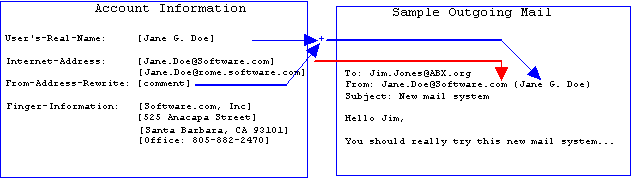
Figure 5-1 How account information is used in messages.
Exact usage may vary based on account options selected. We’ll get into all of that later on in this chapter.
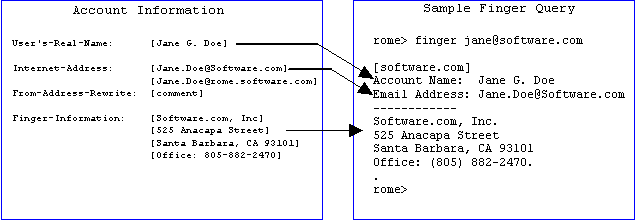
Figure 5-2 How account information is used in finger queries.
Finger queries elicit the user’s name and official e-mail address, as well as their custom finger information. In this case, Jane Doe uses her finger information to make her mailing address and telephone number public.
Passwords, when kept private and changed from time to time, act as electronic keys:
Post.Office passwords are case-senSiTive and must be at least six characters in length.
For example, when a user attempts to retrieve his e-mail with a mail client, the host name or IP address of the computer he’s using is checked against the valid host names/IP addresses for his account; if the computer doesn’t meet the access restrictions for his account, mail delivery will be denied. Similarly, when the user attempts to access his account via the web interface, the computer on which his web browser is running is checked against these host names and IP addresses, and will be denied if it fails to meet this criteria.
Access can be limited to a single computer or a set of computers in an addressing hierarchy. A single computer can be specified either by giving its fully-qualified domain name (for example, sparky.sales.software.com) or its IP address (for example, 10.2.111.30). Likewise, a set of computers can be specified by using an incomplete DNS address or IP address. An incomplete DNS address is one which does not specify a host (for example, software.com), while an incomplete IP address is one which contains a "0" (zero) in any of the four segments (the zero acts as a wildcard). The general access restriction feature can be left blank to allow access from anywhere, or contain the keyword "none" to prevent any access at all to an account (except by the Postmaster).
The following algorithm used to determine if a connecting client has permission to access their account based on the information entered in this field:
Use of domain names or IP addresses is a trade off between flexibility and security. Using a host or domain name is easily understandable and immune to network topology changes, while an IP address (or range of addresses) may not be. Generally speaking, IP addresses are safer than domain names for access restrictions, because they are more specific.
For maximum security, you can configure your access restriction to be the IP address of a single computer in your office. With this precaution in place, keeping the door to your office locked or otherwise restricting access to your computer will ensure that nobody can access your e-mail, even if they obtain your password. The use of IP addresses, however, does not require the presence of reverse-lookup records in the DNS.
For example, an access restriction might be set up as follows:
sparky.software.com

math.ucsb.edu

128.123.45.0
The above restriction entries would allow you to access the account from any of the following computers:
sparky.software.com

complex.math.ucsb.edu

128.123.45.22

128.123.45.67
However, you would not be able to access the account from the following:
fido.software.com

laser.ece.ucsb.edu

128.123.46.22

128.124.45.67
For example, you may want to restrict your finger access to your company’s domain. This way, only people within your organization would have access to the directory information in your account. You could then record sensitive information (like home phone numbers) in the finger information for each account, and run the finger server while being certain that nobody outside your company can access that information.
To access the Postmaster’s web-based account management interface, log in to the web interface as the Postmaster and with the Postmaster password (refer to Chapter 3 if you’re not sure how to do this). After your login information is confirmed, you be taken immediately to the Account Administration menu, which you saw way back in Chapter 3. You can also get to this menu from any other menu by clicking the Account Admin menu button. To refresh your memory, here’s what the menu looks like:
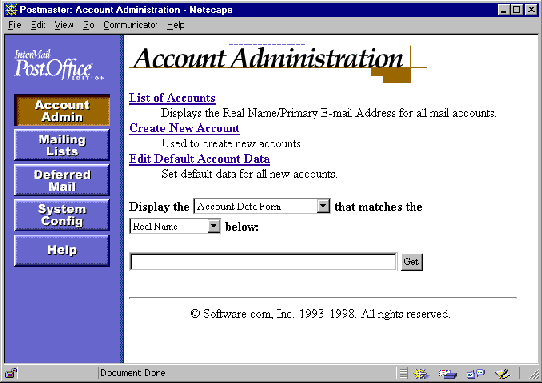
Figure 5-3: Account Administration menu
The Account Administration menu contains three links, as well as a text field and execution button. These links and the forms that they invoke are described throughout this chapter. For now, the only option on this menu that we’ll look at is the List of Accounts link. This link invokes a menu that displays the list of all accounts on your Post.Office server (including administrative and reserved accounts).
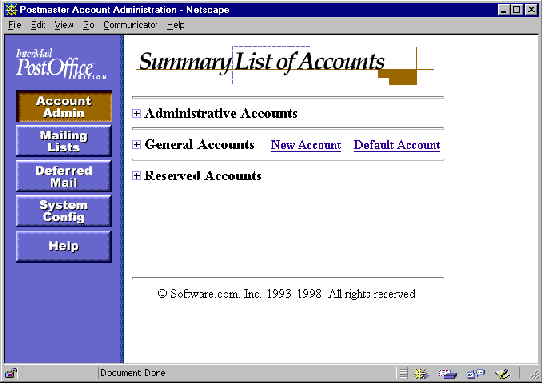
Figure 5-4: List of Accounts menu (as seen when first displayed)
Three types of accounts can be viewed in this menu: Administrative Accounts, General Accounts, and Reserved Accounts. To view accounts, click on the
 graphic next to the appropriate label; this expands the account menu to display the appropriate accounts.
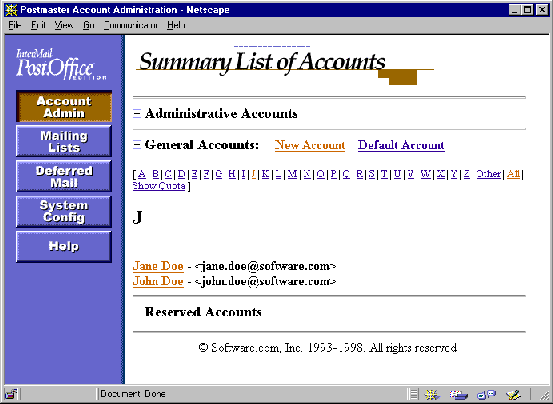
Figure 5-5: List of Accounts menu (showing General Accounts)
Accounts are sorted alphabetically in this menu, by Real Name. By clicking on the name of a specific account in this menu, you can display a form for viewing and/or modifying the attributes of the account.
In the General Accounts sub-menu, A-Z (and other) links allow you to display specific subsets of the entire list of accounts. For each account, the user’s Real Name and primary e-mail address are displayed. You can also display POP3 mailbox usage information for each account by clicking the Show Quota link.
Because finding a particular account in this menu may require several steps, the Account Administration menu includes a shortcut text field that allows you to bypass the List of Accounts menu and go straight to the desired account information. To use this shortcut field, enter the Real Name, e-mail address, or POP3 login name for the desired account in the shortcut text field. You can use a wildcard (*) character to request all accounts that match a particular pattern. Then select the information you want to access from the drop down menu (in the case of account settings, you would select Account Data Form from this menu), and click Get.
Now that you have some idea about what accounts are all about, you are ready to start creating new accounts yourself. This is the operation that you will perform the most often when working with accounts, since only the Postmaster can do so. Other operations specific to the account – such as setting a new password, changing mail delivery options, etc. – can be handled by whoever the account has been created for.
Accounts are created in the web interface with the New Account Data Form. This form can be invoked from the Create New Account link of the Account Administration menu, or the New Account link on the List of Accounts menu. Both of these links display the same form, so use whichever one is easier.
This form is reasonably long, so we’ll take it one section at a time, with a series of screen shots and explanations of all account fields to assist you in using it.
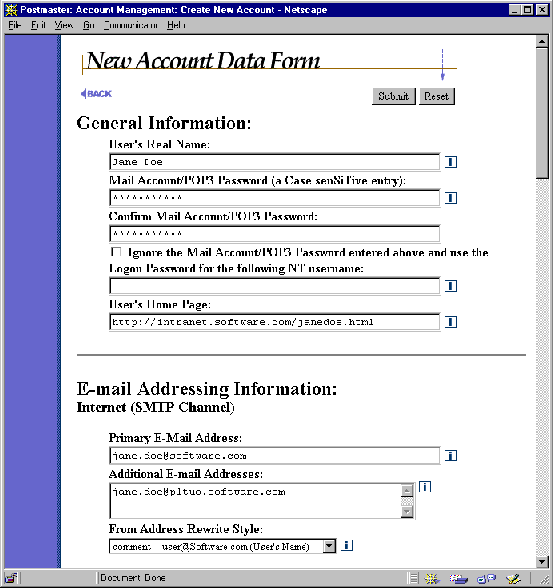
Figure 5-6: New Account Data Form (part 1 of 4)
The fields in this section of the New Account Data Form are used to define the name of the account’s user, as well as account password information.
This field contains the actual name of the account’s user, or a descriptive account name in the case of auto-reply and group accounts. This descriptive name will be included with the e-mail address on messages sent out from this account, depending on the selected From Address Rewriting option (described in Section 5.3.1). The name does not have to be unique, so it is possible for two of your users have the same Real Name.
Accounts are displayed in the List of Accounts menu alphabetically by Real Name. This means that if you use the typical "First Last" name format (for example, "Jane Doe"), accounts will be displayed alphabetically by first name in this menu. You can have accounts instead sorted alphabetically by last name if you use the "Last, First" format ("Doe, Jane"), but this may look odd when used with From Address Rewriting (see below).
This is the password that the user will use to access his account. This password is required in the Authentication Information Form when logging in to the Post.Office web interface. If the user gets his e-mail with POP3 or IMAP delivery, he must also use this password with his mail client when checking for messages.
For security purposes, the mail account password should be something that is easy to remember but difficult to guess. For example, Jane Doe’s password is TenSany1?, in honor of her favorite pastime. The use of special characters and capital letters makes passwords safer. However, don’t make it too cryptic, or you may have so much trouble remembering it that you write it down on a piece of paper that you keep next to your computer (which hardly qualifies as secure!).
This field defines an optional World Wide Web home page location for an account. A link to this home page is provided with the account's listing in the Mail Account Directory. When specifying a home page in this field, you must enter the full URL, including the protocol identifier (http, ftp, etc.). For example:
http://www.software.com/post.office

http://home.someisp.net/john_doe/home.html
These fields are used to define e-mail addresses and address-related behavior for an account.
This is the "official" Internet e-mail address of the account. Although additional addresses specified in the field below are equally valid for the account, the primary address is the only one used with From Address Rewriting, shown in the List of Accounts menu, or returned to finger queries. This address, like all Post.Office addresses, must be in legal SMTP addressing format (i.e., user@domain), and must be unique throughout the system.
These are additional e-mail addresses for the account. Mail sent to any of these addresses (or to the primary address) will be accepted by this account and delivered however the account’s delivery options are defined. Again, these addresses must be in legal SMTP addressing format, and must be unique throughout the system.
Add as many entries as necessary to accommodate all the desired addresses for the account, remembering that no two accounts can have a matching Internet Address (regardless of whether the address is listed as primary or additional). Additional Internet addresses are useful when a user needs to be able to receive mail at several domains, if your preferred address format changes, or if the user has a commonly misspelled name. For example, an account with the primary address john.doe@software.com might have the following additional addresses:
john.doe@sparky.software.com

jdoe@software.com

jon.dough@software.com
This option modifies mail sent by the user to include the Primary E-mail Address in the From: header. This feature is especially desirable if you want to hide hostnames and subdomains from e-mail addresses, since many of your less experienced users may have a return address that includes this information in their mail client’s From: address.
The available From Address Rewrite Options are comment, quoted, and none. The quoted option creates a From: address that includes the user’s account Real Name (enclosed in "double quotes") followed by the account’s primary address (enclosed in <angle brackets>). For example:
"Jane Doe" <Jane.Doe@Software.com>
The comment option creates a From: address that includes the primary address of the account, followed by the account Real Name enclosed in (parentheses). For example:
Jane.Doe@Software.com (Jane Doe)
The none option simply leaves the From: address as it was written in the mail client. But again, this address may include hostnames or subdomains that you don’t want the general public to know about, so we recommend that you use either quoted or comment.
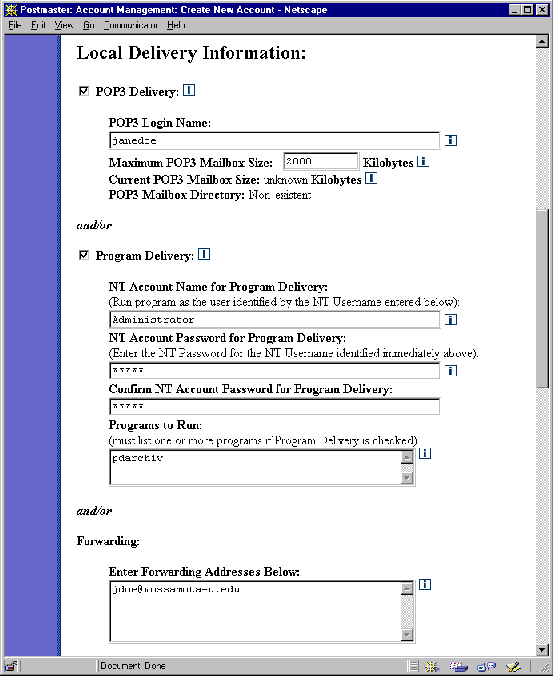
Figure 5-7: New Account Data Form (part 2 of 4)
These fields define the method(s) of mail delivery which will be used to process mail that arrives for the account. Up to four options are available, and an account can include all, some, or none of them. Users can enable or disable these delivery options for their own accounts, but only the Postmaster can specify login names and other potentially-sensitive information.
The following delivery options are available for all general accounts:
The most common method of mail delivery, POP3
delivery stores messages in a "mailbox" on the server system until
the user logs in with a mail client to retrieve the messages. If POP3/IMAP delivery
is enabled, a unique login name must be given in the POP3/IMAP Login Name
field. POP/IMAP login names can contain just about any characters, but to avoid
incompatibilities with various e-mail clients, you should use only letters (A-Z,
a-z) and numbers (0-9), with no spaces or other special characters when creating
POP login names.
You can also set a limit on the amount of server
storage allowed for the account’s mailbox, which is set in the Maximum
POP3/IMAP Mailbox Size field. If the
account reaches this limit, the Postmaster will be notified and any new mail
sent to it will be "returned to sender." If the Maximum POP3/IMAP
Mailbox Size field is left blank, the Default maximum POP3/IMAP mailbox
size specified in the System Performance Parameters Form will be used; if
this default field is also blank, no limit will be enforced and the mailbox
can grow to any size.
This method of delivery simply takes incoming messages, modifies the destination address on the incoming envelope, and sends it to the new recipient. This delivery method is similar – both conceptually and in practice – to the forwarding of postal mail from your old residence to your new one. To request mail forwarding for an account, simply enter the appropriate address(es) in the Forwarding Addresses field.
There is no limit to the number of forwarding addresses that you can include here. In fact, you can create a group account (described in Section 5.1.1) by entering the addresses of multiple users as forwarding addresses for an account.
Delivering mail to a program allows you to process messages with a message archive, sorting system, faxing mechanism, or do just about anything else you can devise. This feature is quite useful, but is also quite complicated, so we’ve set aside a special chapter just for issues related to using Program Delivery. See Chapter 6 for more information.
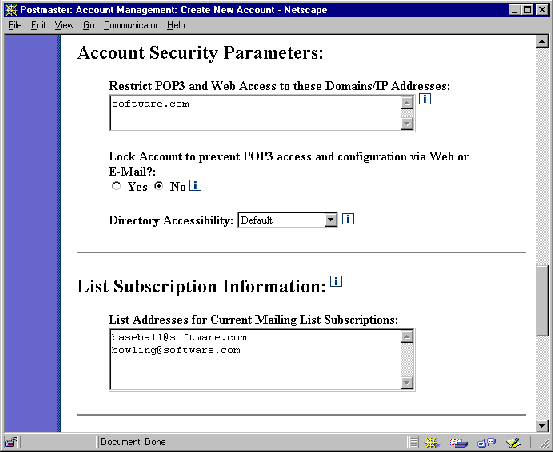
Figure 5-8: New Account Data Form (part 3 of 4)
This section of the New Account Data Form contains security-related account options.
This field contains the general access restrictions of the account. These general access restrictions were discussed in Section 5.1.3, and can be used to prevent POP3 delivery and account modification via the web interface. Access and delivery can be restricted to a computer, a domain, or a range of IP addresses. If you leave this field blank, the user’s access to the account will be unlimited.
See Section 5.1.3 for examples of Account Security Parameters.
This field allows you to easily restrict all access to an account by anyone but the Postmaster. Locked accounts cannot be modified by users, and although messages continue to be accepted for the account, POP3 delivery is denied as long as the account remains locked. See Section 5.4.3 for more information on locking an account.
This field controls the visibility of an account in the Mail Account Directory listing. There are four selections for this option:
• Default gives the account the system's default directory listing, as defined in the System Security Form.
• Local Only specifies that the account is visible only in the Mail Account Directory accessible to local users (that is, users who have Post.Office accounts on your system).
• Local and Remote specifies that the account is visible in the Mail Account Directory for both local and remote users. This means that users from outside of your system will be able to view the Real Name and Primary E-mail Address of the account in the public Mail Account Directory.
• Unlisted removes the account from the Mail Account Directory entirely.
All Post.Office general accounts can be subscribed to one or more mailing lists. Typically users will subscribe their own accounts to mailing lists of their choosing after they receive their accounts, but there are many situations in which it is advantageous to have accounts "pre-subscribed" to one or more mailing lists. For example, when a new employee is hired for the sales department of your company’s Springfield office, they may be added to the following mailing lists:
The field labeled List Addresses for Current Mailing List Subscriptions on the New Account Data Form allows you to set mailing list subscriptions for a user when you create the account. For each mailing list that you want to subscribe the new account to, enter the address of the mailing list in this field. In the example above, you would enter addresses like the following:
employees@software.com

employees-springfield@software.com

all-sales@software.com
Mailing list subscriptions submitted with this form are immediately carried out and are not subject to verification, moderation, or other intermediate steps that are imposed on users who submit subscription requests.
Refer to Chapter 7 for more information on mailing lists.
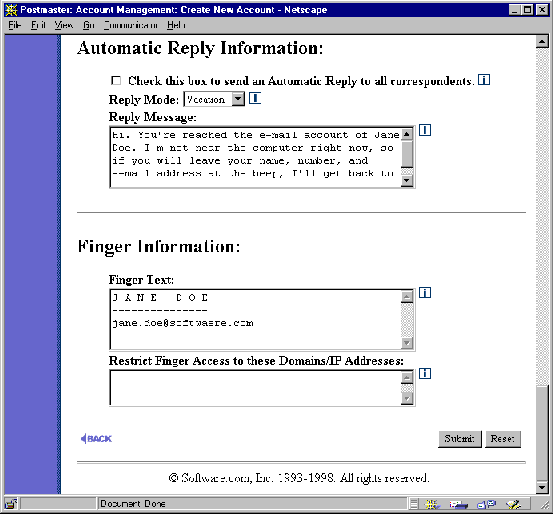
Figure 5-9: New Account Data Form (part 4 of 4)
As discussed in Section 5.1.1, all accounts have an optional auto-reply facility that can be used to automatically send information to all users who send messages to an account. The three available modes of auto-reply are the following:
To activate the auto-reply facility, enable the check box field labeled Check this box to send an Automatic Reply to all correspondents, select an auto-reply mode from the Reply Mode drop-down menu, and enter information in the Reply Message field. There is no limit on the number or type of characters that can be entered in the Reply Message field.
The auto-reply feature includes extensive precautions to avoid generating reply messages to mailing lists (which could create a mail loop, and would be unpleasant for the list’s subscribers). Any address which includes the following signs of a mailing list will not be sent an auto-reply:
The fields in this section of the New Account Data Form are used to set and control the directory information provided for finger queries for this account.
This field contains the actual text that is provided in response to a finger query. There is no limit on the number or type of characters that can be entered in this field, but keep in mind that some displays will only show the last 24 lines or so (the rest will scroll off the top of the screen).
This field is similar to the access restrictions on account management and POP3 delivery described earlier in this chapter. You can make your finger information available to anybody by leaving this field blank, or you can limit finger access to a specific domain or range of IP addresses. For example, by limiting finger access to computers within your company, you can make confidential finger information – like home telephone numbers – available only to those who should be in the know.
Upon creation of a new account, a greeting message is sent to this account. The greeting message informs the user that an e-mail has been opened for them, and gives them a bit of information about the account, including instructions for accessing a web or e-mail form to modify their account.
The first portion of the greeting message is shown below.
|
An electronic mail account has just been opened for you and has been configured as indicated below. For information on how to make changes to your mail account or to obtain explanations about any of the fields, see the instructions that follow this account summary.
Your-Name: [Susie Queue] (Note: Your name is sometimes referred to as your account name.) Internet-Addresses: [susie.queue@software.com] [susie.queue@sparky.software.com] Finger-Information: [] ================================================================== Here's some information about changing your account: Only the system administrator can change your name or Internet addresses. If you want to change your password or finger information you can do so with a World Wide Web browser or via E-mail. You simply fill out a form indicating the desired changes and submit the form to the mail system. To request the required Information form: via the Web: connect to http://sparky.software.com:81 via E-mail: You can get the E-mail form to modify your account by sending a new message to the address, <Accounts@sparky.software.com>, with the word "Information" as the message body like this: To: Accounts@sparky.software.com Subject: Information Note: The word "Information" is case sensitive and must be entered exactly as indicated. After receiving the Information form, make the appropriate changes, put in your password, and submit the form. (Note: If you are using the E-mail interface you'll need to create a reply message including the content of the original E-mail, then edit and submit that reply.) If you don't receive an error message, the changes have been accepted. ==================================================================== Here is an explanation of each of the fields shown for your account: ... |
Although the greeting message offers some introductory information for users to manage their accounts, the Postmaster may also want to distribute the Post.Office manuals that were written specifically for these users. Two such manuals exist: the Post.Office User’s Guide, which is for all users with e-mail accounts in Post.Office; and the Post.Office List Owner’s Guide, for those users to whom you grant list ownership privileges. Online versions of these documents are available from the Help menu button of the web interface, and are also available from the Tenon.com web site (http://www.tenon.com).
The secret to streamlining the creation of new accounts is to set default values for as many account attributes as possible. Unlike addresses and POP3 login names, which must be unique throughout Post.Office, most account attributes are things like delivery methods, access restrictions, and finger information; these options typically start out the same for all accounts, so by setting defaults for these fields, you can pretty much ignore them when creating new accounts.
The form for setting default account values, the Default Account Data Form, is identical to the New Account Data Form illustrated in the previous section. This Default Account Data Form can be invoked from the Edit Default Account Data link of the Account Administration menu, or the Default Account link on the List of Accounts menu. Both links display the same form, so use whichever one is easier.
Default account attributes provide a template for creating new accounts. The information provided in the Default Account Data Form is inserted into the fields of the New Account Data Form whenever you request to create a new account.
We won’t show you the Default Account Data Form, since it’s exactly like the New Account Data Form, so look back at the previous pages if you want to see this form again. Here’s a review of the account fields and some guidelines for typical default values:
User’s Real Name. You may find it helpful to specify a default name that reflects your preferred naming convention. Remember that the List of Accounts menu sorts accounts by Real Name, so if you want this menu to display accounts in a certain way, setting a default name here is a good way to set that standard.
Among the popular default Real Name values are:
First Last

First M. Last

Last, First
Mail Account/POP3/IMAP Password. A default password cannot be set in the Default Account Data Form, so don’t bother.
Primary E-mail Address. As with the Real Name field, you may find it helpful to set a default e-mail address that includes your domain and reflects your preferred address format. The following are some typical defaults:
john.doe@software.com

jdoe@software.com

johnd@software.com

doe@software.com
Additional E-mail Addresses. If your users need to receive e-mail in more than one domain, or you want to use multiple addressing formats (like those shown above), you probably also want to put those here.
From Address Rewrite Style. The e-mail clients of your users may include hostnames or subdomains in the From: header of their outgoing messages, which you may not want. That’s why it’s a good idea to select either quoted or comment as a default for this field.
Local Delivery Information. Because most
accounts you create will probably use POP3/IMAP delivery, you may find it useful
to enable this delivery option in the Default Account Data Form and set a POP
login name that fits your preferred format (for example, "FLast").
If most of your accounts will use an alternative delivery method, such as UNIX
delivery or a sorting system used with the Program Delivery feature, set these
delivery options.
Directory Listing. You should set a default here that represents your standard policy for using the Mail Account Directory feature, described in Section 5.8. The recommended default value is (appropriately enough) Default, which gives an account the directory listing status defined as the global default in the System Security Form.
List Addresses for Current Mailing List Subscriptions. If you want most or all of your accounts to be subscribed to a particular mailing list, enter the address of this mailing list here.
The Reply Message and Finger Information fields can be set by individual users, so picking defaults for these is not a high priority. But you (and they) may find it helpful if you provide a template for vacation and finger messages.
Finger Access Restrictions. If you want to use the finger facility as an internal directory service, specify your domain or range of IP addresses in this field. If you want to leave finger access available to the outside world, leave this field blank.
After you’ve created all of your e-mail accounts, you may need to periodically go back to those accounts to add a new address, update auto-reply information, or change access restrictions. You might also just want to look over the attributes of an existing account, especially when trying to assist users who are having problems connecting to Post.Office. Account information can be viewed and edited like this at any time with the Account Data Form.
The simplest method of accessing account information is through the List of Accounts menu. Recall from Section 5.2 that this menu is invoked from the Account Administration menu, looks like this:
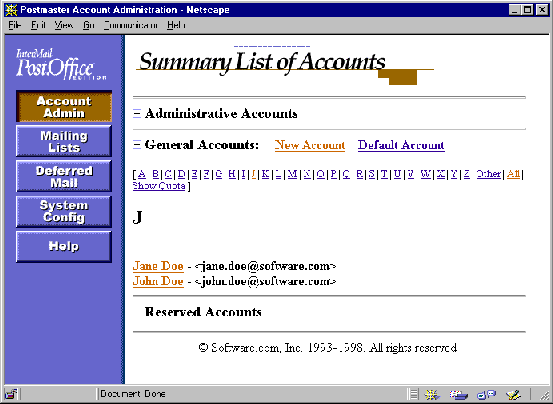
Figure 5-11: List of Accounts menu
Each name in this menu is a link to the Account Data Form for that account, which makes this a very convenient place to start when modifying accounts. However, if you have several thousand accounts, it can be tedious to search through this menu. If this is the case for your site, you can also access a specific Account Data Form from the shortcut field at the bottom of the Account Administration menu, which allows you to skip the List of Accounts menu entirely.
The Account Data Form contains all of the information related to an account. It can be displayed from the Account Administration menu or from the List of Accounts menu, and lets you view and modify account information at will.
Although the Account Data Form is nearly identical to the New Account Data Form shown in Section 5.3, there are enough differences between the two that the Account Data Form is worth seeing here in the following illustrations:
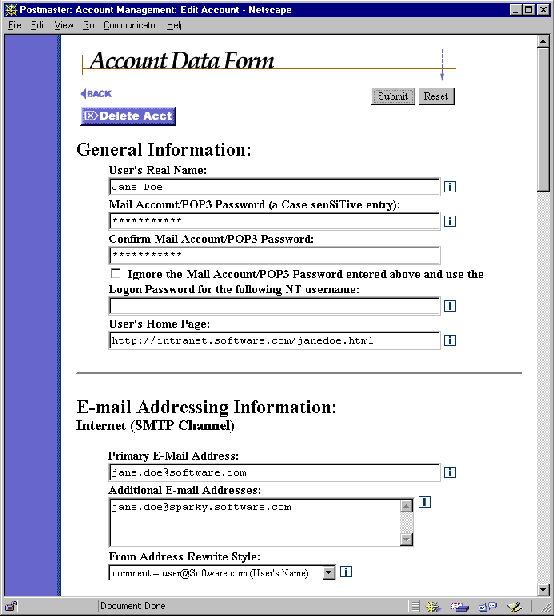
Figure 5-12: Account Data Form (part 1 of 4)
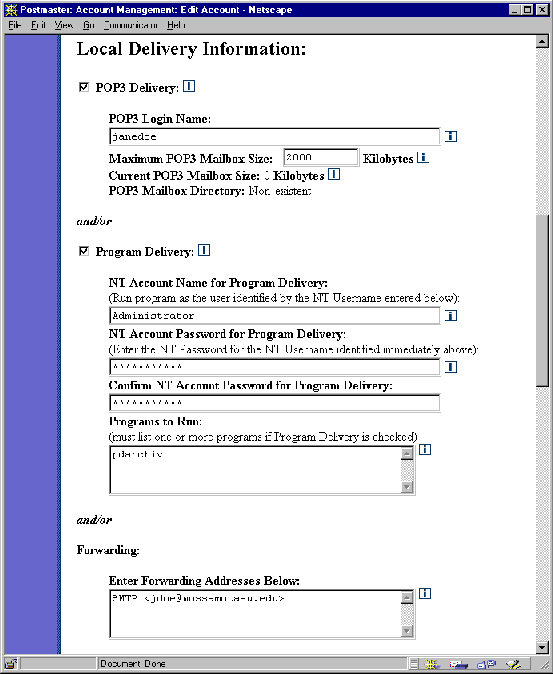
Figure 5-13: Account Data Form (part 2 of 4)
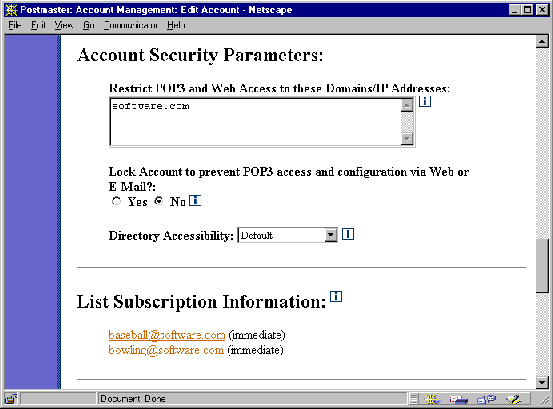
Figure 5-14: Account Data Form (part 3 of 4)
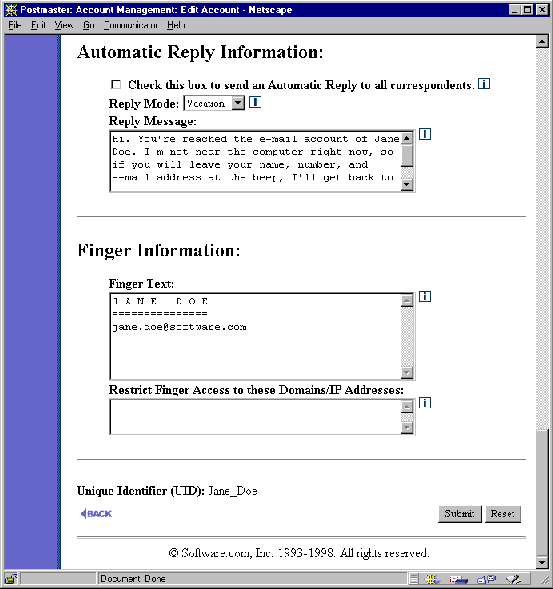
Figure 5-15: Account Data Form (part 4 of 4)
Notice three important differences between the Account Data Form and the New Account Data Form. First, at the top of the form (shown in Figure 5-12), the button labeled Delete Acct. This button – as you probably guessed – is used to delete the account, and is discussed further in Section 5.6.
The second difference is that the List Subscription Information section of the form does not include the text field for entering mailing list addresses, but does contain a list of mailing list addresses. Each mailing list address is a link to a Mailing List Data Form, which defines the attributes of the mailing list; this form is exhaustively displayed and described in Chapter 7.
The final piece of information on the Account Data Form is the Unique Identifier (UID). This value is used with the Post.Office command-line utilities. The value of the UID is based on the Real Name, and is set at the time of account creation and cannot be modified. Refer to Chapter 11 for information on using the UID with account management utilities.
To make changes to an account, simply modify the appropriate value in the Account Data Form and submit the form. To cancel your changes, click the Reset button or the
 link.
link.
Locking an account is a special type of account modification. When an account is locked, it cannot be modified by its user, and although messages continue to be accepted, POP3 delivery requests for the account is not allowed. This option is very useful if you have a user who is paying for an e-mail account on your system, but who hasn’t paid his/her bill to you lately. Locking an account lets you "cut off" the user’s e-mail access, but unlike simply deleting the account, you can later restore normal operation later by simply unlocking it.
To lock an account, go to the radio button field labeled Lock Account to prevent POP3/IMAP access and configuration via Web or E-mail? (shown in Figure 5-14) and select Yes. After you submit this change, the account’s user will immediately be disallowed from changing the account or getting mail via POP delivery. Again, messages will still be accepted for the account, but will remain untouched in the account’s POP mailbox until you decide that the user is again worthy of getting e-mail.
To unlock an account, simply select the No button in the Lock Account... field and submit the form.
The Postmaster account – that is, the administrative account itself, not the individual accounts of users like you who have Postmaster privileges – is technically an account like any other, and can be viewed and modified in an Account Data Form. While you will seldom need to edit this account, there are two basic operations which require it: the assigning of additional Postmasters, and changing the Postmaster password.
In both of these cases, you must first invoke the Postmaster Account Data Form, a special version of the Account Data Form, which can be done from the Account Administration menu or the List of Accounts menu. The form is almost identical to the regular Account Data Form, with the exceptions noted below.
The Postmaster, as you probably realize by now, has a lot of responsibilities: setting system configuration options, handling error mail, creating mail accounts and mailing lists, and a bunch of other activities that only the Postmaster can perform. Because this can all become quite a workload, you may decide that you want one or more users to share in your tasks of administering Post.Office. You can do so by assigning new Postmasters.
Just as you were once granted Postmaster privileges by somebody, you can grant this same supreme authority to other users. Any user who has an e-mail address can be granted this status, but remember that Postmaster status allows an individual complete and total access to your mail system – it should not be granted carelessly.
To assign an additional Postmaster (or two, or more), move down the Postmaster Account Data Form to the delivery information section. Notice in the following portion of the Postmaster Account Data Form that the delivery options have been divided into two sections: Required Delivery Information and Optional Delivery Information.
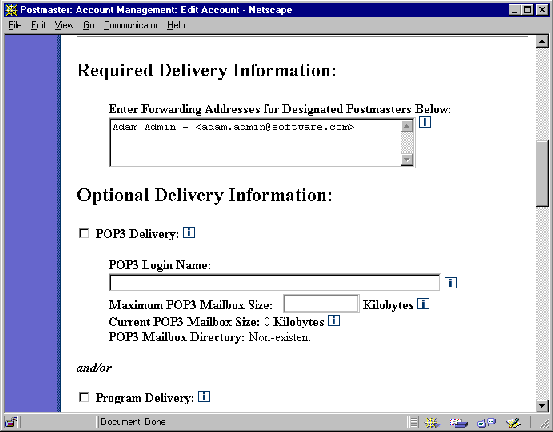
Figure 5-16: Postmaster Account Data Form (part of it, at least)
The Required Delivery Information section of the form specifies the local users who have been granted Postmaster privileges (naturally, this should include you). To add or remove from the ranks of users who have Postmaster privileges, enter the address of the new Postmaster and/or delete the address of the outgoing Postmaster. There’s no limit on the number of Postmasters that you can create by adding them to this field, but you must always have at least one address specified here (that is, you must always have at least one Postmaster).
Like all accounts, the Postmaster account has a password associated with it. However, the Postmaster password is an extremely important piece of information, and is required for carrying out any and all configuration and account management. It is something you don’t want to share, since it gives a user access to every detail of the Post.Office system.
Obviously, you should never, ever give the Postmaster password to anybody who should not have Postmaster privileges. However, for security purposes it can still be a good idea to change the Postmaster password every once in a while. You can do so by entering a new password in the Postmaster Password field of the Postmaster Account Data Form.

Figure 5-17: Postmaster Account Data Form (another part of it)
As with all passwords, the Postmaster Password field is Case senSiTive and requires you to reenter the new password for confirmation. When choosing a Postmaster password, pick something even more difficult to guess than your personal account password – after all, we’re talking about total access to your mail server here. But again, if you make the Postmaster password excessively cryptic, you might forget it yourself, of write it down on a piece of paper that you keep in a desk drawer (thus defeating the purpose).
Accounts can be deleted easily in the web interface by clicking the Delete Acct button at the top of the Account Data Form. To refresh your memory, the form (and the button) look like this:
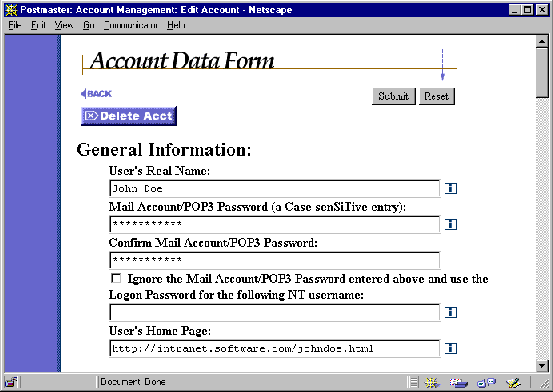
Figure 5-18: Account Data Form (top portion only)
When you click this button, you will go to a confirmation form which reminds you that you are about to permanently delete the account from Post.Office with no hope of recovery.
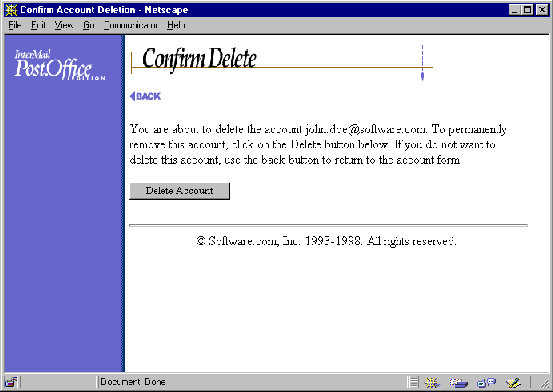
Figure 5-19: Delete Confirmation Form
If you’re not sure if you want to really delete the account, click on the
 link to return to the Account Data Form. If you’re absolutely, positively sure that you want to forever obliterate this account, click the Delete Account button to complete the deletion.
Deleting an account automatically removes it from any group accounts or mailing lists (provided those group accounts and mailing lists are on the same installation of Post.Office as the account, of course). Remember that deleting an account also deletes the account’s mailbox and all messages – read or unread – contained in it.
There will probably be occasions when you’ll want to send a message to all of your mail account users. For example, you may want to inform users about a new e-mail policy, or alert everybody that mail service will be off-line temporarily. Post.Office allows you to broadcast information like this by sending a message to an All Mailboxes account, which delivers your message to every account on your system that uses POP3 delivery.
The All Mailboxes account is implemented as a special Post.Office mailing list. This means that you can define special security options for specifying who can post to the account, and enjoy all the benefits of other mailing list features. To send a message to all POP3 accounts, address it to the list’s posting address:
all-mailboxes@host.domain
For security reasons, the All Mailboxes mailing list is locked upon installation, so you must unlock this mailing list (as described in Chapter 7) before you can use this feature. Also, the policies for this mailing list initially allow only the Postmaster to post messages to it. Refer to Chapter 7 for more information on the All Mailboxes mailing list.
Post.Office includes an optional Mail Account Directory, which allows your users to get information on the e-mail accounts at your site. You can even allow users throughout your network (or the Internet) view this directory, if you so choose. This is very handy for allowing users to find e-mail addresses for folks whom they’d like to correspond with.
The following is an illustration of the Mail Account Directory visible to your local users (the public directory is practically identical):
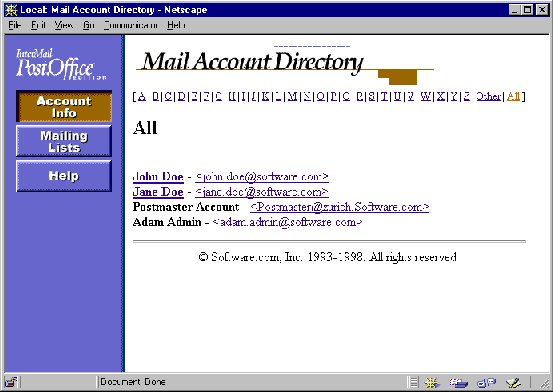
Figure 5-20: Mail Account Directory (local user version)
Like the Postmaster's List of Accounts menu, the Mail Account Directory gives the name and e-mail address associated with each listed account. If a user has a home page defined for his or her account, the user’s name is a link to that home page. The location of an account’s home page, as well as the visibility of the account in the directory, are defined in the Account Data Form.
